
How_to_use_this_template
📖 How to use this template
One task per asset project: a forklift to replace, a rooftop unit at end of life, a roof leak, a new tractor, a sign, a shed. Its subtasks are the steps you already follow: figure out what you need, get three quotes, pick one, get it approved, issue the PO, take delivery, inspect, close out. Nothing more than that unless the project needs more.
The sample is a facilities team at a two-site company with seven projects: four active, two requested, one completed. Replace Warehouse Forklift is the reference project. Loading Dock Upgrade, Warehouse B shows the same structure carrying a bigger, multi-department job.
- Duplicate this project into your own organization (dropdown next to the project name, then
Duplicate)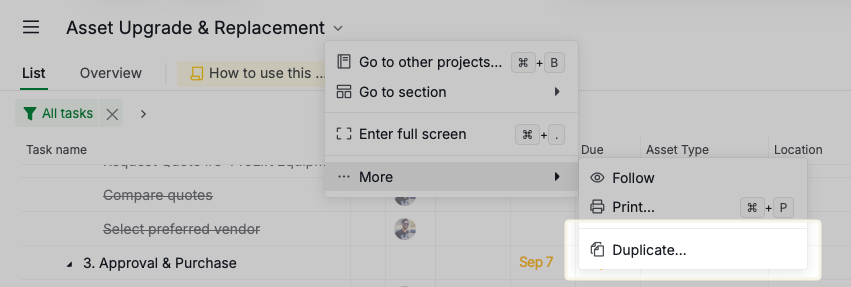
- Delete the sample projects and add your own, one root task per asset project. Before you delete Replace Warehouse Forklift, duplicate it: it is the clean five-phase structure you will copy for every new project
- Fill in Asset Type, Location and a rough Estimated Cost as soon as you know them. Leave Approved Budget empty until the money is confirmed
- Request quotes as three tasks under phase 2. When each quote lands, put the vendor's name in the task title and fill in Vendor and Estimated Cost on that task. Attach the PDF
- Once a vendor is chosen, copy its Vendor and Estimated Cost up to the project task. When the PO goes out, record the PO Number and set the status to PO Issued
- Move the status forward as the project moves. When it is done, set it to Completed and drag it into the Completed section
The fields
| Field | What it holds |
|---|---|
| Asset Type | Mobile Equipment, Custodial Equipment, HVAC, Roof / Facility, Signage, Small Construction, Other. Filter by it in Table view to see all the fleet work at once |
| Location | Building, site, yard or room. Free text, so it fits however you name places |
| Vendor | On a project task: the vendor you chose. On a quote task: the vendor who quoted |
| Estimated Cost | On a project task: the rough number before quotes, then the winning quote. On a quote task: that vendor's price |
| Approved Budget | The amount someone signed off. Empty means not approved yet |
| PO Number | The purchase order, once issued. Empty means nothing is committed yet |
Six fields, and only the first three need filling before quotes come in. Estimated Cost next to Approved Budget is the comparison that matters; the rest of the row tells you where the project stands.
Status is the workflow
The statuses are the flowchart:
Not started → Planning → Quotes Requested → Vendor Selected → Awaiting Approval → PO Issued → In Progress → Completed
Plus two side exits: On Hold (budget line spent, rolls to next year) and Canceled. Switch to Board view grouped by status and every project sits in the column that matches where it is in the process.
Steps under a project keep it simple and use only three of them: Not started, In Progress, Completed. The lifecycle statuses belong on the project task, not on "Prepare site".
The three-quote process
This is the part that used to live in a spreadsheet.
Request Quote #1, #2 and #3 are separate tasks under phase 2. Each one gets an assignee, a due date, the vendor's PDF as an attachment, and Vendor and Estimated Cost filled in. Open Table view, expand the project, and the three quotes read as three rows with price side by side. No spreadsheet.
Compare quotes is where the judgment goes: lead time, warranty, what is excluded, trade-in. The sample projects each carry a small comparison table in that task's description. Select preferred vendor records the decision and the reason, so when someone asks in six months why you did not take the cheapest quote, the answer is one click away.
Only one vendor can do the job? Delete two of the quote tasks, tag the project Single Source, and write the reason in the remaining quote task. The template does not force three quotes; it just makes three the default.
Tags are the reason
Every replacement has a trigger. Tag it: End of Life, Breakdown, Safety & Compliance, Capacity. Add Single Source when there was no real competition. At year end, filter by tag and you know how much went to emergencies versus planned replacements.
Reading it
Five questions, one view each:
- What are we replacing? Task name and Asset Type
- Where is it in the process? Status, or Board view grouped by status
- Who owns the next step? Expand the project; the first step that is not completed has an assignee
- What will it cost, and what was approved? Estimated Cost against Approved Budget in Table view
- When will it be done? The project task's due date. Timeline view shows the phases as bars
For your own list, My Tasks shows only the steps assigned to you across every project.
When a project gets bigger
Open Loading Dock Upgrade, Warehouse B. Four dock positions, three vendors, three POs, four departments. The structure is the same template, stretched:
- Phase 2 became three workstreams, each with its own Vendor, Estimated Cost and PO Number, each moving through the same statuses as a standalone project would
- The big workstream kept the three-quote tasks. The two small ones put all three quotes in one task
- A Safety & operations coordination group holds the cross-department work that belongs to no vendor
- Dependencies link the steps that cannot overlap: docks 3 and 4 wait for docks 1 and 2, the lighting fixtures wait for the docks, the safety walkthrough waits for everything. Open Timeline view to see the chain
- Steps have multiple assignees where two departments share them
None of that is on the forklift project, because the forklift does not need it. Start every project simple. Add workstreams, dependencies or a second assignee only when the project asks for them.
Adapting it
The three sections are a split by state: active, requested, completed. If you plan by site, rename them to your sites. If you plan by fiscal year, rename them FY2026, FY2027. The fields and statuses do not care.
Add or rename Asset Type options to match your fleet. Delete phase 4 tasks that do not apply: a roof repair has no delivery, a forklift has no construction.
The Awaiting Approval status assumes someone else signs off. If the project lead approves their own purchases under a threshold, skip it: go from Vendor Selected straight to PO Issued.
If finance wants committed-versus-spent tracking across a portfolio of large capital projects, that is a different job. Use the Capital Project Management template for that one and keep this template for the equipment and facility work that just needs three quotes and a PO.