
as far as I check the keyboard shortcut option at the bottom left corner, I can't find keyboard shortcut to read comments in detail panel.
may be something like moving focus from main panel to detail panel with tab then use arrow to "scroll" between comments.
btw, instead of commenting "yes", "agree", "+1" or any short comment like that, is there any plan to add like/vote on each comment?
Hi sleeping panda, Currently, you can keep pressing Tab to move focus from the main panel to the detail panel, and then use either use mouse to scroll to read comments, or press Esc when you reach task description, and then use arrow to scroll. Oh and it is not possible to like/upvote a comment, but you can pin it by clicking on the "arrow" icon beside a comment.
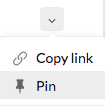
And you can favorite a task by clicking on the ❤ icon in the upper-right. Hope these help. 😃
Crystal, Jun 27, 2017
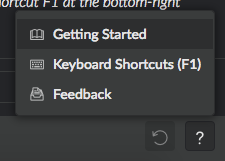
Hi sleeping panda, I believe we already have a keyboard shortcut F1 for Markdown, and you can find it after clicking on the bottom-right “?” icon. 😃
Crystal, Feb 22, 2018
and I could find it also in the bottom-right of the description box
sleeping panda, Feb 24, 2018
oh, the getting started are the shortcut button. I didn't realize that. I though it was about how to use quire in general. not specifically about markdown guideline.
and somehow I just realize also that there's another shortcut button to viewing markdown tips. the question mark at the bottom-right of the comment box.
sleeping panda, Feb 24, 2018
quire are just getting more awesome day by day. hopefully most people will feel the same as we are.
thank you @crystal if possible, add keyboard shortcut for quire's markdown along with keyboard shortcut F1 at the bottom-right corner of the screen
sleeping panda, Feb 18, 2018
Hi sleeping panda, Now, after using Tab to move focus from main panel to detail panel, you can press arrow to "scroll" between comments. 😃
Crystal, Feb 13, 2018