mobile · Jun 28, 2016
A photo is worth 1000 words. Your idea worths more!

Last updated: July 22, 2026
Quire for iOS lets you turn any idea into a task three ways: snap it with the camera, drop in a photo you already have, or type it out as a nested list. Whatever shape the idea arrives in, it lands in Quire before you forget it.
Hey, have you tried the recently-released Quire for iOS? If you haven’t, you’re missing out on a whole new exciting way to jump start your ideas! Snap to Add is just one of the features covered in 20 Hidden Quire Features You Should Know.
Too often, we have ideas we want to capture at the very moment, and they may be words, photos or scenes that just pass us by and that we’ll most likely forget at the end of the day even if we have a chance to get them down.
The good news is, you have the iOS app to help you with that! Or, to be more precise, the 3-in-1 Snap to Add. By tabbing “+” and choosing whichever option, Camera, Photos or Text, that suits you at the moment, you can bring your ideas into the world!
Related: Snap your ideas! Introducing Quire for iOS — the launch post covering the full feature set of Quire's iOS app that Snap to Add is part of.
Here is a demo video:
And we’ve got a few scenarios to show you:
Your camera roll is a graveyard of good ideas. Statista reports that mobile devices now drive the majority of the world's web traffic, so the fastest place to catch a thought is the phone already in your hand.
How do you capture an idea with your camera?
It was a Thursday morning.
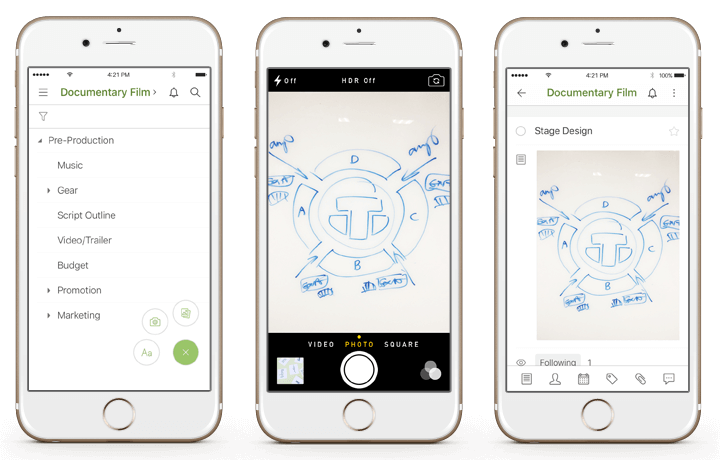
John and his colleagues had a weekly meeting about their next big project, a documentary film of a band’s huge success in Bell Center, Montreal, as they discussed the stage, lighting, barricade, etc., of the concert.
Did David, who’s an editor of the film, type or write everything down? Of course not!
He took a shot of the bits and pieces drawn on the whiteboard and added it to their project “Documentary Film” to share it with the rest of the team.
How do you add an idea from your photos?
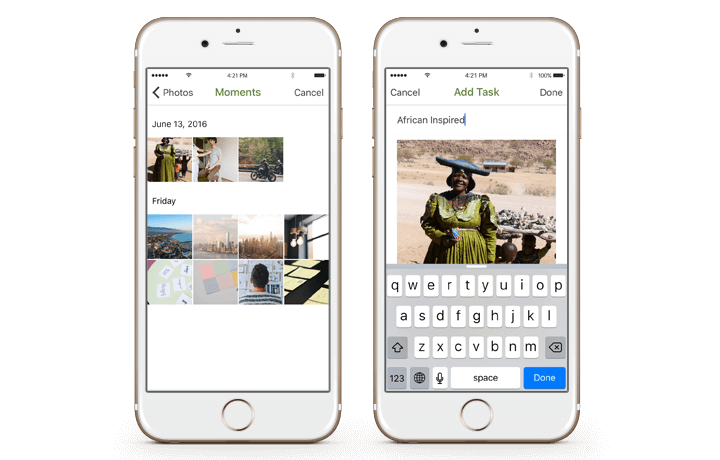
Sitting on the floor of a 5-square-meter design studio, Molly and her team were surrounded by piles of clothing and fabrics, brainstorming for the fall-winter 2017/2018 men’s collection to be presented in a fashion show.
She suddenly remembered the photos she took of the Samburu tribal women in Kenya, and they got her thinking, “If Alessandro Michele could draw inspiration from cartoon character Snoopy, why can’t we do the same from them!”
Right away, she added a photo as task to their project “F-W 2017/2018 Fashion Show.” It’s just like what people say, “A picture is worth a thousand words!”
However, she wanted to emphasize the women's attire more, so she decided to use an online bg removal tool. This image background remover allowed Molly to eliminate any unnecessary distractions in the photo, bringing the vibrant tribal garments into sharper focus and providing her team with a more detailed frame of reference for their designs.
How do you turn a note into a nested task list?
It’s always been Lily’s dream to publish a science fiction novel before she turned 30. Very much like how Veronica Roth did it.
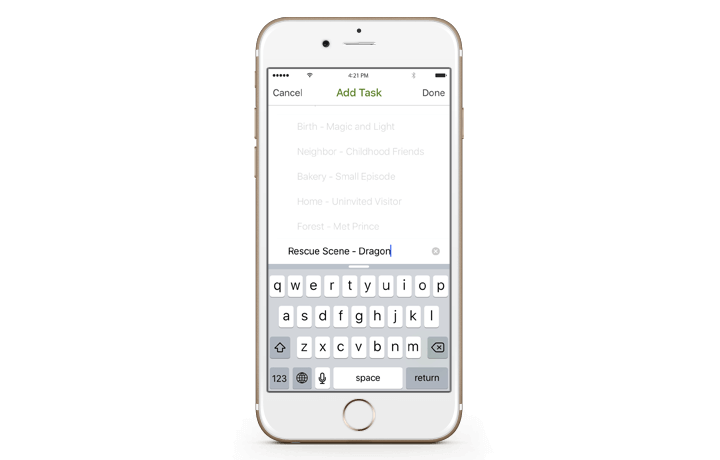
When she was on the plane to New York City, she had an idea for the scene where Demian and his friends need to go to the other side of the world to save Edgar.
Thus, a task named “Rescue Scene - Dragon” was added to her project “Demian the Series” so she wouldn’t forget how the heroes and heroines beat the unbeatable red dragon Firmir and could get back to it once she’s home. That's Quire's nested task structure at work: an idea becomes a task, and later scenes can nest right underneath it as the story grows.
You never know when a great idea might hit you. When it does, you would want to save it in time before it ends up in the black hole of your brain. Get the iOS app now to capture your ideas at any time and place, and take them away anyway you like! If your hands are already full, Hey Siri, Add a Task in Quire! covers a fourth way to capture ideas: your voice.
Related: Introducing Quire Mobile 5.0: Everything You Need to Know — see how much further Quire's mobile app has evolved since this early Snap to Add feature.
Three ways to capture an idea in Quire for iOS
Same goal, three routes in. Pick whichever matches how the idea shows up.
| Capture method | When to use it |
|---|---|
| Camera | Snap a whiteboard, a sketch, or a scene in the moment |
| Photos | Pull in an image you already took |
| Text | Type it out and break it into a nested task list |

Frequently Asked Questions
How do you add a photo to a task in the Quire iOS app?
Tap the plus icon, choose Camera or Photos, then add the shot as a task to share with your team.
What is Snap to Add in the Quire iOS app?
It's a 3-in-1 capture tool. Tap the plus icon and pick Camera, Photos, or Text to turn an idea into a task instantly.
Can you add a task by typing text in the Quire iOS app?
Yes. Choose Text under the plus icon to type an idea and list it as a task in your project's tree.