project management · Apr 16, 2026
Project Dashboard Template: Track What Actually Matters

Last updated: September 30, 2026
A project dashboard template is a pre-built tracking structure (views, charts, key fields) that lets a new project start with proven metrics in minutes instead of rebuilding from scratch. The metrics that matter for almost every project are task completion rate, status breakdown, timeline and milestone progress, workload by team member, overdue/at-risk items, and budget or resource utilization. Choose by matching the template to your project's primary output and the data fields your team will actually maintain consistently.
- Why Use a Project Dashboard for Project Management?
- What Is a Project Dashboard Template?
- What Is a Project Tracker Dashboard?
- How Do You Choose the Right Project Dashboard Template?
- What Metrics Should a Project Dashboard Template Include?
- What Does the Project Dashboard Template Look Like?
- How Do You Build a Project Tracker Dashboard in Quire?
- How Do You Create a Project Dashboard Using a Template?
- Create Project Dashboard Templates with Quire
- Frequently Asked Questions
Starting a new project always feels like the fun part, until you realize you also have to build out the entire tracking system from scratch. The task list, the timeline, the metrics, the status views. By the time you've pieced it all together, the project has already been running for two weeks and nobody quite knows where things stand.
That's the gap a project dashboard template is designed to close. Instead of reinventing the wheel every time a new project kicks off, you start with a structure that already works, one you can tailor to your needs and get running in minutes rather than days.
The need for one is real. According to Wellingtone's State of Project Management report, about half of organizations say they don't have access to real-time project KPIs, and many still spend a full day or more each month assembling status reports by hand. A ready-made dashboard is what closes that gap.
Project dashboard template: a prebuilt dashboard structure you copy at the start of a project instead of designing one from scratch, with the task list, timeline, status views, and metrics already wired together. The value is not the layout. It is that the tracking exists on day one rather than in week three.
Why Use a Project Dashboard for Project Management?
Project management has a visibility problem, and it isn't a shortage of information. Tasks live in one tool, timelines in another, resource data somewhere else. Getting a clear picture means stitching them together by hand, which nobody does as often as they should and almost always does too late. A dashboard fixes that by putting progress, workload, deadlines, and performance in one continuously updated place.
So most teams know they need one and still don't have one. The blocker isn't conviction, it's setup, and setup is exactly what a template removes. You start from a structure someone already thought through and spend your energy on the work instead of the scaffolding.
What Is a Project Dashboard Template?
A project dashboard template is a pre-built dashboard structure designed to be applied directly to a project with minimal configuration. Think of it as the framework someone already figured out for you: the views, the key fields, the chart types, and the layout are already in place. You fill in the specifics for your project and it's ready to go.
Good templates are built around common project patterns, a content calendar, a product launch, a client delivery, an internal initiative, so the structure is already calibrated for the kind of work you're doing. You're not guessing at which metrics matter; the template reflects what teams running similar projects have found useful.
A project dashboard template typically includes:
- Task progress views showing overall completion and what's currently in flight
- Timeline or schedule tracking to visualize whether you're on track against key dates
- Workload indicators showing how work is distributed across the team
- Cost or resource data where relevant to the project type
- Performance metrics tied to the specific goals of the project, often the same objectives already tracked in an OKR template
The best templates are opinionated enough to be immediately useful but flexible enough to adapt to how your specific team works. A template that requires heavy customization before it provides any value has somewhat missed the point.
What Is a Project Tracker Dashboard?
A project tracker dashboard is the execution-facing version of a project dashboard: a live view of who owns what, what's late, what's blocked, and who's carrying too much, built to be checked daily rather than presented monthly. Same underlying data as a reporting dashboard, different job.
The distinction matters because teams keep building one and expecting it to do the other's work:
| Tracker dashboard | Reporting dashboard | |
|---|---|---|
| Who reads it | The people doing the work | Stakeholders and sponsors |
| How often | Daily, or whenever something feels off | Weekly or monthly, on a schedule |
| What it shows | Task-level state: overdue, blocked, unassigned, overloaded | Trends and milestones against the plan |
| When a number looks bad | Somebody clicks into the task and fixes it today | It goes on the agenda for a decision |
| Failure mode | So detailed nobody scans it | So smoothed that problems arrive late |
Most teams need both, and neither needs a second tool or a second data set. What changes is which widgets go on the screen and how tightly they're filtered, exactly the decision a good template has already made for you. If you're building your first one, build the tracker. It's the version people open unprompted, and a report assembled from a tracker nobody used is a report about nothing.
How Do You Choose the Right Project Dashboard Template?
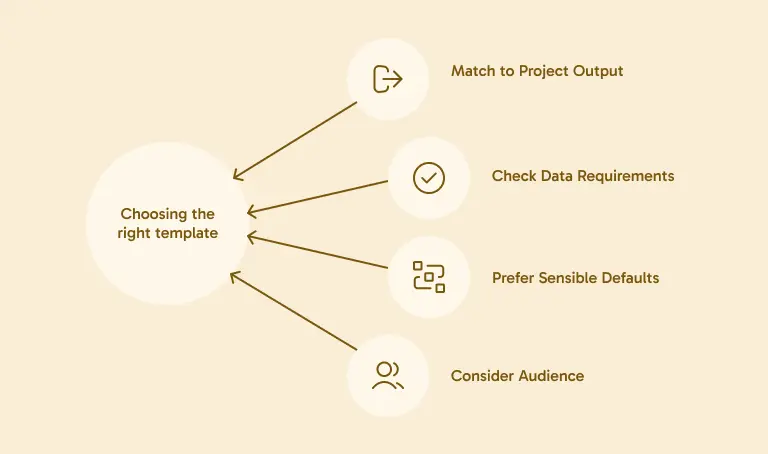
Not every template is going to fit every team or project type. Here's how to approach the selection without overthinking it.
1. Match the template to your project's primary output.
A software sprint and a marketing campaign are both projects, but they have very different rhythms and success metrics. A template built around sprint velocity and bug counts isn't going to serve a team managing influencer partnerships, and vice versa. Start by identifying what you're actually delivering, and look for templates built around that output.
2. Check what data the template requires upfront.
Some templates are only useful if your tasks carry specific custom fields, deal values, content categories, priority scores. Before committing to a template, make sure your team is willing and able to maintain that data consistently. A template that depends on fields nobody fills in is just visual noise.
3. Prefer templates with sensible defaults.
The best templates don't ask you to make a dozen decisions before you can see anything useful. They come pre-configured with chart types and groupings that make sense for the use case, so you can see value immediately and adjust from there, rather than starting with a blank slate that happens to be labeled.
4. Think about your audience, not just your workflow.
Some dashboards are for the team doing the work; others are for stakeholders who need a high-level summary. If your primary use case is stakeholder reporting, choose a template with clear, narrative-friendly views that don't require context to interpret. If it's for daily team reference, something more granular and task-focused will serve you better.
What Metrics Should a Project Dashboard Template Include?
This is where most dashboard guides get too generic to be useful, so let's be specific. The metrics that belong in a project dashboard template depend on the project, but here are the categories that show up in almost every strong template, along with why each one earns its spot. For a deeper cut on which numbers actually deserve tracking versus which just pad the view, see the project management KPIs worth tracking.
1. Overall Task Completion
The baseline. What percentage of the project's work is done? This sounds obvious, but a dashboard that doesn't answer this question immediately has failed the first test. Task completion gives everyone, team members and stakeholders alike, an instant read on where the project stands without requiring any interpretation.
2. Tasks by Status
Completion rate is a single number; status distribution is the story behind it. Breaking tasks into states, not started, in progress, in review, complete, blocked, gives you a much richer picture. A project that's 40% complete with 10% of tasks blocked is in a very different situation than one that's 40% complete with everything else progressing smoothly.
3. Timeline and Milestone Progress
Are you on track? This is the question every stakeholder asks and every project manager dreads when the answer is no. A good template surfaces timeline health visually, whether that's a Gantt-style view, a milestone tracker, or a simple on-track/at-risk indicator. The key is that it answers the question before it has to be asked.
The dashboard reads timeline health; it doesn't build the schedule. See project timelines: types, examples, and how to create one for the six steps and a worked 12-week plan the dashboard then reports on.
4. Workload by Team Member
Who is carrying the most? Workload visibility is the metric most likely to prevent problems before they happen. When one person has twelve tasks in flight and another has two, that imbalance should be visible at the dashboard level, not discovered in a one-on-one when someone says they're overwhelmed.
5. Overdue and At-Risk Items
A dedicated view for what's already late or trending that way is worth more than it sounds. It focuses attention exactly where it needs to go, not on the 80% of things going fine, but on the 20% that need intervention. The faster you can surface this, the more time you have to actually do something about it.
Overdue tells you what already slipped; a register tells you what might slip next: pair this view with a risk register, scored by likelihood and impact, so the risks worth watching surface before they land on the overdue list.
6. Budget or Resource Utilization (Where Applicable)
For projects running against a defined budget or headcount, consumption tracking matters. How much of the budget is spent? How much of the planned capacity has been used? These numbers aren't relevant for every project type, but for those where they are, not having them visible is a meaningful gap.
What Does the Project Dashboard Template Look Like?
Enough theory. Here is the template itself, the six sections worth standing up for almost any project, what each one answers, and exactly how to build it in Quire. Copy this structure into a new project dashboard and adjust from there.
| Dashboard section | What it answers | How to build it in Quire |
|---|---|---|
| Task completion | What share of the project is done? | Project Health widget, on the Overview tab or a Dashboard |
| Tasks by status | Where is work piling up? | Task Status Distribution widget (not started, in progress, in review, done, blocked) |
| Timeline & milestones | Are we on track against key dates? | Timeline view for dates, plus the Deadline Calendar widget to see how due dates cluster |
| Workload by assignee | Who is overloaded? | Member Workload widget |
| Overdue & at-risk | What needs intervention now? | Attention Required panel, or the At-Risk Tasks widget |
| Budget or resource use | How much capacity is spent? | Insight View totals from custom budget or effort fields |
The fastest way to stand these up is a Dashboard: open the widget library, add the widgets named above, and the screen is live in about a minute.
For the reusable-template part, drop the same charts into a single Quire Document with a one-line status note at the top, and save that Document as a template.
Every new project you spin up inherits the whole layout and fills it with its own live data, no rebuilding required.
How Do You Build a Project Tracker Dashboard in Quire?
Two routes. The first costs nothing and needs no setup.
Route 1: the Overview tab you already have
Every project, folder, and organization in Quire opens on an Overview tab that reads its own scope. So a project's Overview already shows you that project's health, how its tasks split across your statuses, where the due dates fall, and who has been touching the work lately. Nothing to configure, nothing to choose.
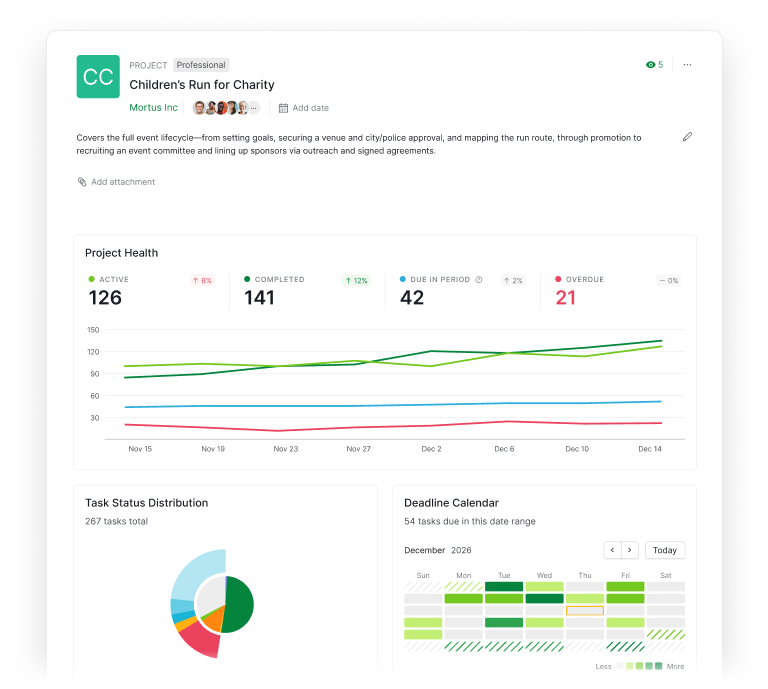
For plenty of teams that's the whole tracker. Glance at it before standup, click into whatever looks wrong, close it again.
Route 2: build the tracker you want
To pick the panels yourself, Dashboard View (Professional plans and higher) opens a widget library. It starts you on a short recommended set matched to your role, with everything else sorted into tabs so you're never scrolling fifty options looking for one.
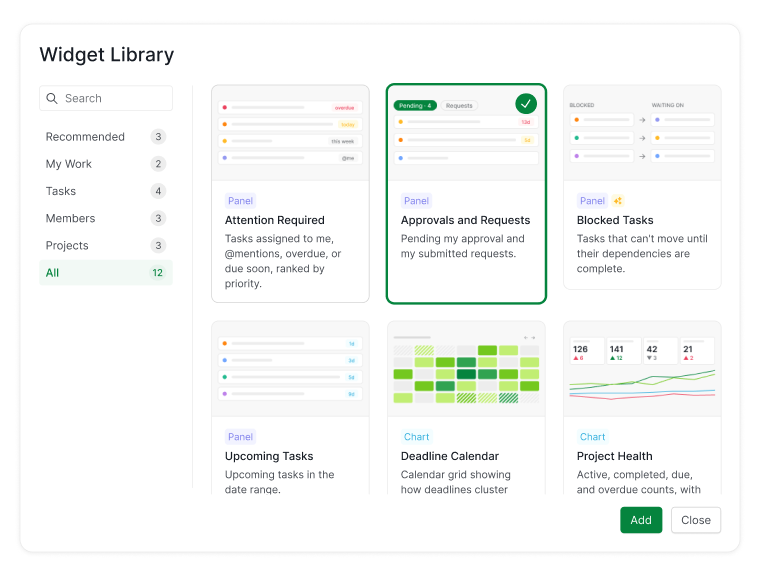
Five widgets make a tracker worth opening daily:
- Attention Required, your own pile of late, due-soon, and you-were-mentioned work, sorted by urgency
- Blocked Tasks, so anything waiting on someone else can't quietly age
- Member Workload, for who's underwater
- Deadline Calendar, for how due dates bunch up over the coming weeks
- Task Status Distribution, for where work is stalling between states
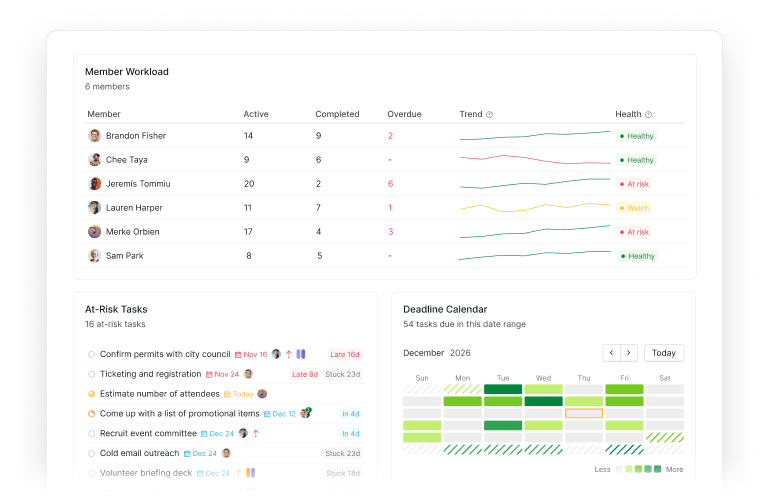
Each widget filters on its own, and one board-level filter can swing every widget onto a single release or client when you need that view instead.
How do you visualize workload on a project dashboard?
The Member Workload panel. It puts open, finished, and late counts against each name, plus a signal for whether that mix is healthy, which turns "I think Maya is swamped" into something you can see before she has to say it out loud.
One caveat before you bake it into a template. A widget scoped to one project only reports that project's slice, so a designer with four tasks here and eleven spread across two other projects reads as comfortably loaded. Put Member Workload on a folder, Smart Folder, or organization Overview instead and it reads every project underneath, which is the only version of that number that's true.
Balancing people rather than tasks is its own discipline. See team workload management for how to read the panel and act on what it tells you.
How do you visualize deadlines on a project dashboard?
The Deadline Calendar. It spreads your due dates across the coming weeks, and the signal worth reading isn't any single date, it's the shape. Three quiet weeks followed by one carrying nine deliverables is a problem you can still fix while it's week one.
Pair it with Timeline view when you need durations and dependencies rather than endpoints. The calendar answers when everything is due. The timeline answers what happens if this one slips.
How Do You Create a Project Dashboard Using a Template?
Once you've picked a template that fits, here's how to get it up and running without it becoming a project in itself.
1. Set up your project structure first
Before you apply any template, make sure your task list is organized in a way the dashboard can read. That means tasks have owners, due dates, and whatever custom fields the template depends on. A dashboard built on a messy task structure won't be useful regardless of how good the template is.
2. Apply the template and check the defaults
Most project management tools let you apply templates to new or existing projects. Once applied, spend a few minutes checking whether the default views and chart configurations match your actual workflow. Adjust groupings, field mappings, or chart types as needed, but resist the urge to change everything at once.
3. Add your project-specific context
Templates are general; your project is specific. Add in your actual milestones, deadlines, and any context that helps interpret the data. If your dashboard includes a notes section, populate it with the things stakeholders will need to know to make sense of what they're looking at.
4. Share it with the team before the meeting, not during
Give your team a chance to look at the dashboard on their own before you use it in a meeting together. First impressions matter, and if people's first exposure is a screen share in a high-stakes review, they spend half their attention getting oriented rather than engaging with the content.
5. Review and simplify after two weeks
After the dashboard has been live for a couple of weeks, look at what's actually being referenced and what isn't. Remove the charts nobody looks at. Add anything that keeps coming up as a gap. A good project dashboard template is a starting point, not a final answer, and iterating on it early makes a real difference in how much value it delivers long-term.
Once the dashboard is built, the weekly write-up gets easy: here's a project status report template that pulls its five sections straight from the same live task data.
Create Project Dashboard Templates with Quire
Most project tools treat dashboard templates as a gallery you pick from. Asana and ClickUp hand you pre-built reporting layouts and widget boards to drop your data into. Quire covers both routes.
Dashboard View, on Professional plans and higher, is the widget board: pick panels and charts from a library, arrange them into the layout you want, and keep the result private or share it with the team.
And for the template part, you compose live charts and written context into a Document, then save that whole Document as a reusable template. The numbers and the narrative around them travel together, and because Quire works fully offline, the dashboard stays readable even with no connection.
For teams that need to go deeper on the analytics side, Quire's Insight View computes on the very fields your template already standardized. That's the quiet payoff of templating them: because every project spells the field the same way, a formula written once keeps working in the next project you spin up, and you never rebuild the calculation alongside the layout.
If you've been starting every new project by rebuilding your tracking setup from scratch, it's worth seeing what changes when the structure is already there waiting for you.
Try Quire for free and set up your first project dashboard template today.
New to project dashboards? Read our overview post on what a project dashboard is and how to build one before diving into templates.
Frequently Asked Questions
What is a project dashboard template?
A pre-built dashboard structure, with views, chart types, and key fields already configured, that you can apply to a new project with minimal setup.
Why should I use a template for my project management dashboard?
It saves setup time, keeps tracking consistent across projects, and lowers the risk of missing an important metric, instead of rebuilding the structure from scratch each time.
What metrics should a project dashboard template include?
Task completion rate, status breakdown, timeline and milestone progress, workload by team member, overdue or at-risk items, and budget or resource utilization where relevant.
How do I choose the right project dashboard template for my team?
Match it to your project's primary output, check what data fields your team will actually maintain, and confirm it delivers value with sensible defaults, not heavy customization.
Can I create a reusable project dashboard template in Quire?
Yes. Assemble one fast in Dashboard View from widget panels and charts, or embed live Overview charts into a Document and save it as a reusable template new projects inherit.
How do you get Quire's project dashboard template?
In Quire you build the dashboard once as a Document with live Overview charts, then save that Document as a reusable template that new projects inherit.
What is a project tracker dashboard?
The execution-facing version of a project dashboard: who owns what, what's late, what's blocked, who's overloaded. Checked daily by the team, not presented monthly to stakeholders.
How do you build a project tracker dashboard in Quire?
The scope-aware Overview tab covers it with zero setup. For a custom one, Dashboard View opens a widget library; add Attention Required, Blocked Tasks, Member Workload, Deadline Calendar, and Task Status Distribution.
How is this different from a general project dashboard overview?
The overview post explains what a dashboard is and how to build one. This is the template layer: the exact sections, metrics, and Quire setup you copy to get a dashboard running fast.