workstyle · Mar 25, 2026
Quire Reporting: Every Layer, From One Task to the Whole Org

Last updated: October 14, 2026
Reporting in Quire runs in four layers. The Overview tab is the automatic, scope-aware baseline on every plan including Free. Dashboard View builds a custom widget screen. Insight View computes metrics from your own fields. Charts visualize trends inside Documents. Which layer you want depends on the scope you're asking about, from a single task up to the whole organization.
- How Does Quire Reporting Work, Layer by Layer?
- Which Quire Reporting Widget Lives at Which Scope?
- How Can Free-Plan Teams Build a Project Dashboard in Quire?
- How Do You Embed Charts Into a Document for a Deeper Dashboard?
- What Does Insight View Add Beyond Charts?
- How Do the Free and Paid Approaches Fit Together?
- What Tips Help You Get More Out of a Quire Dashboard, Free or Paid?
- Who Can See a Quire Dashboard, and How Do You Share One?
- Why Might You Outgrow the Free Setup?
- Frequently Asked Questions
Most teams split task management and reporting across two tools, which means status decks get assembled from yesterday's data and stop matching what is actually happening in the project. Somebody spends Thursday afternoon rebuilding a picture the tasks already contain.
Quire reporting answers that by staying inside the work rather than downstream of it. There are four layers, and each one sits where its question naturally comes up, so the level you're standing on decides what you see.
A question about one task gets answered on the task card. "Will this project land on time?" gets answered on that project's Overview. "Which of our nine initiatives is slipping?" gets answered on the organization's.
So this is the map. Which layer answers what, which widget shows up at which level, and what you can still do on the Free plan without paying anything.
Overview and Documents are included on every Quire plan, including Free. Dashboard View, Charts, and Insight View require a Professional plan or higher. Full breakdown on the Quire pricing page.
How Does Quire Reporting Work, Layer by Layer?
Quire reporting runs in four layers, and each one answers a different kind of question:
- Overview tab is the automatic baseline. Scope-aware, no setup, on every plan including Free. It answers "how is this doing right now?"
- Dashboard View is the custom screen you assemble from the widget library, kept private or shared, at project, folder, or organization scope. It answers "how is this doing, arranged the way I need to read it?" Professional and higher.
- Insight View is the analytical table that computes metrics and custom formulas from the fields on one project. It answers "why, and by how much?" Professional and higher.
- Charts are the visuals you embed into a Document or a task description, so a written report carries live numbers instead of a screenshot. Professional and higher.
Choosing between them, in one line: Overview for a glance, Dashboard View to arrange that glance yourself, Insight View to do arithmetic on it, Charts to put the answer inside a write-up. Side by side:
| Approach | Plan required | Best for | Lives in |
|---|---|---|---|
| Overview panel + Document (manual) | Free and up | A simple, no-cost status view | Quire Document inside the workspace |
| Document with embedded charts | Professional and higher | Curated narrative reporting, recurring reviews | Quire Document inside the workspace |
| Insight View | Professional and higher | Drill-down analysis, KPI scoring, custom formulas | Insight panel on the project |
| Dashboard View | Professional and higher | A dedicated, drag-and-drop dashboard built from widget panels and charts | Dashboard tab on the project, folder, or organization |
| External BI tool (for comparison) | N/A | Cross-source analysis across data sources | Separate app, requires exports |
That last row is in the table for contrast, not as a warning. An external BI tool is the right call when you need to join project data against finance, product analytics, or a warehouse.
It's the wrong call for the weekly review. Every export is a copy, and a copy starts drifting from the tasks the second somebody updates one. Reporting that reads the live task tree can't drift: the number in the review is the number in the work. That is the whole argument for keeping the first four layers where they are.
Which Quire Reporting Widget Lives at Which Scope?
This is the part that trips people up, and it's worth getting straight before you go hunting for a widget in the wrong place. Quire's Overview tab is scope-aware, so it changes what it shows you depending on where you opened it. A project's Overview answers questions about that project. An organization's Overview answers questions about every project at once. Nobody configures either one.
Reporting in Quire spans five scopes, from a single task up to the whole organization.
| Scope | Widgets you get automatically, no setup | What you can build on top |
|---|---|---|
| A single task | Whatever the task carries: custom fields, dates, assignee, logged time | A Chart embedded straight into the task description |
| My Tasks (you, across every project) | Attention Required on top, then Task Status Distribution, Project Health, Project Activity | No Dashboard at this scope. Filter and group My Tasks instead |
| One project | Project Health, Task Status Distribution, Deadline Calendar, Member Activity | A project Dashboard from the widget library, plus Insight View and Charts |
| Folder or Smart Folder | Portfolio Health, Portfolio Activity, a shared Deadline Calendar | A cross-project Dashboard. A Folder spans one organization, a Smart Folder spans several |
| The whole organization | Portfolio Health, Member Workload, a Deadline Calendar spanning every project | An org-wide Dashboard carrying the same cross-project widgets |
Two things worth pulling out of that table.
The first is that cross-project reporting doesn't live in a separate product or a paid add-on module. You get it by opening the Overview on a folder or an organization instead of on a project, and the widget set changes underneath you. A department head watching nine initiatives reads Portfolio Health and Portfolio Activity to see which projects are moving and which have gone quiet, without opening a single one of them.
The second is that Insight View sits at project scope on purpose. Its formulas read the custom fields defined on that one project, and those rarely survive a trip next door. A completion score tuned to a product launch tells you very little once it's averaged against a client onboarding board. Go wide with Dashboards and Overview, go deep with Insight View.
Data hygiene rule: a widget can only group by a field that exists under the same name in every project. Call it Owner on one project and Account Lead on the next, and your portfolio view ends up with two columns where it needs one. Standardize your custom field names before you scale reporting past a single project.
Related: Smart Folders explains the one scope that isn't obvious, a folder that gathers projects across organizations. For the widget library itself, see Introducing Dashboard View.
How Can Free-Plan Teams Build a Project Dashboard in Quire?
If you're on Quire's Free plan, this is the version worth setting up. It takes minutes, and it doesn't require anything beyond what's already included.
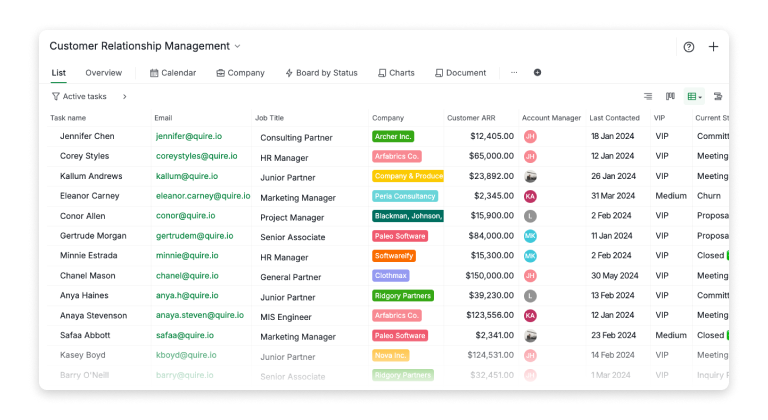
In Quire, every task carries information with it. Due dates, assignees, tags, custom fields, all of it lives right on the task. When you're running a sales pipeline, for example, each task might represent a lead, with fields like Customer ARR, Current Status, Last Contacted, and Temperature (Hot, Warm, Cold). Your task list becomes a structured data table, and that structure is what makes a manual dashboard readable instead of a wall of tickets.
The same shape works whatever the work is. A sprint board carries Story Points, Component, and Sprint. An agency board carries Client, Retainer Hours, and Billable. A content calendar carries Channel and Publish State. Whatever your review meeting actually asks about is the field worth adding.
If you are not quite sure how to structure your first project in Quire, take a look at our Templates page.
From there, open the Overview tab on your project. It was recently rebuilt around the same widgets that power Dashboard View, so with zero setup you get charts like Project Health, Task Status Distribution, and a Deadline Calendar, on every plan, including Free.
It won't let you build a custom donut or bar chart grouped by any field you choose (that specific chart builder is a Professional-and-higher feature, more on that below), but it's a real chart layer where a plain status list used to be.
Bring that into a Document. Documents are available on every Quire plan and live inside your workspace, not in a separate app.
Create one, link the tasks or views that matter, and add a few lines of written commentary explaining what the numbers mean and where the team should focus.
That written context matters more than people expect: the Overview panel tells you what, but a sentence or two of interpretation tells your team so what.
Managing more than one project? Smart Folders are also available on every Quire plan and let you group and filter tasks across projects in one place, useful if your free-plan dashboard needs to span more than a single workspace.
For our own internal check-ins on smaller efforts, we keep a Document called something like Weekly Status, and inside it we have:
- A short written summary of what shipped and what's overdue, referenced against the Overview panel
- Links to the specific tasks or sublists that need attention
- A couple of bullet points on where the team should focus next
It's manual, and you'll be updating it by hand rather than watching a chart redraw itself. But for a small team or a single project, that trade-off is often a fair one, especially when the alternative is no dashboard at all.
How Do You Embed Charts Into a Document for a Deeper Dashboard?
Charts are a Professional and higher feature. See the pricing page.
If you outgrow the manual version, or you're already on a Professional plan or higher, Quire's chart builder adds a live, visual layer on top of the same task data.
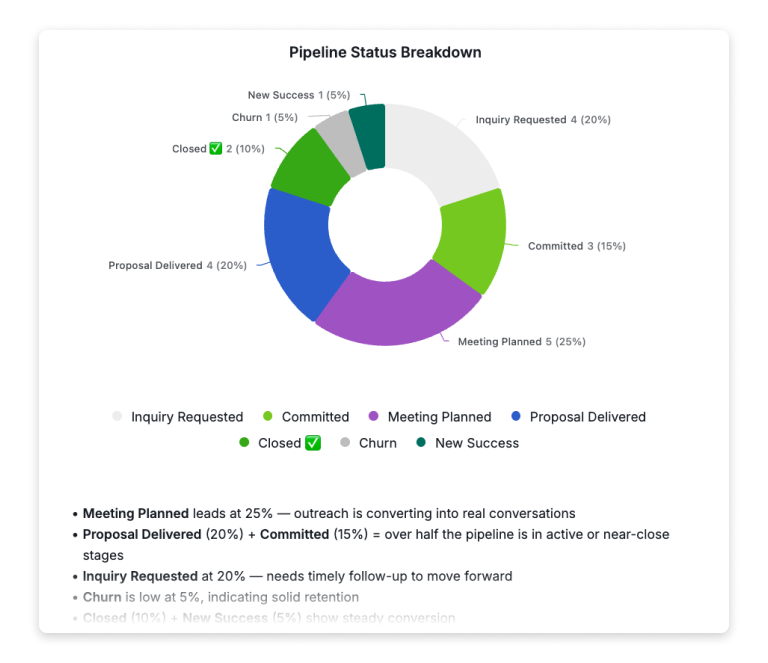
From your board or list view, the chart builder lets you build donut charts and bar charts directly from your task data, breakdowns by any field you've defined. No exports, no manual data entry. The charts read from your tasks in real time.
Where it gets useful is when you embed those charts into a Document. If a deal closes today and you update the task status, that change is reflected the next time anyone opens the document. No version problems, no "wait, is this the latest deck?" moment before a meeting.
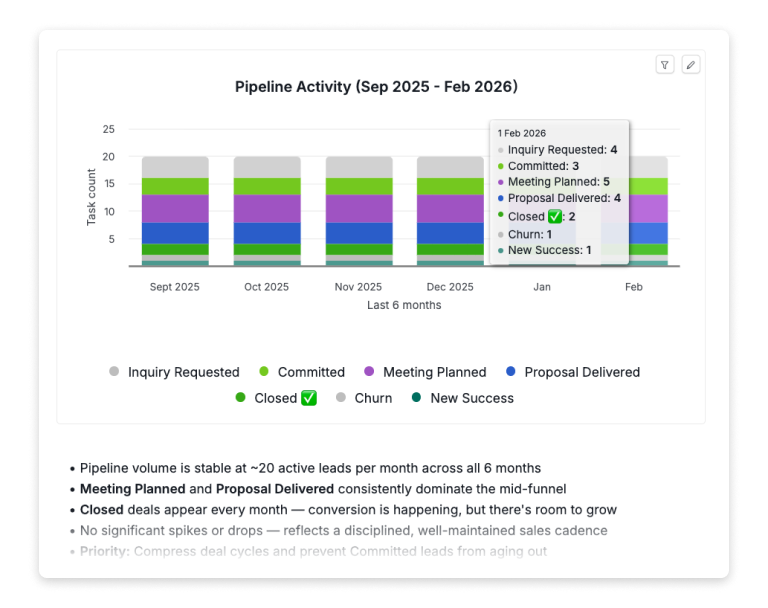
For pipeline reviews, a Document called something like Sales Dashboard Q1 might hold:
- A donut chart breaking down the current pipeline by deal status
- A bar chart showing pipeline activity over the last six months
- A few bullet points of written commentary explaining what the numbers mean and where the team should focus
Charts you build in Quire can be embedded into any Quire Document or task description.
What Does Insight View Add Beyond Charts?
Insight View is also a Professional and higher feature, not available on the Free plan.
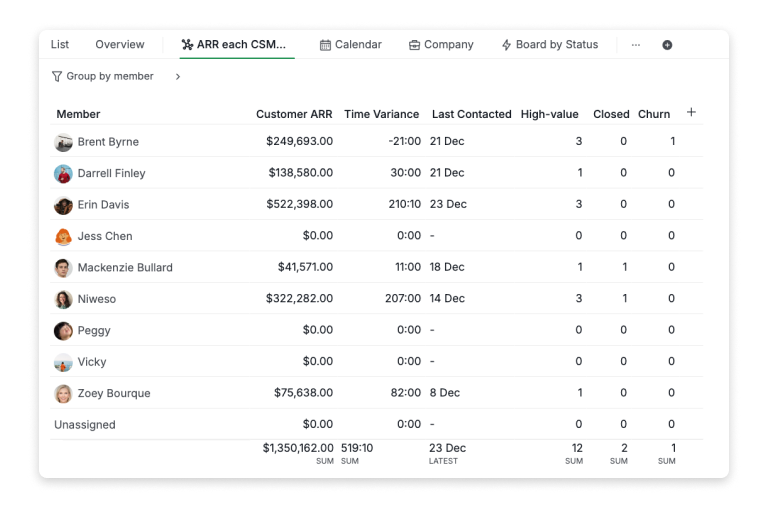
Charts present snapshots, but they can't answer follow-up questions in real time. Insight View is the analytical layer that does.
Insight View is the layer that does arithmetic on your tasks. No setup, no exports, no copy-pasting. It's a live table wired straight into your work, and it turns everyday project activity into structured data you can sort, filter, group, and drill into however you need.
For a CRM use case, that means grouping everything by Account Manager and instantly seeing total ARR owned, number of accounts managed, and VIP customer count, all calculated automatically. Teams tracking KPIs can go further, building scoring systems with custom formulas and color-coded benchmarks that make performance gaps hard to miss.
The same arithmetic holds for work that looks nothing like a pipeline:
- Engineering. Group a sprint by assignee and sum Story Points to see where velocity actually sits, then filter to the work that carried over from last sprint rather than the work that got added to this one.
- Agency and client services. Group by Client and total logged time against Retainer Hours, so the account that is quietly twelve hours over budget surfaces before the invoice does, not after.
We've written a dedicated deep-dive on Insight View with real-life examples across sales, customer success, and KPI tracking. Give it a read here if you want to see exactly what it can do.
How Do the Free and Paid Approaches Fit Together?
You don't need to pick one path forever. A lot of teams start with the Overview panel and a Document, and only reach for Charts and Insight View once the manual version starts taking more time than it saves, usually when a project has enough moving pieces that a written summary alone stops being enough.
If you're already on Professional or higher, Insight View is where you go to dig into the data yourself, to understand performance, identify patterns, or answer a specific question before a review. The Document is what you bring to the meeting: the curated, narrative version of the same data, with commentary alongside it to guide the conversation.
Either way, the habit is the same: keep the write-up living in a Document next to the tasks it describes, rather than rebuilding it from scratch every time someone asks "so where are we?"
What Tips Help You Get More Out of a Quire Dashboard, Free or Paid?
First, invest in your custom fields, regardless of plan. Beyond the naming discipline above, the harder call is restraint about which fields exist at all. A pipeline wants ARR and an owner. A sprint wants points and a component. A content calendar wants a channel and a publish state.
Once a widget groups by a field, that field should stay reliable. Lock it, or limit edits to admins, so a dashboard keeps reading the values you meant. See how to lock a Custom Field.
Pick the three or four your reviews actually ask about and resist adding a fifth. A field nobody fills in reliably is worse than no field at all: it makes a widget look authoritative while it quietly under-counts.
Second, treat your dashboard Document as a living artifact rather than a one-time report. Add a section for written notes, and date your observations. Over time, you build a history of how the project evolved and what decisions were made, which is genuinely useful for onboarding new team members or running retrospectives.
Third, if you're on Professional or higher, use Insight View before you build the Document. Let it help you figure out what the story actually is, then use the Document to tell that story to the people who need to hear it.
Who Can See a Quire Dashboard, and How Do You Share One?
Sharing splits into two questions that get answered differently.
Inside Quire, a Dashboard is either private or shared with selected members of your team. A private one is your own morning triage screen, the one you open first. A shared one puts the team on the same widgets, so a review starts from one screen rather than five interpretations of it.
The Overview tab covers the other half. It is the shared baseline everyone on the project already sees, with no sharing decision to make at all.
For stakeholders who don't live in Quire, the client, the exec who checks in once a month, you hand them a read rather than a seat. The Document layer is built for exactly that: a written page carrying your commentary plus embedded charts, which stays current because those charts read live task data instead of a pasted screenshot. Walk them through the Document, and the version question never comes up.
Need polished, interactive dashboards for people who live outside Quire entirely? The native Power BI integration turns your project and task data into live visuals in the BI reports those stakeholders already open.
Why Might You Outgrow the Free Setup?
The manual version works well for a single project, mostly because there isn't much distance between "look at the Overview panel" and "understand what's happening."
That distance grows once you're coordinating several projects at once, need to filter or group by a custom field, or want a scoring system with formulas instead of a written summary.
Dashboard View is the piece that closes it, because a dashboard scoped to a folder or the whole organization gives leadership a read on every initiative at once, from the same tasks the teams are already updating.
That's usually the point where Charts and Insight View start paying for themselves. If you're not there yet, the free version is a reasonable place to stay.
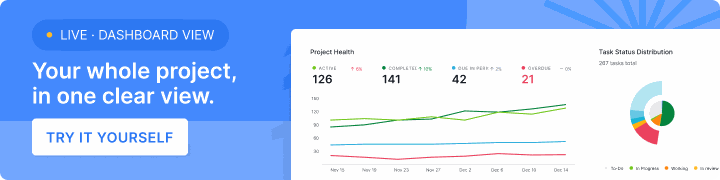
There's now a dedicated option as well. On Professional plans and higher, Dashboard View lets you build a drag-and-drop dashboard from widget panels and charts, kept private or shared with your team.
Pick the one status update your team currently assembles by hand. Replace it with a Quire Document this week: a few structured custom fields, a glance at the Overview panel, two sentences of written commentary, dated. By next review, the assembly time is gone and the data is current.
Frequently Asked Questions
What are the four reporting layers in Quire?
The Overview tab (automatic, scope-aware, every plan including Free), Dashboard View (a custom widget screen), Insight View (formula-driven metrics from your own fields), and Charts (visuals embedded in Documents). The last three need Professional or higher.
Does Quire have cross-project or portfolio reporting?
Yes. Open Overview on a folder, Smart Folder, or organization and it swaps in Portfolio Health, Portfolio Activity, Member Workload, and a Deadline Calendar spanning every project. You can build a Dashboard at those scopes too.
Which Quire reporting widget lives at which scope?
Project: Project Health, Task Status Distribution, Deadline Calendar, Member Activity. Folder or Smart Folder: Portfolio Health, Portfolio Activity, shared Deadline Calendar. Organization: Portfolio Health, Member Workload, org-wide Deadline Calendar. My Tasks leads with Attention Required.
How much Quire reporting do you get on the Free plan?
The whole Overview layer, scope-aware at project, folder, and organization level, plus Documents for written commentary. Dashboard View, Insight View, and Charts need Professional or higher.
What is the difference between the free and paid ways to run a dashboard in Quire?
Free combines the Overview panel and a Document by hand, with no custom charts. Professional and higher adds Dashboard View for drag-and-drop widget dashboards, an embeddable chart builder, and Insight View, a formula-driven analytics table.
How do I embed a chart into a Quire Document?
It requires Professional or higher. Build a chart grouped by status, assignee, or any custom field, then embed it into a Document, where it stays live-connected to your tasks.
What is Quire Insight View and who is it for?
It turns your task data into a sortable, filterable table with custom formulas, useful for KPIs or workload tracking. It's on Professional and higher, not Free.
Is there a dedicated dashboard feature in Quire?
Yes. Dashboard View, on Professional plans and higher, is a drag-and-drop dashboard built from widget panels and charts. Free plans combine the widget-based Overview tab with a Document instead.