
Insights Permalink
The Insight view automatically calculates, aggregates, and analyzes data from your task list without manual grouping or calculations. It turns your project tasks into a dataset, making it easy to track workload, progress, and custom metrics.
The Insight view is only available in the Professional, Premium, Enterprise plans. More information can be found on our pricing page.
Learn more about running totals, averages, and other column calculations on Insight fields.
How It Works
By default, Insight groups data by members, but you can toggle both default and custom fields to generate different views of your project data without exporting or manual calculations.

Create an Insight
- Click the + icon at the top of your project.
- Select Add insight.
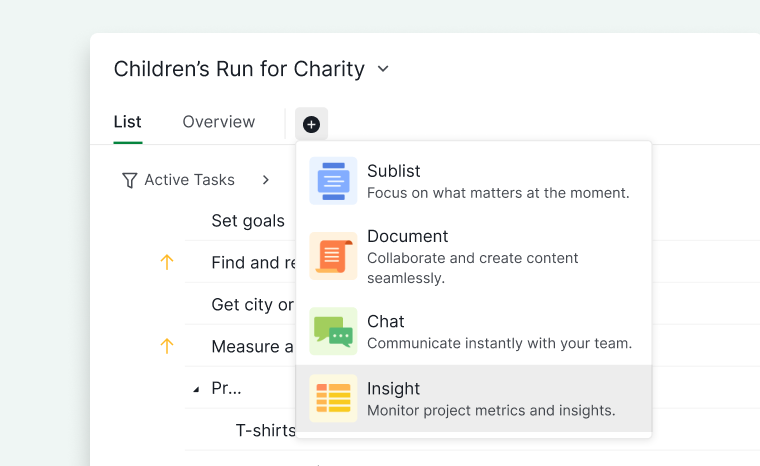
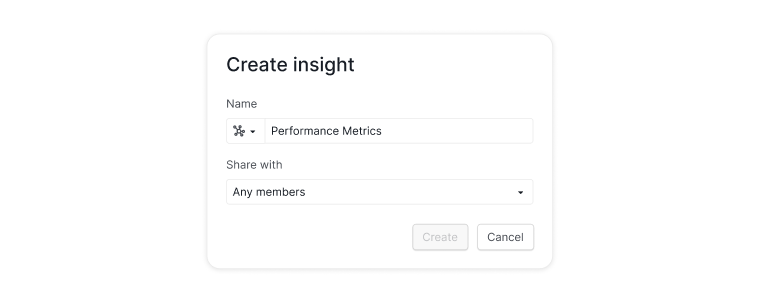
- Enter a name for the Insight tab.
- Select a permission to determine who can access this insight tab.


Toggle Fields
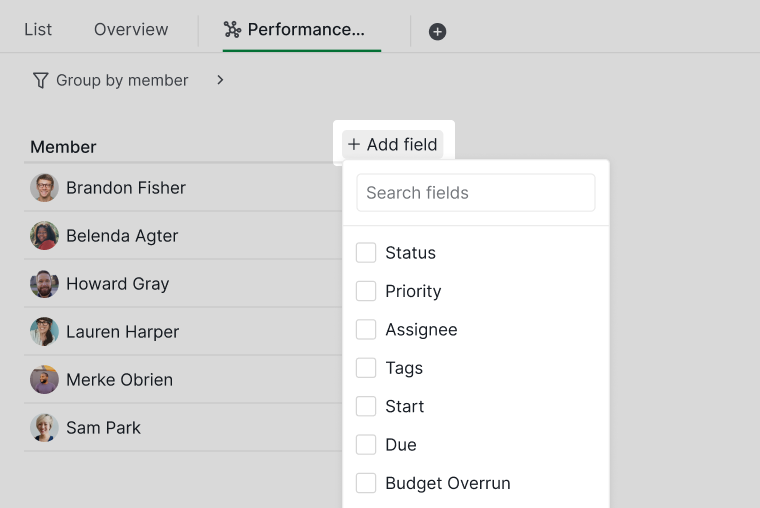
When an Insight is created, it starts with default fields grouped by members. You can toggle default fields or custom fields created in Table view.
Click + Add a field to include more data in your Insight.

Insight Fields
In the Professional subscription plan, you can add three insight fields for each project. Upgrade your subscription plan to add more fields. More information can be found on our pricing page.
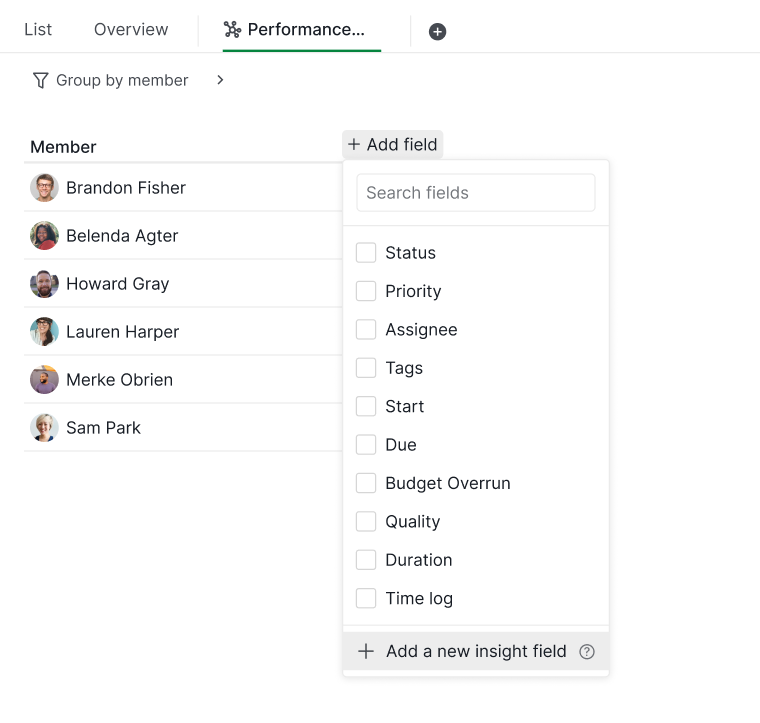
- Click +Add a field.
- Select + Add a new insight field.
- Enter a field name and choose the Insight type.
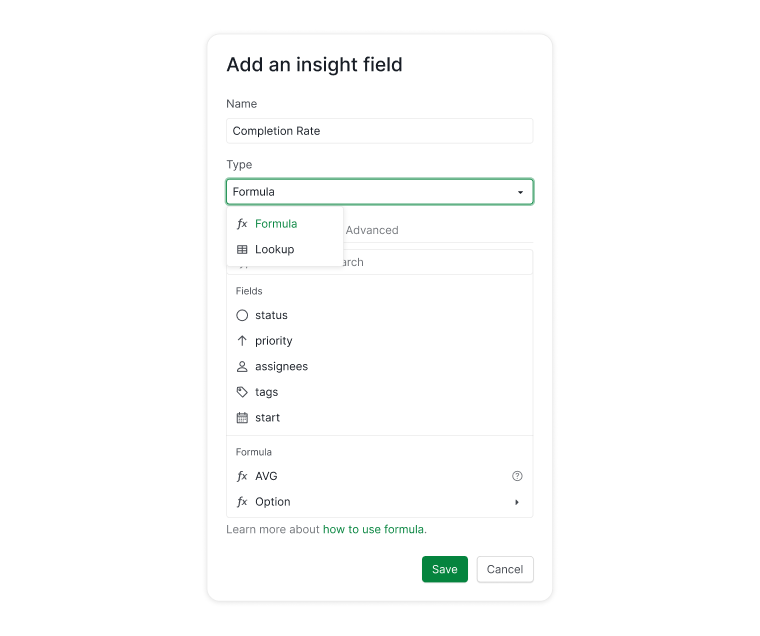


Insight Types
Formula
Formula Insights calculate new values based on existing task fields. You can reference fields by name and apply basic or advanced calculations.
Learn more about Quire formulas.
Lookup
Lookup Insights search within a dataset and return matching values. They are ideal for large projects where you need automated data retrieval and calculations.
Edit Insight Fields
Edit a Field
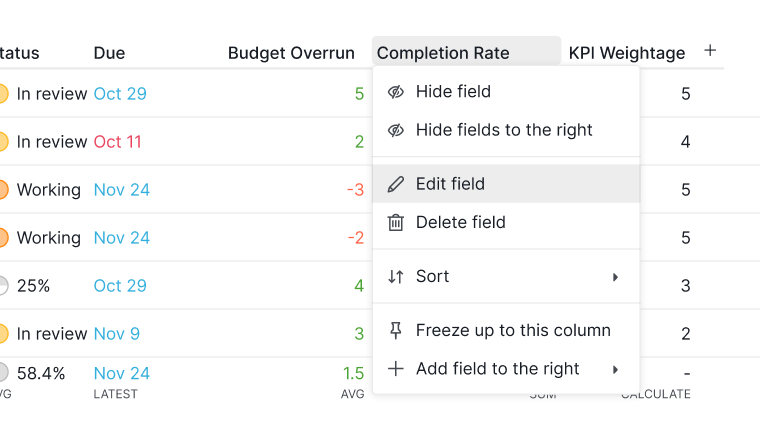
- Click the field name at the top of the Insight.
-
Select Edit field.

Delete a Field
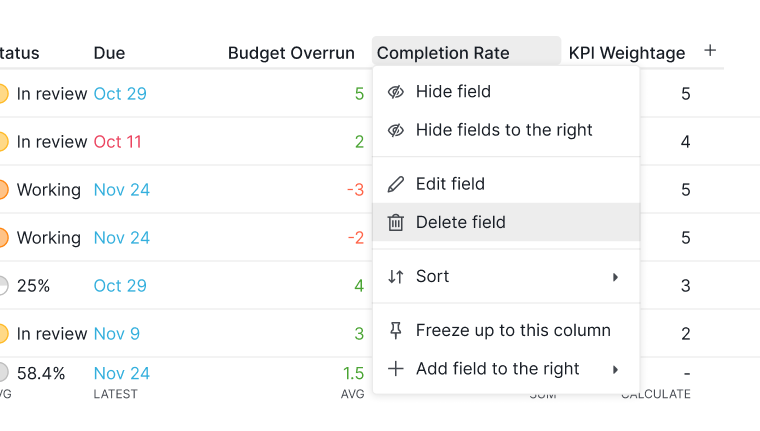
- Click the field name at the top of the Insight.
-
Select Delete field.

Sort and Calculate
Sort a Column
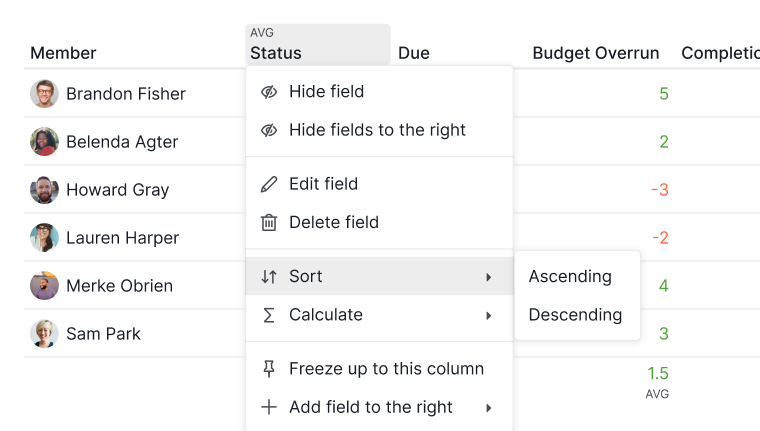
- Click the field name at the top of the Insight.
-
Select Sort.

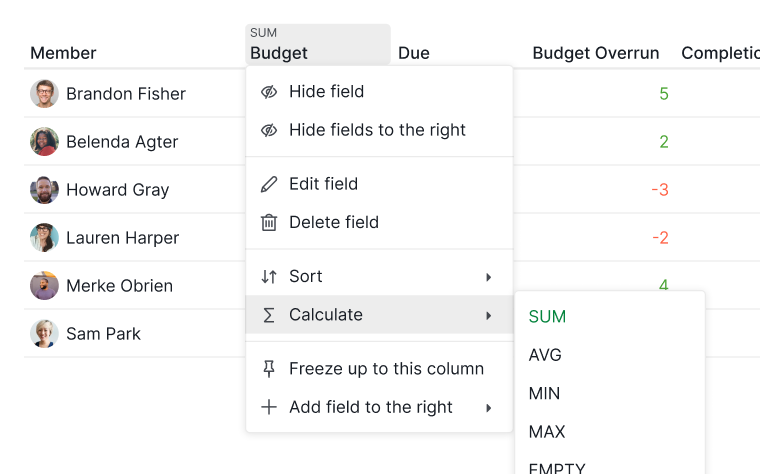
Calculate a Column
- Click the field name at the top of the Insight.
-
Select Calculate.

Organize Insights
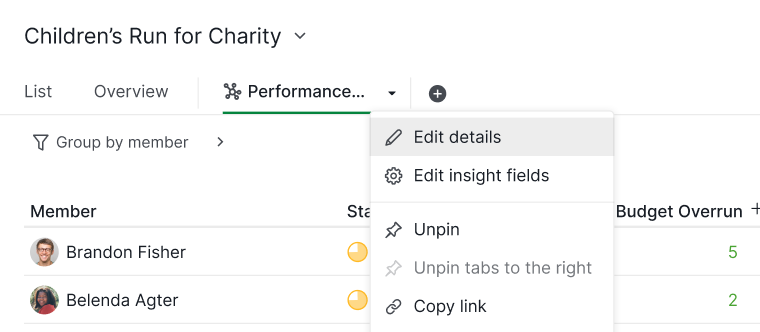
Edit Insight Details
- Right-click the Insight tab.
-
Select Edit details.

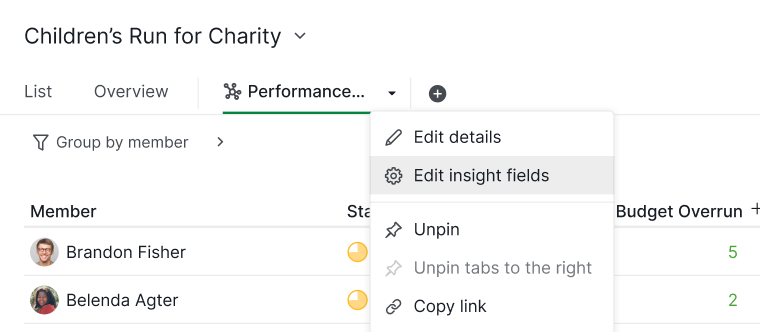
Manage Insight Fields
- Right-click the Insight tab.
-
Select Edit insight fields.

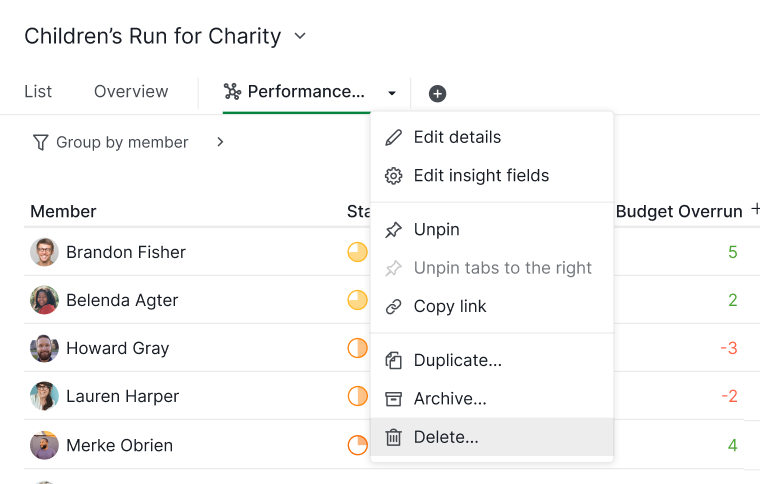
Delete an Insight
- Right-click the Insight tab.
-
Select Delete.

Export and Print
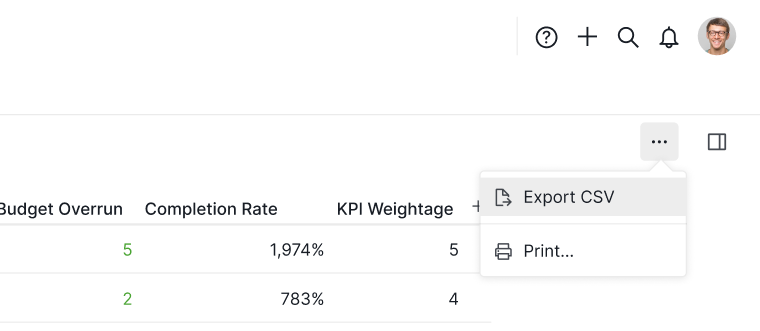
Export to CSV
- Click the More Options icon in the upper-right corner.
-
Select Export CSV.

Print an Insight
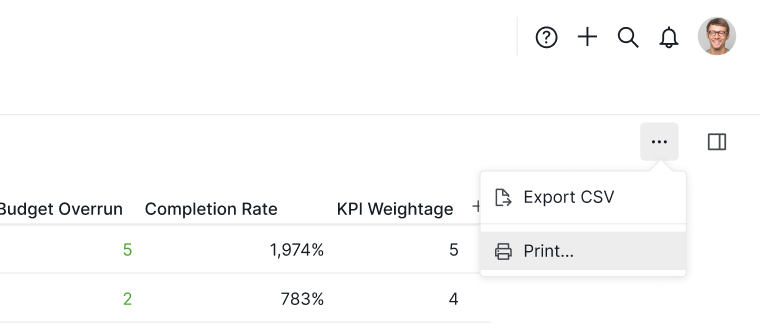
- Click the More Options icon in the upper-right corner.
-
Select Print.

Read more on our blog about Quire Insight view.
Frequently Asked Questions
What plan do I need to use Insight in Quire?
Available on Professional, Premium, and Enterprise plans. The Professional plan allows up to three insight fields per project.
What is the difference between a Formula Insight and a Lookup Insight in Quire?
Formula Insights calculate new values from existing task fields. Lookup Insights search a dataset and return matching values, best for large projects needing automated data retrieval.
How do I create an Insight in Quire?
Click the + icon at the top of your project, select Add insight, enter a name, choose a permission, and click Create.
How do I add a custom field to a Quire Insight?
Click + Add a field, select + Add a new insight field, enter a name, and choose Formula or Lookup as the insight type.
How do I sort or calculate values in a Quire Insight?
Click the field name at the top of the Insight and select Sort to order results, or Calculate to apply aggregate calculations to that column.
How do I edit or delete an Insight field in Quire?
Click the field name at the top of the Insight and select Edit field or Delete field.
How do I export a Quire Insight to CSV?
Click the More Options icon in the upper-right corner and select Export CSV. Select Print from the same menu to print instead.