
Connect to AI Assistants with MCP Permalink
Connect Quire to Claude, ChatGPT, and other MCP-compatible AI tools. Add tasks, assign work, and set due dates using plain language, without switching between apps.
See Quire on Mobile and Integrations for related guides. If you want to build your own integration instead of connecting through MCP, see how to build apps with the Quire API.
Overview
How It Works
Quire MCP connects Quire to AI assistants using the Model Context Protocol (MCP), an open standard for letting AI tools interact with external services.
When you connect Quire via MCP, your AI assistant can read and write to your Quire workspace on your behalf. It uses your existing Quire permissions, so it can only access projects and tasks you already have access to.
You stay in full control: the AI only acts when you ask it to, and you can revoke access at any time.
Supported AI Tools
Quire MCP supports the following AI tools:
- Claude
- ChatGPT
- Gemini CLI
- Perplexity
- Cursor
- VS Code (GitHub Copilot Chat)
- Windsurf
- Other MCP-compatible clients
You connect all of them from the Quire Apps page. No code or configuration files required.
Read more on our blog about Quire MCP.
Connect an AI Assistant to Quire
Quire has its own listing in Claude’s connector directory. Every other tool connects using the MCP server URL https://mcp.quire.app/mcp. Follow the steps for your tool below.
Claude
The same connector works in Claude on the web and in the Claude desktop app.
- Open Quire in the Claude connector directory.
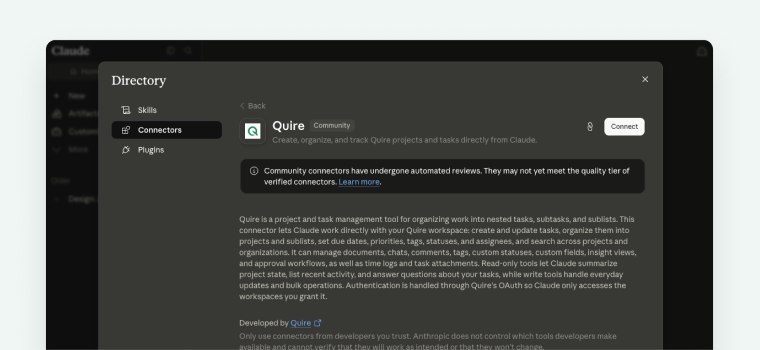
- Click Connect.
- Sign in to Quire, select the permission scopes you want to grant, and click Allow.
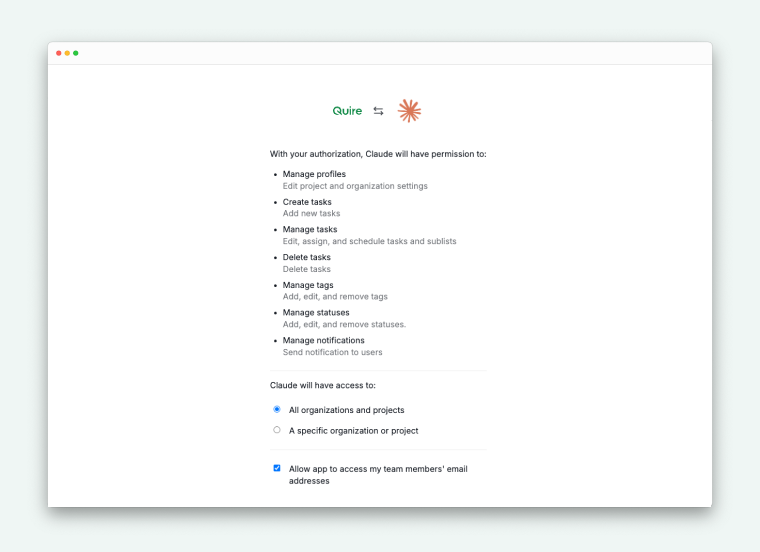


Tip: You can still add Quire by hand if you prefer. Open Settings → Connectors → Add custom connector, enter a name and the URL https://mcp.quire.app/mcp, then save and click Connect.
ChatGPT
ChatGPT supports remote MCP servers as Plugins (available on Plus, Pro, Business, Enterprise, and Edu plans).
- Open chatgpt.com and go to Settings → Plugins.
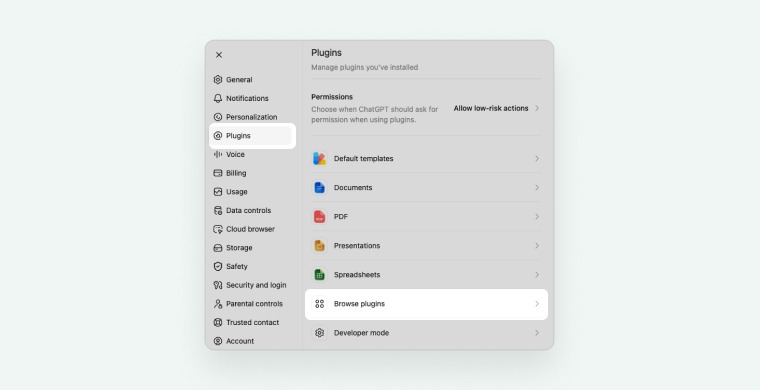
- Click Browser plugins.
- Click the + icon at the upper right corner to add a new plugin.
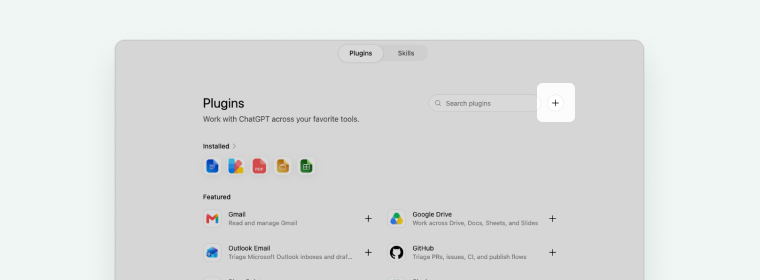
- Enter a name (for example, Quire) and the URL
https://mcp.quire.app/mcp.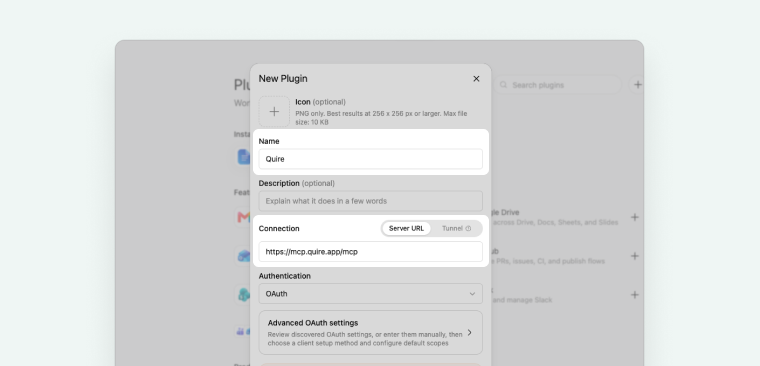
- Sign in to Quire when prompted and approve access.


Perplexity
Perplexity supports remote MCP servers as Custom Connectors on paid plans (Pro, Max, Enterprise).
- Open perplexity.ai and go to Settings → Connectors.
- Click Add Connector → Advanced (or Add custom connector).
- Enter a name (for example, Quire), set the URL to
https://mcp.quire.app/mcp, and choose Streamable HTTP as the transport with OAuth as the authentication method. - Save, then click Connect and sign in to Quire to approve access.
The connection is active immediately. Open your AI tool and start a conversation to use your Quire workspace.
For other connectors, see the Quire MCP Server documentation.
Manage Tasks with AI
After connecting, use plain language in your AI tool to manage your work. The AI assistant follows your existing Quire permissions. It cannot access projects or tasks your role does not allow.
Add tasks
- “Add a task to Project Alpha: Write the Q3 report.”
- “Create a new task: Review the proposal, due next Monday.”
Assign tasks and set due dates
- “Assign ‘Review contracts’ to Jamie, due this Friday.”
- “Set the due date for ‘Website redesign kickoff’ to April 30.”
Check and update status
- “Show me all tasks assigned to me this week.”
- “Mark ‘Send invoice’ as complete.”
- “List all overdue tasks in the Marketing project.”
Search your workspace
- “Find tasks related to the product launch.”
- “Show me high-priority tasks across all projects.”
Disconnect an AI Tool from Quire
- Go to your Quire workspace and open the Apps page.
- Find the AI tool you want to disconnect.
- Click Revoke.
Access is revoked immediately after removal.
Troubleshooting
The connection fails or shows an authorization error
- Make sure you are signed in to your Quire account before starting the connection from the Apps page.
- If your Quire organization uses SSO, contact your Quire admin to confirm that MCP connections are permitted.
- Try disconnecting and reconnecting from scratch.
The AI assistant does not seem to use Quire
- Try mentioning “Quire” explicitly in your message. For example: “Using Quire, show me my tasks due this week.”
- Check that the connection is still active on the Quire Apps page.
- Disconnect and reconnect, then start a new conversation.
Task Permission Errors
Your Quire role determines what the AI can do. If you are a Viewer on a project, the AI cannot create or edit tasks there. Contact your project admin to adjust your role if needed.
For more technical details, see the Quire MCP Server documentation. Looking for other integrations, or a desktop shortcut instead? See Install Apps or Use Quire as a Desktop App with Chrome.
Frequently Asked Questions
What is Quire MCP?
Quire MCP (Model Context Protocol) connects AI assistants to your Quire workspace, letting them add tasks, assign members, and set due dates on your behalf using plain language.
Which AI tools work with Quire MCP?
Claude, ChatGPT, Perplexity, Gemini CLI, Cursor, VS Code (GitHub Copilot Chat), Windsurf, and other MCP-compatible clients.
How do I connect an AI tool to Quire?
For Claude, open Quire in the Claude connector directory and click Connect. For every other tool, go to the Quire Apps page, find your AI tool, click Install, and follow the instructions. Sign in and accept the permissions, and the connection is ready immediately.
Do I need to know how to code to use Quire MCP?
It depends on the tool. Claude connects straight from its connector directory, and ChatGPT and Perplexity connect through a standard UI flow, all with no coding required. Tools like Gemini CLI, Cursor, VS Code, and Windsurf may require additional technical setup. See the Quire MCP Server documentation for details.
What can I do with Quire MCP?
You can add tasks, assign them to team members, set due dates, update status, and search your workspace using plain language.
Is my Quire data secure when using MCP?
Yes. The AI receives a scoped access token, not your password, and can only access data within your existing Quire permissions. You can revoke access at any time from the Quire My Apps page.
Can the AI delete my tasks or projects?
The AI only performs actions you explicitly request. It will not delete tasks, projects, or data without a direct instruction from you.
How do I disconnect an AI tool from Quire?
Go to the Quire My Apps page, find the connected AI tool, and click Revoke. Access is removed immediately.