
Repeat Last Command Permalink
The Repeat Last Command feature lets you quickly apply the same action to another task without repeating the entire process. This is especially useful when updating multiple tasks with similar settings, such as a due date, assignee, or priority.
Repeat a Command
Keyboard Shortcut
- Make sure you have already performed an action (for example, setting a due date).
- Select another task.
- Press Shift + R.
- The last command will be applied to the selected task.
Right-Click Menu
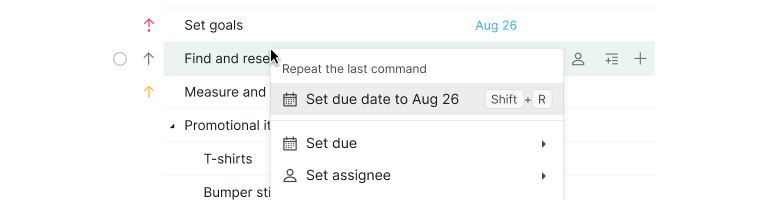
- Right-click on the task you want to update.
-
Select the first option in the context menu (Repeat last command).

Apply to Multiple Tasks
Select multiple tasks, then press Shift + R or right-click and choose Repeat last command to apply the same action to all selected tasks at once.
Supported Commands
Not all actions can be repeated. You can repeat commands such as:
- Setting or removing assignees
- Adding or removing tags
- Setting or clearing due dates
- Changing status
- Setting priority
- Updating values in custom fields
Text formatting actions cannot be repeated.
Want to select tasks first so you can apply the same action to all of them? See Multiple Select Tasks.
Frequently Asked Questions
How do I repeat the last command in Quire?
Press Shift+R to apply your most recent action to the selected task. You can also right-click the task and select Repeat last command at the top of the context menu.
Can I repeat the last command on multiple tasks in Quire?
Yes. Select multiple tasks first, then press Shift+R or right-click > Repeat last command to apply the action to all selected tasks at once.
What actions can be repeated with the Repeat Last Command feature in Quire?
You can repeat setting or removing assignees, adding or removing tags, setting or clearing due dates, changing status, setting priority, and updating custom field values. Text formatting actions cannot be repeated.