
Documents Permalink
Project documentation gives teams a shared space to capture decisions, notes, and reference material alongside the work itself. Keeping it inside the project prevents information from scattering across separate tools. In Quire, documents live within your project and can be organized into multiple document tabs to keep different types of content separate.
You can use documents to:
- Take meeting notes
- Record important decisions
- Draft project plans or specifications
-
Store reference materials and documentation
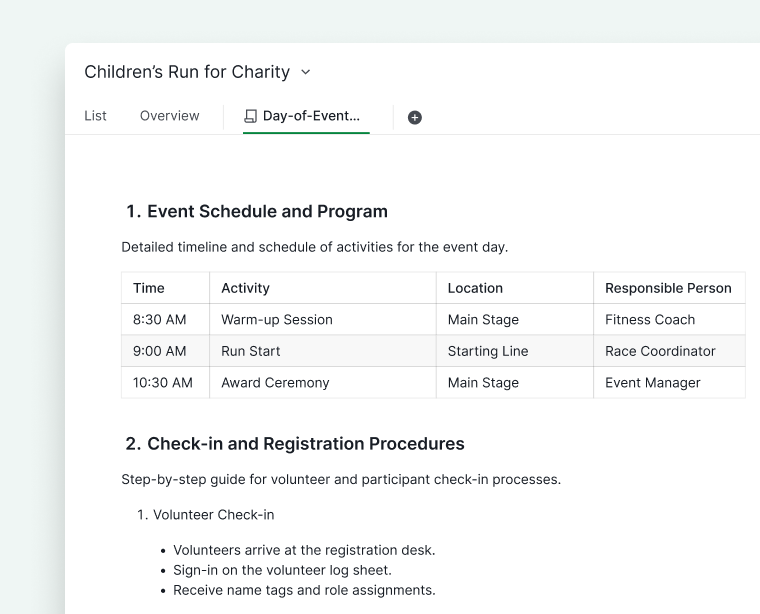

Create and Edit Documents
You can create document tabs in various locations, including projects, organizations, folders, Smart Folders, My Tasks, and even a member’s profile page.
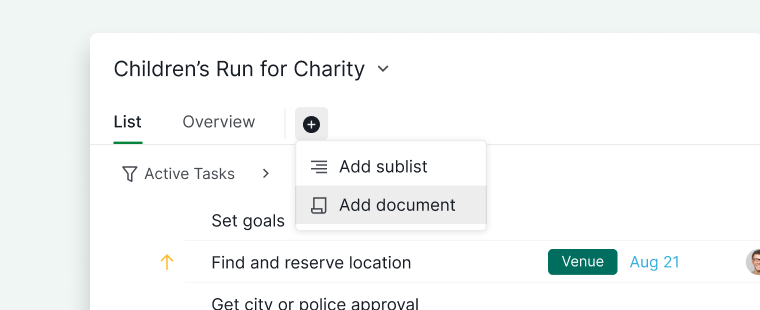
- Navigate to the desired location (for example, a project).
- Click the + icon at the top.
- Select Add document.
- Enter a document name.
- (Optional) Customize the icon and color.
- Set document permissions.
- Click Create.
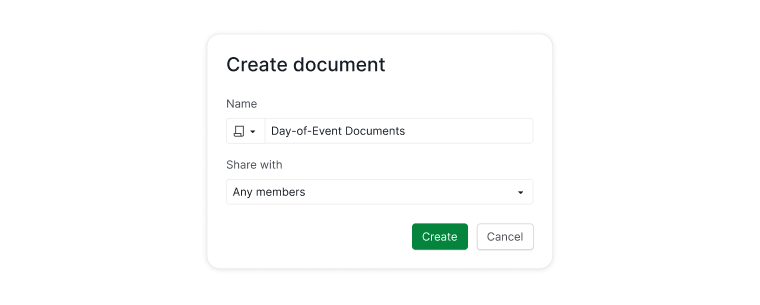


You can control who can access the document by choosing from different permission options, including:
- All project members
- Project admins only
- Selected members
- A specific External Team
- Private (only visible to you)
Writing and Formatting
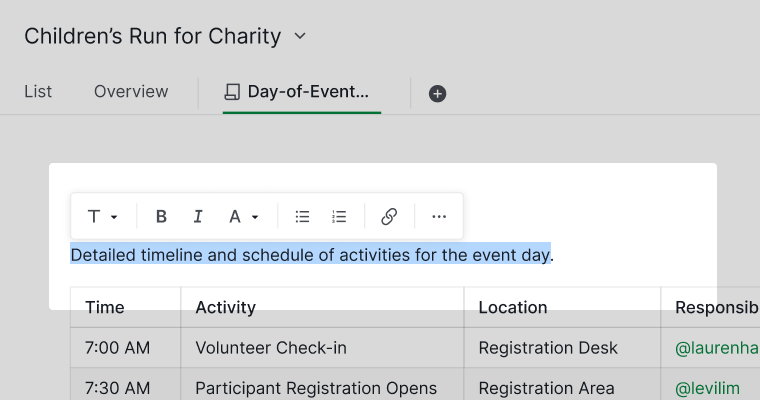
Once the document is created, you can start writing immediately.
- Highlight text to open the formatting toolbar
- Change text styles, colors, add links, and more
-
Use rich text tools for structured documentation

Note: To view document activity and details, click the detail panel icon on the right side of the document, or press SPACE to open it quickly.
Use Slash Commands
Typing the slash command / opens a menu of content blocks and formatting options you can insert into your document, including:
- Headings
- Tables
- Checklists
- Mentions of team members
- References to tasks
- Charts
As you type after /, the list automatically filters. You can navigate the menu using the ↑ / ↓ arrow keys.

Table of Contents
For long documents, a Table of Contents lets readers jump to any section instantly.
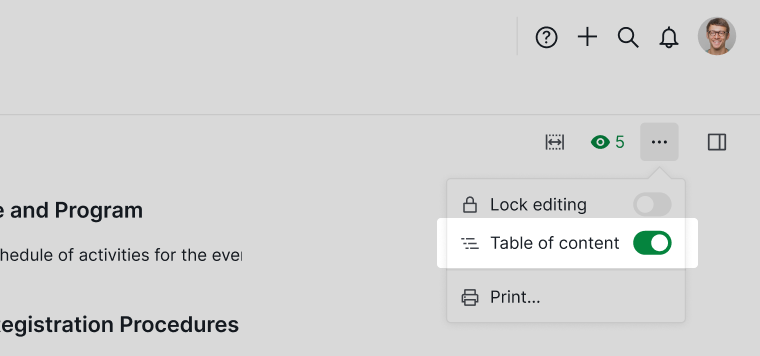
- Click the More Options icon in the upper-right corner.
-
Select Table of content to toggle it on.

The TOC lists all headings in your document as clickable links. When viewing a document, heading markers also appear on the side to show the document structure and indicate your current scroll position.
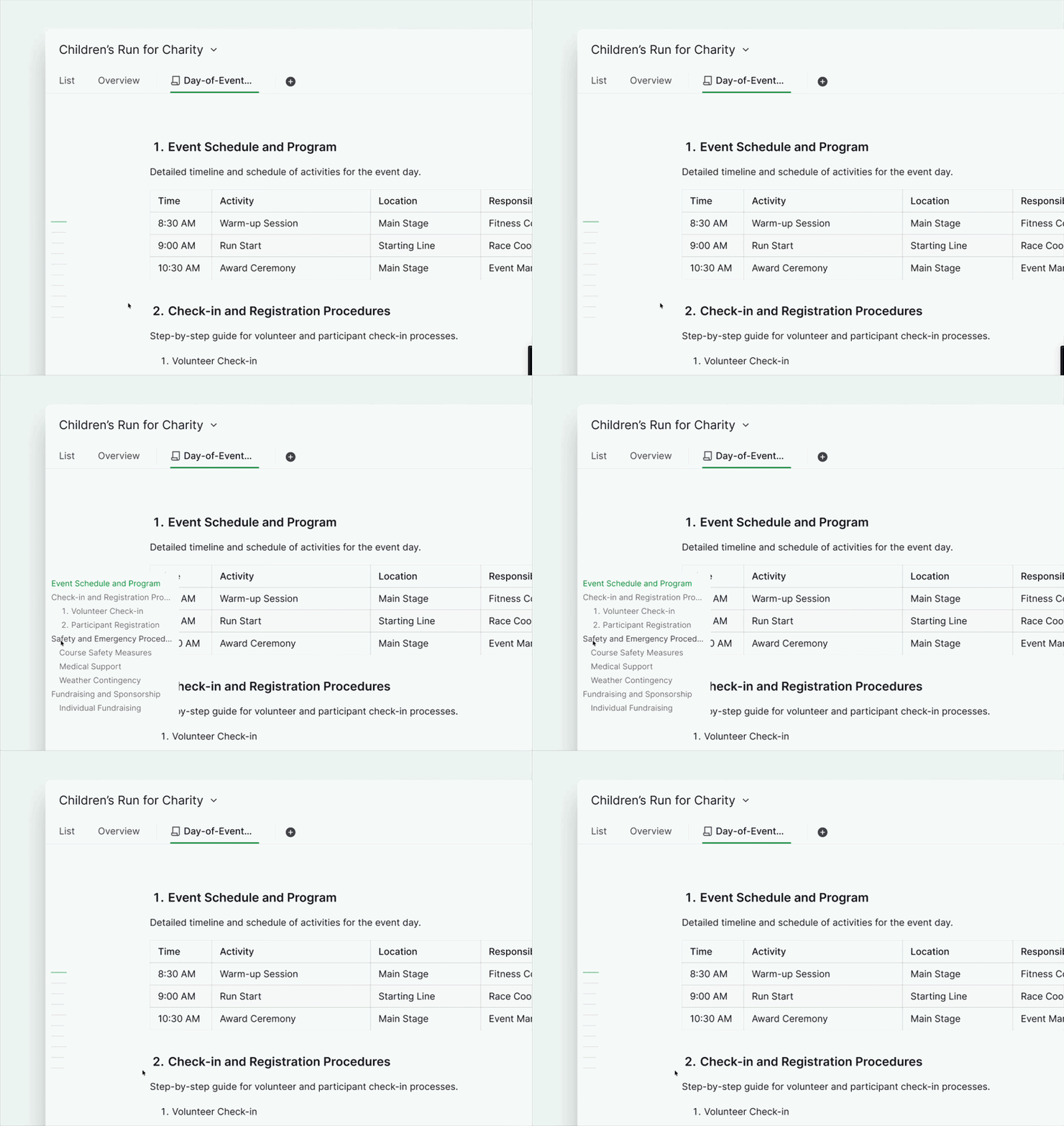
Note: Table of Contents is only available in Documents. It is not supported in task details or comments.
Adjust Document Layout
Full-Width Mode
To focus on writing and view more content at once:
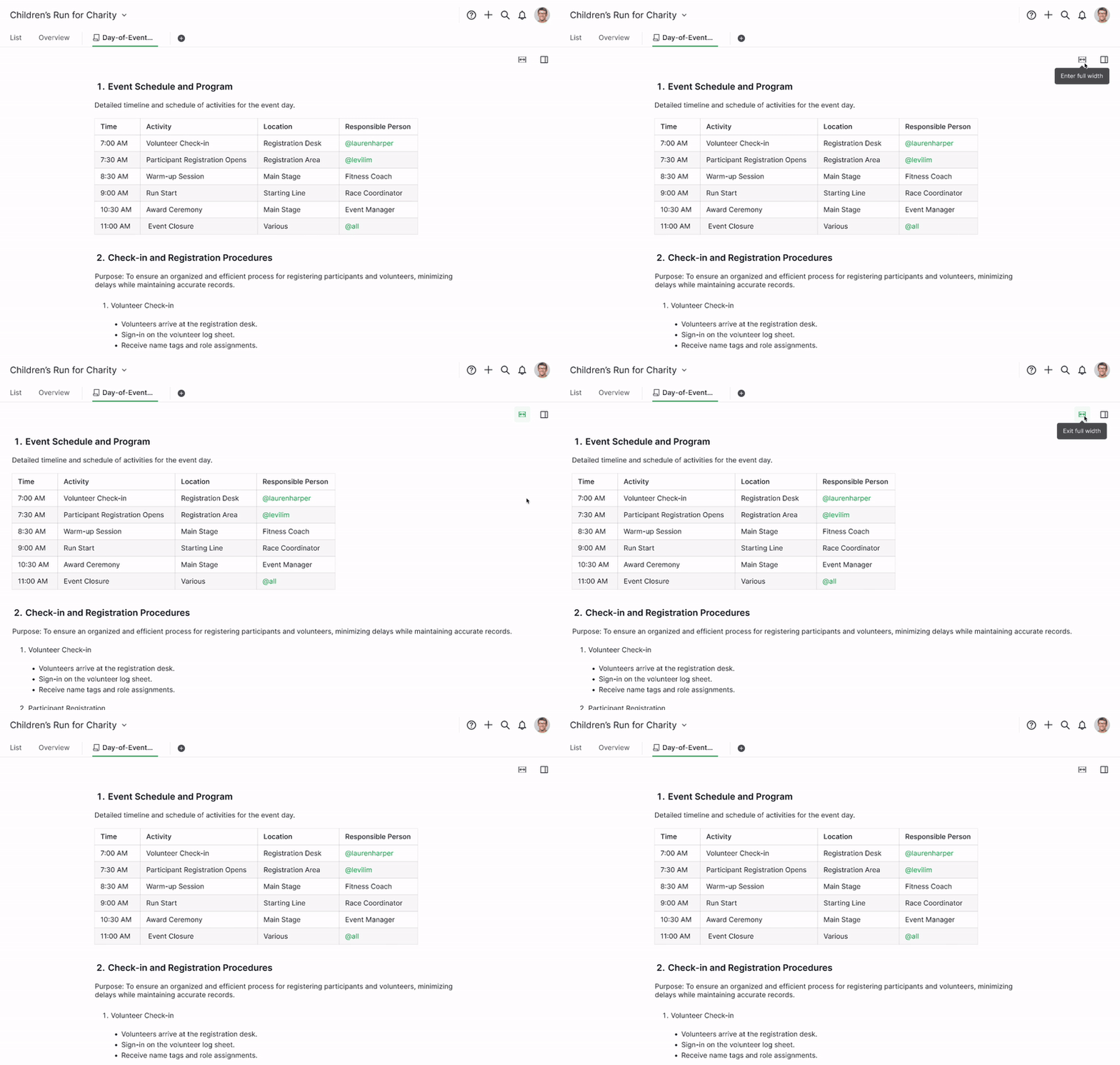
- Click the expand icon on the right side of the document.
- The document switches to full-width mode.
Follow and Get Updates
Following a document allows you to receive notifications whenever changes are made.
- Click the detail panel icon on the right side.
-
Click the eye icon at the top of the panel.
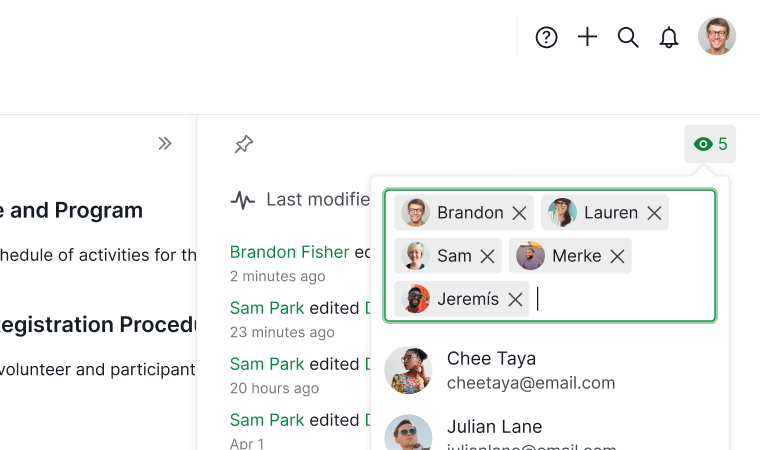

Note: Only project members can be added as followers.
Lock and Unlock Documents
Lock Editing
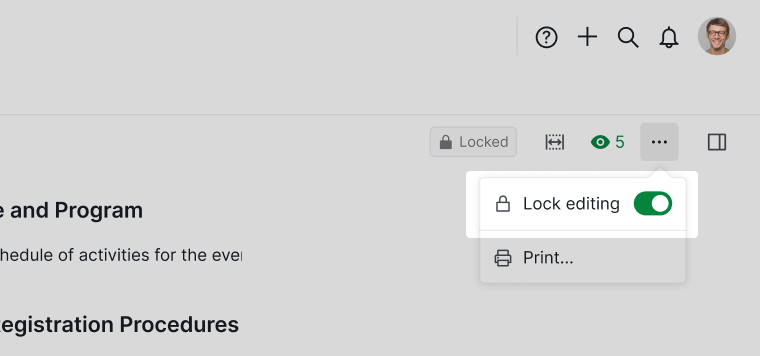
Locking a document prevents accidental edits and makes it read-only.
- Click the More Options icon in the upper-right corner.
-
Select Lock editing.

Unlock Temporarily
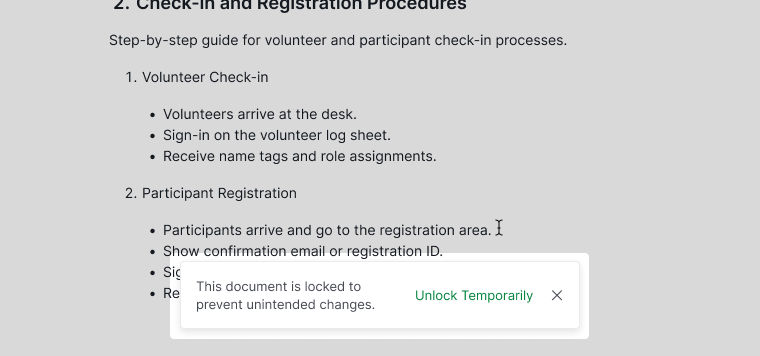
- Click Unlock temporarily to make quick edits
-
The document automatically re-locks when you switch views or projects

Unlock Fully
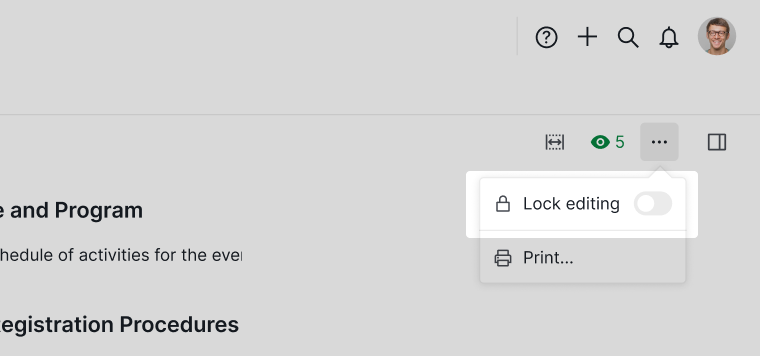
- Click the More Options icon again.
-
Deselect Lock editing.

Print and Share Documents
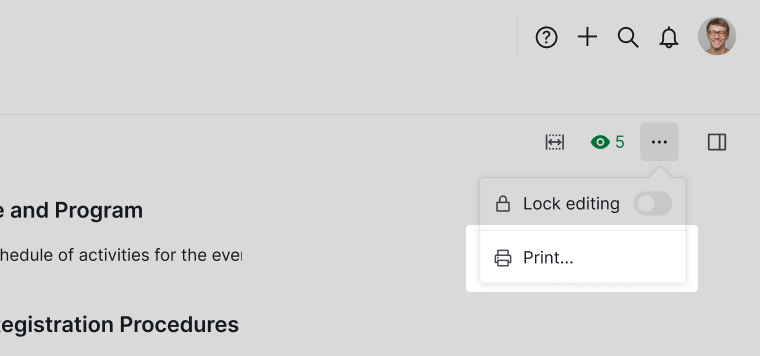
- Click the More Options icon in the upper-right corner.
-
Select Print.

Rename or Share Link
To rename a document:
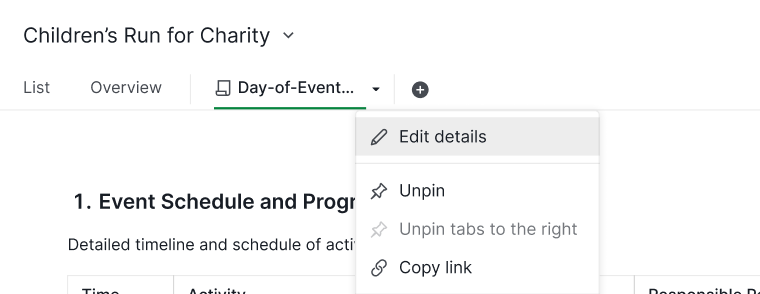
- Right-click the document tab.
- Select Edit Details.
-
Update the name.

To share a document link:
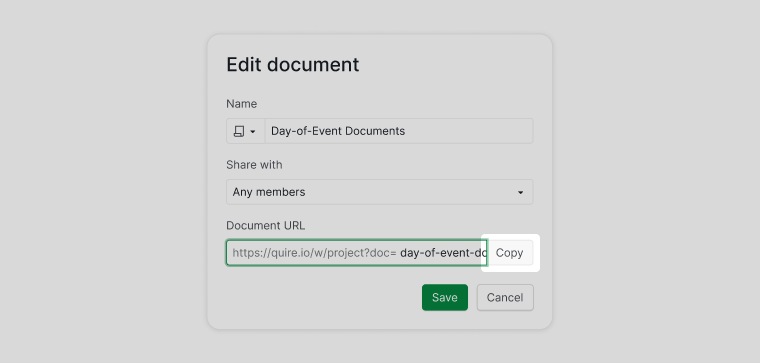
- Click Copy URL
-
Share the link with your team to open the document directly

Tip: You can reference documents anywhere using:
#:document_id(same project)#{project_id:document_id}(different project) Clicking the reference opens the document directly.
Organize Documents
Pin or Unpin a Document
Pinned documents stay easily accessible.
- Right-click the document tab.
- Select Pin or Unpin.
New documents you create are pinned by default.

Duplicate a Document
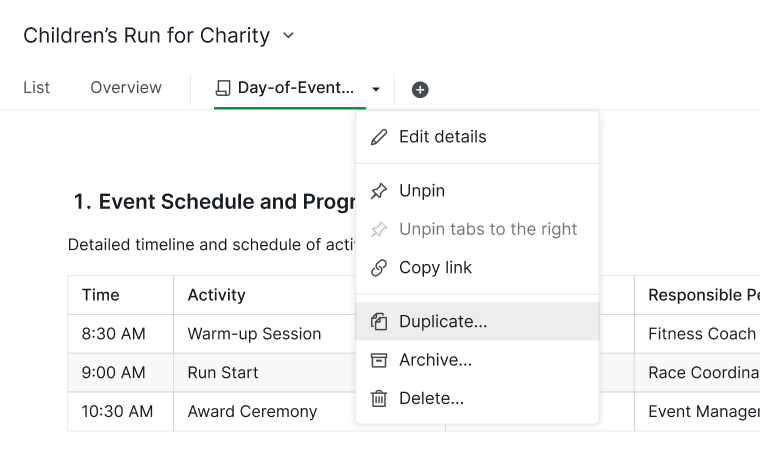
- Right-click the document tab.
- Select Duplicate.
- Enter a new name.
-
Click Save.

Archive a Document
Archiving hides documents you no longer need while keeping them accessible.
- Right-click the document tab.
-
Select Archive.
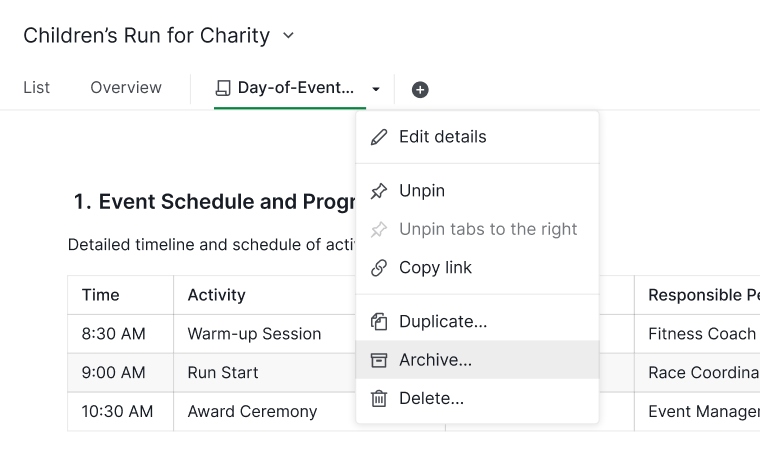

Note: Archived documents appear under the Archived category in the document menu.
Delete a Document
- Right-click the document tab.
-
Select Delete.
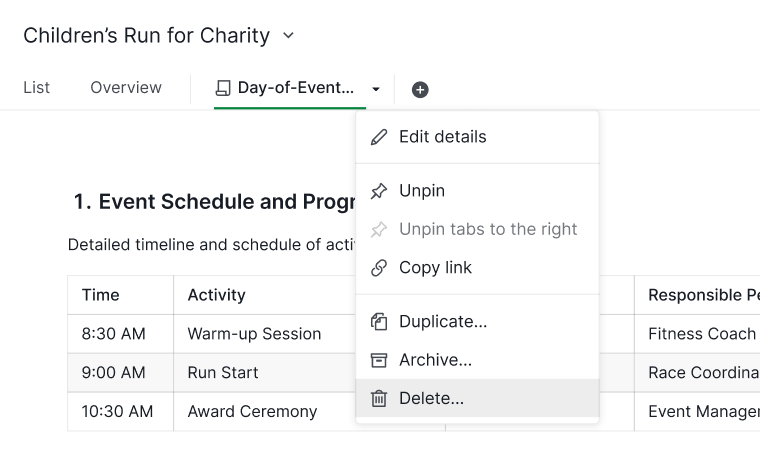

Note: Deleted documents can be restored for a limited time from the More Options menu before permanent removal. Please review carefully before proceeding with deletion.
Edit Documents Offline
Quire works 100% offline. You can edit documents in projects you’ve previously opened while online, even without an internet connection. All changes sync automatically once your connection is restored.
Learn more about Quire Documents on our blog.
Frequently Asked Questions
Why should teams keep project documentation alongside their tasks?
Project documentation gives teams a shared space to capture decisions, context, and reference material in one place. When documentation lives inside the project rather than in a separate tool, team members can find what they need without switching context, and new members can get up to speed faster. Documentation also preserves the reasoning behind decisions, which is easy to lose when work moves quickly. In Quire, documents live within your project and can be organized into multiple tabs to keep different types of content separate, such as meeting notes, onboarding guides, and technical references.
How do I create a document in Quire?
Click the + icon at the top of your project, organization, folder, Smart Folder, My Tasks, or member profile page, then select Add document. Enter a name, optionally set an icon and color, choose who can access it, and click Create.
How do I insert headings, tables, or checklists into a Quire document?
Type / anywhere in the document to open the slash command menu, which lets you insert headings, tables, checklists, member mentions, task references, and more. Use ↑/↓ to navigate the list and Enter to insert.
How do I follow a document in Quire to get notified of changes?
Click the detail panel icon on the right side of the document (or press Space), then click the eye icon at the top. Only project members can be added as followers.
How do I lock a Quire document to prevent editing?
Click the More Options icon in the upper-right corner and select Lock editing. The document becomes read-only for all members until unlocked.
How do I make a quick edit to a locked Quire document without fully unlocking it?
Click Unlock temporarily to enter edit mode. The document re-locks automatically when you switch views or projects.
How do I share a Quire document link with my team?
Right-click the document tab, select Edit Details, and click Copy URL. You can also reference a document inline using #:document_id (same project) or #{project_id:document_id} (different project).
How do I duplicate a document in Quire?
Right-click the document tab, select Duplicate, enter a new name, and click Save.
How do I archive or delete a document in Quire?
Right-click the document tab and select Archive to hide it while keeping it accessible, or Delete to remove it. Deleted documents can be restored for a limited time from the More Options menu.
How do I add a table of contents to a Quire document?
Click the More Options icon in the upper-right corner and select Table of content to toggle it on. The TOC lists all headings as clickable links. Table of Contents is only available in Documents. It is not supported in task details or comments.
Can I edit Quire documents offline?
Yes. You can edit documents in projects previously opened while online, even without an internet connection. Changes sync automatically once you’re back online.