
Custom Reminders Permalink
Quire supports two kinds of custom reminders. A standalone reminder is a personal alert for any date and time you choose, with no task attached. A task reminder is added directly to a task: if the task has a due date, the reminder is timed relative to it; if not, Quire defaults to one hour from now.
This is different from the Reminders page under Account Settings, which sets your default timing for tasks with a due date or overdue tasks, applied automatically across all of your tasks. Custom reminders let you set or override that timing for one task, or set a personal alert unrelated to any task.
Reminders are part of managing your daily work in Quire, alongside the other tools for staying on top of your tasks.
Add a Standalone Reminder
- Click the + icon in the upper-right corner of the workspace.
- Select Add Reminder.
- Choose the scope: My Tasks, the current project, or the organization.
-
Set the date and time, then save.
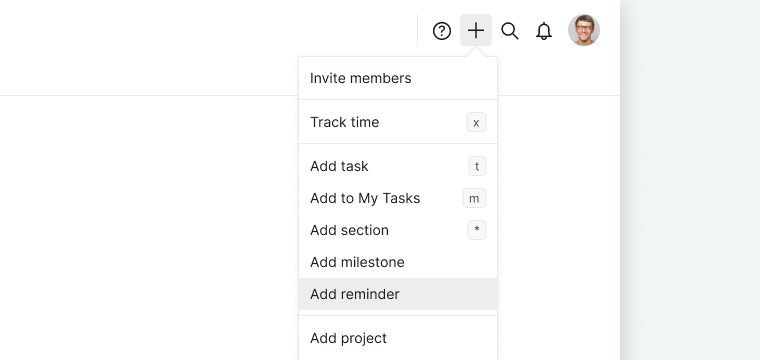

Standalone reminders show up in Calendar view, so you can see them alongside your tasks.

Add a Reminder to a Task
A task reminder’s timing depends on whether the task has a due date.
- Open the reminder dialog:
-
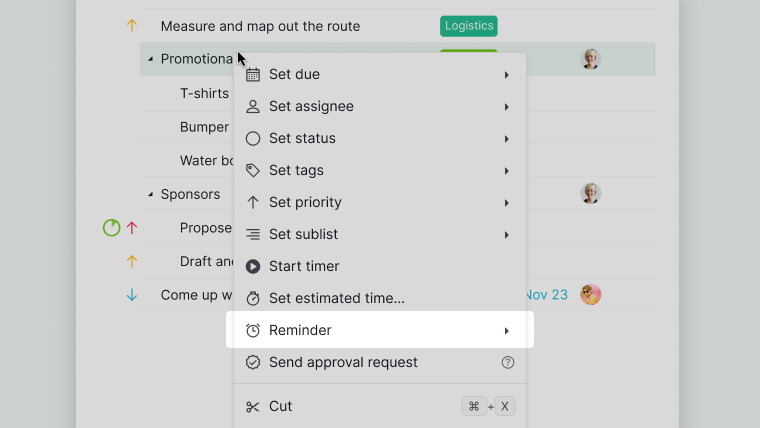
Right-click the task and select Add Reminder.
-
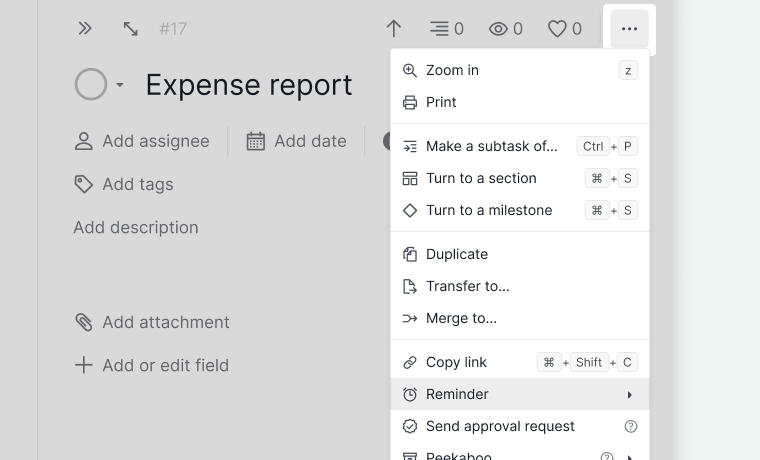
Or open the task’s detail panel, click More Options, and select Add Reminder.
-
- If the task has a due date, choose how many minutes, hours, days, or weeks before it you want to be reminded; the reminder shifts automatically if the due date later changes. If the task has no due date, leave the default one-hour-from-now timing, or adjust it after saving.
- Save.


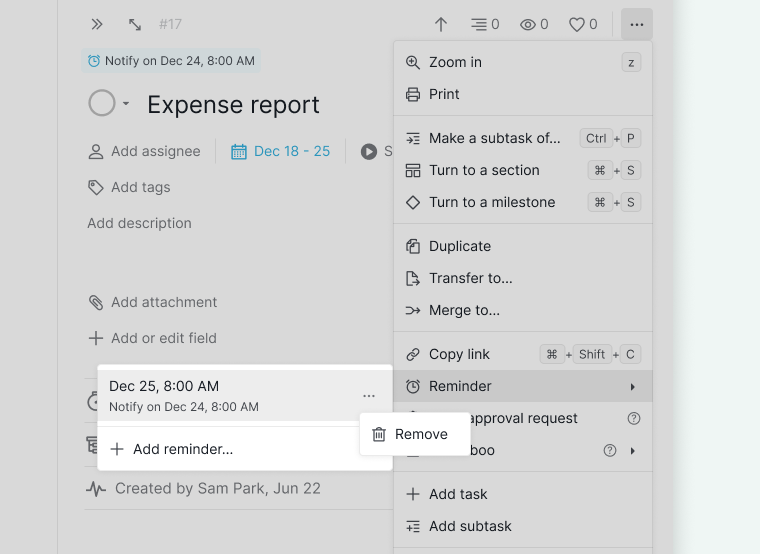
Once saved, the reminder appears at the top of the task’s detail panel. Click it to select Edit Reminder or Remove Reminder, or choose + Add reminder to set up another one right there.

Besides the detail panel, the reminder also shows up in Calendar view on the day it’s set to fire. This holds even if the task itself has no due date, in which case the task alone wouldn’t appear there.
Add a Notification
Add an earlier notify time to a reminder, so you’re notified before its own alert.
- When creating or editing a reminder, click Add Notification.
- Choose the date and time for the earlier notification. It can’t be later than the reminder’s own time.
- Save.

Repeat a Reminder
Standalone reminders and task reminders on tasks without a due date can be set to repeat, so you don’t need to recreate the same alert every cycle. A task reminder on a task with a due date follows that task’s own repeat setting instead.
- When creating or editing a reminder, open the Repeat dropdown.
- Choose how often it repeats: Daily, Weekly, Monthly, or Yearly. Select None to turn off repeating.
- Save.
The reminder fires again automatically on the next cycle, at the same time you originally set.

Share a Reminder
Both standalone reminders and task reminders can be shared, so other members receive the same alert as you.
- When creating or editing a reminder, open the Share with dropdown.
- Choose who should receive the reminder:
- Any members: everyone in the reminder’s project or organization.
- Admins only: only admins in that project or organization.
- Selected members: specific people you pick from the member list.
- Only me: private to just you, the default setting.
- The assigned External Team: shown only for a task reminder on a task assigned to an External Team.
- Save.
Everyone included in the option you choose receives the same reminder alert as you, at the same time.

View Received Reminders
When a reminder fires, it appears in the Notifications panel, opened from the bell icon in the upper-right corner of the workspace.
- Open the Notifications panel.
- Switch to the Reminder tab to see only your reminders, separate from other notification types.
For more on filtering, grouping, and managing notifications in general, see Notifications.

Filter Reminders in Calendar View
- In Calendar view, click the Filter icon.
-
Select Reminders, alongside the other filter options like Assignee or Tag.
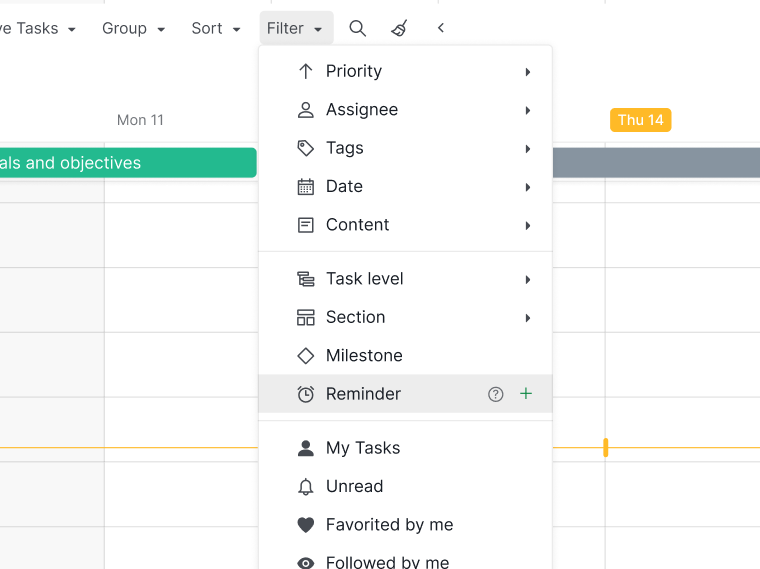

Selecting Reminders narrows Calendar view down to standalone reminders only. Task reminders aren’t listed under this filter, since they’re attached to their task; whether they show up depends on that task’s own filter settings instead.
Edit or Remove a Reminder
- Open the Edit/Remove menu:
- For a task reminder, click the reminder shown at the top of the task’s detail panel, then click it again in the list that appears.
- Or open the task’s detail panel, or find the standalone reminder in the workspace’s Calendar view, then click More Options.
-
Select Edit Reminder to change its timing, or Remove Reminder to delete it.

Want the same reminder timing (how far in advance you’re notified before a due date) applied automatically across all of your tasks, instead of setting it one task at a time? See Reminders under Account Settings.
Frequently Asked Questions
What is a custom reminder in Quire?
Quire has two kinds: a standalone reminder, a personal alert not attached to any task, and a task reminder, which is attached to a task and timed relative to its due date.
What is a standalone reminder in Quire?
A personal alert with its own date and time that is not attached to any task. Click the Add icon in the workspace, select Add Reminder, choose a scope of My Tasks, the current project, or the organization, and set the date and time; it then appears in Calendar view alongside your tasks.
How is a task reminder timed in Quire?
If the task has a due date, you choose how many minutes, hours, days, or weeks before it to be reminded, and the reminder shifts automatically if the due date changes. If it doesn’t, Quire sets the reminder for one hour from now by default.
What is a notify time in Quire?
An earlier alert you can add to any reminder in Quire. Click Add Notification, then pick a date and time no later than the reminder’s own time, or Quire blocks the save with an error.
How do I add a reminder to a task in Quire?
Right-click the task and select Add Reminder, or open its detail panel, click More Options, and select Add Reminder. Choose how many minutes, hours, days, or weeks before the due date you want to be reminded, or keep the one-hour-from-now default if the task has no due date, then save.
How do I set a reminder to repeat in Quire?
Use the Repeat dropdown when creating or editing a reminder to choose Daily, Weekly, Monthly, or Yearly, or select None to leave it as a one-time reminder. This works for standalone reminders and for task reminders on tasks without a due date. A task reminder on a task with a due date follows that task’s own repeat setting instead.
Can I share a reminder with other members in Quire?
Yes, for both standalone reminders and task reminders. Use the Share with dropdown to choose Any members, Admins only, Selected members, or Only me, which keeps it private and is the default. If the task is assigned to an External Team, an extra option for that team appears too.
Where do I see a reminder after it fires in Quire?
In the Notifications panel (bell icon, upper-right corner), under the Reminder tab.
How do I filter reminders in Calendar view in Quire?
Click the Filter icon in Calendar view and select Reminders. This narrows the view down to standalone reminders only; task reminders follow their task’s own filter settings instead.
Can I edit or remove a reminder after I set it?
Yes. For a task reminder, click the reminder shown at the top of the task’s detail panel, then click it again, or open the detail panel and click More Options instead. For a standalone reminder, find it in Calendar view and use More Options. Either path leads to the same Edit Reminder or Remove Reminder options.
Do custom reminders replace the reminder settings under Account Settings?
No. Reminders under Account Settings sets your default timing across all tasks, while a task reminder overrides that timing for one task and a standalone reminder is unrelated to any task entirely.