
Kanban Board Template Permalink
Use this template to run a Kanban board in Quire: cards move from Backlog to Done through columns with WIP limits, swimlanes sort them by how urgently they get pulled, and cycle time calculates itself. The sample is a six-person product team working on a billing app, with 21 cards across four classes of service.

You can visit the Kanban Board project and duplicate it to your workspace, so you don’t need to build everything from scratch.
You can also explore more ready-to-use templates to speed up your workflow.
Understand a Kanban Board
A Kanban board shows work as cards moving left to right through the stages they pass on the way to done. Each column is a stage, and a card sits in one column at a time.
The part that makes it Kanban is the pull rule: nobody starts a new card while the column ahead is full. Work gets finished before more work gets started, and the time from start to finish shrinks.
WIP Limits
A work-in-progress (WIP) limit caps how many cards a column may hold at once. When In Progress holds three cards and a fourth is ready, nobody pulls it. Someone finishes or unblocks a card first. The limit is meant to feel tight. A full column tells the team to help with what is already there.
Lay Out the Columns
In the Free Subscription plan, you can have up to 5 statuses in each project, and this template uses 7. Fold Ready into Backlog and Won’t do into Done after duplicating, or upgrade your subscription plan to keep all seven. More information can be found on our pricing page.
Board view builds one column per status, so the statuses are the workflow. The template ships with seven.
| Status | What it means |
|---|---|
| Backlog | Captured, not yet ready to start |
| Ready | Sized, sourced and given acceptance criteria. Next in line to be pulled |
| In Progress · WIP 3 | Being worked on, three cards at most |
| Blocked | Waiting on someone outside the team |
| In Review · WIP 2 | Waiting on a reviewer, two cards at most |
| Done | Reviewed and finished |
| Won’t do | Closed without being built |
Done and Won’t do both count as completed, so a dropped card closes without pretending it shipped.

The Limit Lives in the Name
The WIP limit is written into the status name. Quire does not stop a fourth card from entering In Progress, so the limit is a team rule that sits where everyone looks. When you rename a status or add a column, keep the number in the name.
Count cards when you check a limit. With Task Bundle on, the number beside a column name also counts each card’s subtasks.
An expedite card is the one card allowed past a limit. In the sample, In Progress holds four cards against a limit of three because the Brazil checkout bug jumped the queue.
Column Policies
A card moves right only when the column it leaves is done with it.
| Leaving | Only when |
|---|---|
| Backlog → Ready | It has a Size, a Request Source and at least one acceptance criteria subtask |
| Ready → In Progress | In Progress is under its limit, and the person pulling the card sets Started to today |
| In Progress → In Review | Every acceptance criteria subtask is checked and a reviewer is assigned |
| In Review → Done | The reviewer approved in a comment and Finished is set |
| Anything → Blocked | Blocked Since and Blocked Reason are filled in, with a named owner for the wait |
Add Swimlanes for Classes of Service
The columns say where a card is. Swimlanes say how urgently it gets pulled. Each card carries a Class of Service field, and grouping the board by it draws one swimlane per class.
- Switch to Board view.
- Click Group in the filter options.
- Select Class of Service.
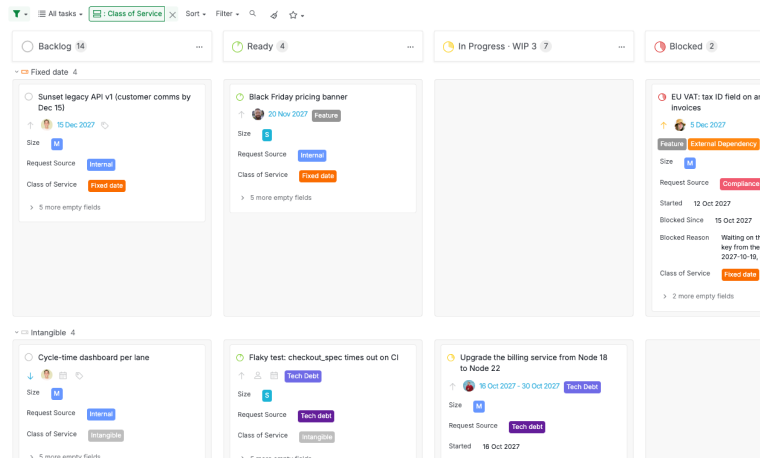

| Lane | Use it for | How it gets pulled |
|---|---|---|
| Expedite | Production is down or a customer is blocked | One card at most. It jumps every queue and the team swarms it |
| Fixed date | A launch, a contract or an audit | Early enough that it never has to become an expedite |
| Standard | Everything else | First in, first out from Ready. Most of the throughput lives here |
| Intangible | Tech debt and tooling | One card stays in progress at all times, or the lane never moves |
If a second expedite appears, the first one was not an expedite.
Note: Board view groups by a field rather than by section, which is why the class lives in the Class of Service field. The four sections hold the same split for List view. Set the field on every new card, or the card falls outside the four lanes.
Nest Acceptance Criteria with Task Bundle
The Task Bundle feature is only available in Professional, Premium, Enterprise plans. More information can be found on our pricing page.
Each root task is one card, and its subtasks are its acceptance criteria, such as Acceptance: a viewer gets 403 on every write endpoint. By default, Board view shows every subtask as a card of its own, so one card with four criteria turns into five cards scattered across the columns. Task Bundle keeps them inside their card.
- Switch to Board view.
- Click the Board icon on the right-hand side of the main panel.
- Toggle Task bundle on.
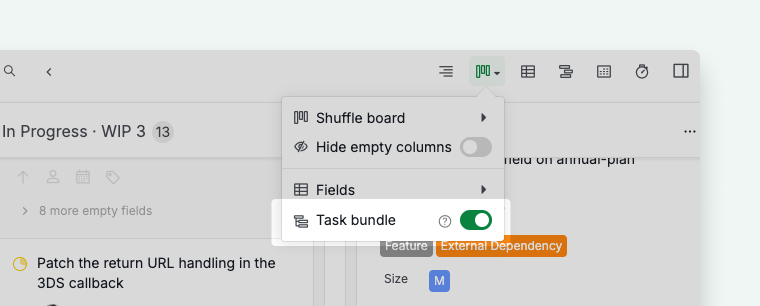

Each card now carries its criteria with it. Click the arrow on a card to expand or collapse its bundle, and check off each criterion as it is met.

When you drag a bundled card to the next column, only the card takes the new status. Its acceptance criteria keep their own, so moving a card never checks them off by accident. Hold Alt (Windows) or ⌥ (Mac) while dragging if you want every task in the bundle to take the new status.
Tip: Press O to expand or collapse a selected task bundle without clicking the arrow.
Fill In the Card Fields
Eight custom fields describe each card.
| Field | Type | What it holds |
|---|---|---|
| Class of Service | Select | Expedite, Fixed date, Standard or Intangible. Draws the swimlanes |
| Size | Select | XS to XL. Relative effort, not hours |
| Request Source | Select | Customer, Internal, Bug report, Tech debt or Compliance |
| Started | Date | The day the card entered In Progress |
| Finished | Date | The day the card reached Done |
| Cycle Time | Formula | Finished minus Started, in days |
| Blocked Since | Date | The day the card entered Blocked |
| Blocked Reason | Text | What the card waits on, who owns the wait, and when it was last chased |
Fill in Size and Request Source when a card enters Ready. A card with no size is not ready, and anything sized XL gets split before it moves on. Filter by Request Source to see who the board serves.
To choose which fields appear on the cards, click the Board icon and open Fields. Learn more about custom fields in Board view.
Tags
Five tags say what a card is: Bug, Feature, Customer Request, Tech Debt and External Dependency. A card can carry more than one. Filter by External Dependency to see how much of the board is waiting on a vendor.
Handle Blocked Work
The moment a card waits on someone outside the team, move it to Blocked, set Blocked Since, and write the reason and the owner into Blocked Reason. A blocked card with no reason never gets chased.

In the sample, EU VAT: tax ID field on annual-plan invoices waits on a validation API key from the tax vendor, with the last chase date and the owner written in. Stripe Connect onboarding for marketplace accounts waits on a two to three week compliance review, and its reason notes there is nothing to build until the review clears.
Filter by the Blocked status and sort by Blocked Since. The top card is the oldest wait on the board, and its owner is already written down.
Measure Cycle Time
Table view is only available in the Professional, Premium, Enterprise plans. More information can be found on our pricing page.
Cycle time is the number of days from the moment a card starts to the moment it finishes. It tells you whether the WIP limits are working: tighter limits should bring it down.
Set Started the day a card enters In Progress and Finished the day it reaches Done. Cycle Time is a formula, so it fills itself in:
{Finished} - {Started}
The three finished sample cards give it numbers. Apple Pay button on checkout page took 9 days, Export invoices to CSV took 4, and Fix: duplicate webhook delivery on retry took 1.

Switch to Table view and sort by Cycle Time to bring the slow cards to the top, then read their comments. Most of the time the delay sits in a hand-off.
Keep the Board Flowing
Three habits keep a Kanban board honest.
- Finish before you start. When a column is at its limit, help clear it instead of pulling new work.
- Write the reason the moment a card blocks. A card that waits in In Progress without a reason uses up a slot that nobody can see.
- Keep one Intangible card in progress. Nothing breaks tomorrow if tech debt waits, so without a reserved slot it waits forever.
To spot an overloaded person, switch the grouping from Class of Service to Assignee for a moment. One lane per person shows who is carrying three cards and who is carrying none.
When you adapt the template:
- Separate QA step? Add a Testing status between In Review and Done, with its own limit in the name
- Deploy on a schedule? Add a Ready to Deploy status before Done
- No classes of service? Rename the four Class of Service options to your product areas or squads. The columns, fields and policies stay the same
- Smaller or larger team? The three-and-two limits suit five or six people. Halve them for a pair, and wait for a month of cycle time data before raising them for a bigger team
Read more on our blog about how to use Kanban boards for project management.
Start Your Board
Everything on this page can be built by hand. The template is the same thing already assembled: seven statuses with the limits in their names, eight custom fields including the Cycle Time formula, five tags, 21 sample cards with acceptance criteria, and the how-to document.
Duplicate the Kanban Board project into your workspace, then:
- Delete the sample cards and add your own, one root task per piece of work.
- Set Class of Service, Size and Request Source on each card, and add its acceptance criteria as subtasks.
- In Board view, group by Class of Service and turn on Task bundle.
- Agree on the WIP limits and column policies with your team, and change the numbers in the status names to match.
- Set Started when a card enters In Progress and Finished when it reaches Done.

Point your team at the How to use this template document. It keeps the column policies and field definitions inside the project, for anyone who does not read this guide.
To run the same work in sprints instead of a continuous flow, start with the Agile template. For a short daily check on what moved and what is stuck, pair the board with the Daily Standup Meeting template.
Frequently Asked Questions
What is a Kanban board?
A Kanban board shows work as cards moving through columns, one column per stage, from Backlog to Done. Each column has a limit, and nobody starts a new card while the column ahead is full.
What is a WIP limit in Kanban?
A WIP (work-in-progress) limit caps how many cards a column may hold at once. When a column is full, the team finishes or unblocks a card before pulling another.
How do I set WIP limits in Quire?
Write the limit into the status name, such as In Progress · WIP 3, so it shows in the column header. Quire does not block a card from entering a full column, so the limit works as a visible team rule.
What are classes of service in Kanban?
Classes of service sort cards by how urgently they get pulled: Expedite, Fixed date, Standard and Intangible. In the Quire template they live in a Class of Service field.
How do I add swimlanes to a Kanban board in Quire?
In Board view, click Group in the filter options and choose a field, such as Class of Service or Assignee. Quire draws one swimlane per value across the status columns.
What does Task Bundle do on a Quire Kanban board?
It keeps each card’s subtasks, such as acceptance criteria, nested inside the card instead of showing them as separate cards. Turn it on from the Board icon in Board view. It is available in the Professional, Premium and Enterprise plans.
How do I handle blocked cards on a Kanban board?
Move the card to Blocked, set Blocked Since, and write what it waits on and who owns the wait into Blocked Reason. Sort the Blocked column by Blocked Since to chase the oldest wait first.
How do I measure cycle time in Quire?
Add Started and Finished date fields and a Cycle Time formula field with {Finished} - {Started}. Sort by Cycle Time in Table view to find the slowest cards.
Is there a ready-made Kanban board template in Quire?
Yes. Visit the Kanban Board project and duplicate it to your workspace to get seven statuses with WIP limits, four class of service swimlanes, eight custom fields including the Cycle Time formula, and 21 sample cards.