
Advanced Features Permalink
Here are some advanced features you can add to your tasks on the Quire mobile app.
Turn Task into Section
A section helps organize and group tasks within a list. It can represent categories, milestones, phases, or stages of a project.
Note: Sections cannot have assignees, due dates, tags, or statuses.

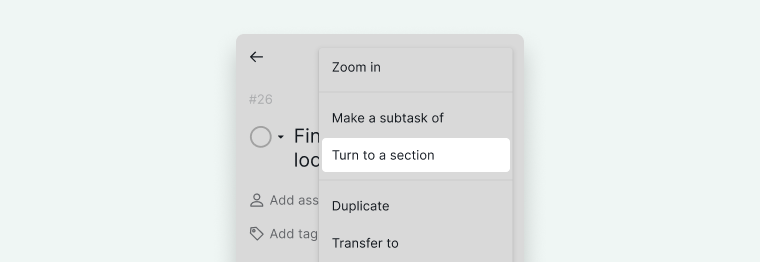
Turn to a Section
- Open the task detail panel.
- Tap the More Options icon.
-
Select Turn to a section.

Convert Back to a Task
- Open the section’s detail panel.
- Tap the More Options icon.
- Select Turn to a task.
Set Approvals
The Approval feature is only available in the Premium and Enterprise plans. More information can be found at our pricing page.
With Approval, you can send specific tasks to supervisors or stakeholders for their input and approval.
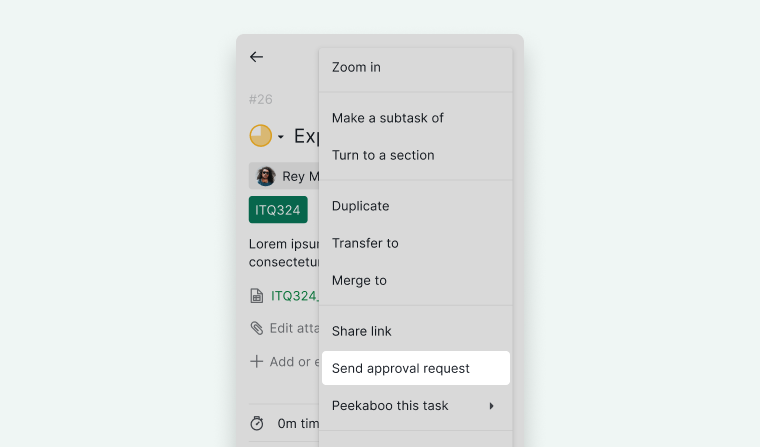
Send for Approval
- Open the task detail panel.
- Tap the More Options icon.
-
Select Send approval request.

Review Actions
If you have approval permissions, you will see three options in the task detail panel:
- Approve
- Request changes
- Reject
Select the appropriate action to update the task status.

Identify Approval Tasks
In the Tree view, approval tasks are shown with:
- Dotted circle icons
- Green check marks
- Red crosses
- Yellow circular arrows
You can also use the filter bar to display:
- Tasks requiring approval
- Tasks requesting changes
- Approved tasks
-
Rejected tasks


Note: You can use the filter bar to display tasks that require approval, request changes, or have already been approved or rejected.
Use Peekaboo
Peekaboo-ing a task is only available in the Professional, Premium, Enterprise plans. More information can be found at our pricing page.
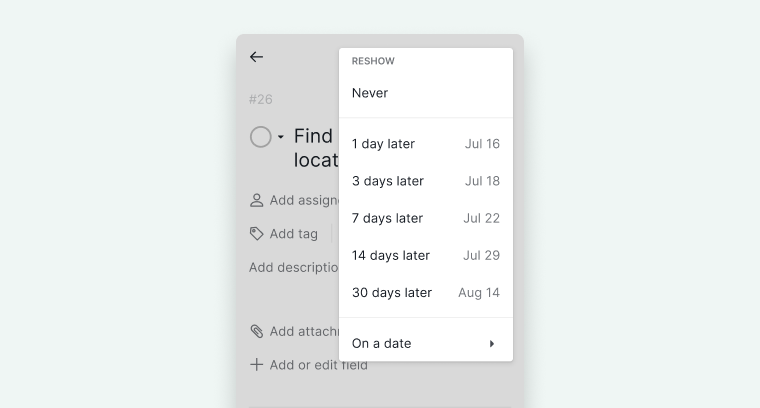
When your list grows a tad overwhelming, you can pick several tasks that are not actionable at the moment and peekaboo them. The peekaboo tasks will remain hidden from the Tree view and reshow several days later.
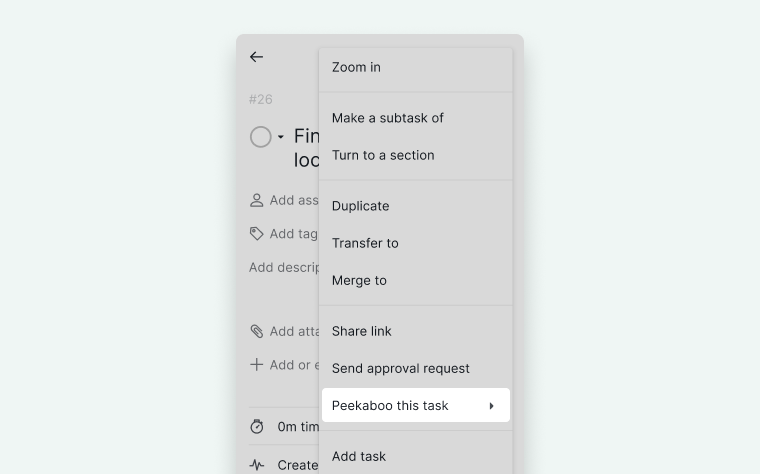
Hide a Task with Peekaboo
- Open the task detail panel.
- Tap the More Options icon.
- Select Peekaboo this task.
- Choose how many days to hide the task, or select a specific reshow date.


Note: To view all peekaboo tasks in this project, click the filter icon in the upper right corner and select Peekaboo Tasks from the task statuses menu.
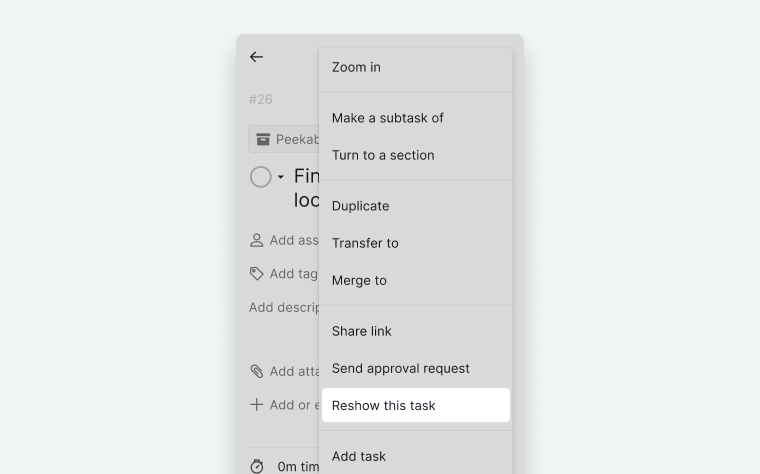
Reshow a Task
- Open the task detail panel.
- Tap the More Options icon.
-
Select Reshow this task.

Frequently Asked Questions
How do I turn a task into a section in the Quire mobile app?
Open the task detail panel, tap the More Options icon, and select Turn to a section. To reverse it, open the section’s detail panel and select Turn to a task.
What are the limitations of sections in Quire?
Sections cannot have assignees, due dates, tags, or statuses. They are used only to organize and group tasks within a list.
How do I send a task for approval in the Quire mobile app?
Open the task detail panel, tap the More Options icon, and select Send approval request. Available on Premium and Enterprise plans only.
How do I approve or reject a task in the Quire mobile app?
If you have approval permissions, open the task detail panel to see Approve, Request changes, or Reject, and select the appropriate action.
How do I hide a task temporarily using Peekaboo in the Quire mobile app?
Open the task detail panel, tap the More Options icon, select Peekaboo this task, and choose how many days to hide it. Available on Professional, Premium, and Enterprise plans.
How do I manually reshow a Peekaboo task in Quire?
Open the task detail panel, tap the More Options icon, and select Reshow this task.