
OKRs Template Permalink
Use this template to set and track your team’s OKRs (Objectives and Key Results) in Quire.
You can visit the OKRs project and duplicate it to your workspace, so you don’t need to build everything from scratch.
You can also explore more ready-to-use templates to speed up your workflow.
Understand OKRs
OKRs (Objectives and Key Results) is a goal-setting framework built around two things: what you want to achieve and how you measure it. Teams use OKRs to stay focused on what matters, keep everyone working toward the same goals, and track real progress instead of just activity.
Objectives
An Objective is a short, qualitative statement describing what you want to achieve. It should be inspiring and meaningful to the whole team. Focus on outcomes, not tasks.
Example: Make customer support our strongest competitive advantage.
Key Results
Key Results are the measurable outcomes that define success for each Objective. Each Objective should have 2–5 Key Results that are specific, numeric, and trackable over the OKR cycle.
Using the same Objective above, the Key Results might be:
- Reduce average first response time from 24 hours to 4 hours by end of Q3.
- Achieve a CSAT score of 90% or above.
- Resolve 95% of support tickets within 48 hours.
Read more on our blog about the OKR methodology.
Set Up Your OKR Structure in Quire
Objectives as Sections
Use the List tab to set up your OKR structure.
- Create one section per Objective
- Use the section name as the Objective statement
- Add all related Key Results as tasks under the section

Key Results as Tasks
Add a task under each section for every Key Result.
- Select a section and press Enter, or click the Add task icon below it.
- Name the task after the Key Result and include the target metric in the title or description.
- Assign an owner to each Key Result.

OKR Sublists
Use sublists to create different views of your OKRs without moving tasks.
By team or quarter
Create one sublist per team or time period to give each group a dedicated workspace.
- Create a sublist and name it (e.g., Marketing, Q1 2025).
- Add the relevant Objectives to it.

By Objective
Create one sublist per Objective and use a pre-filter to populate it automatically. No manual task-adding needed.
- Create a sublist and name it after the Objective.
- Set a pre-filter (e.g., by section name or tag) to match the Objective’s Key Results.
- Matching tasks are added to the sublist automatically.

Track and Review Progress
Progress Updates
Use custom fields to track Key Result progress consistently across your project. Set them up once on the project, and every Key Result task will have the same structure for check-ins. Switch to Table view to see all Key Results and their field values side by side.
Recommended fields:
- Start Value (number): the baseline value at the start of the cycle
- Target Value (number): the goal to reach by end of the cycle
- Current Value (number): updated manually at each check-in
- Unit (select): the unit of measurement (e.g., %, count, revenue, NPS score)
- Progress % (formula): calculates completion automatically using
({Current Value} - {Start Value}) / ({Target Value} - {Start Value}) -
Confidence (select): the health status of the Key Result (On Track, At Risk, Off Track)
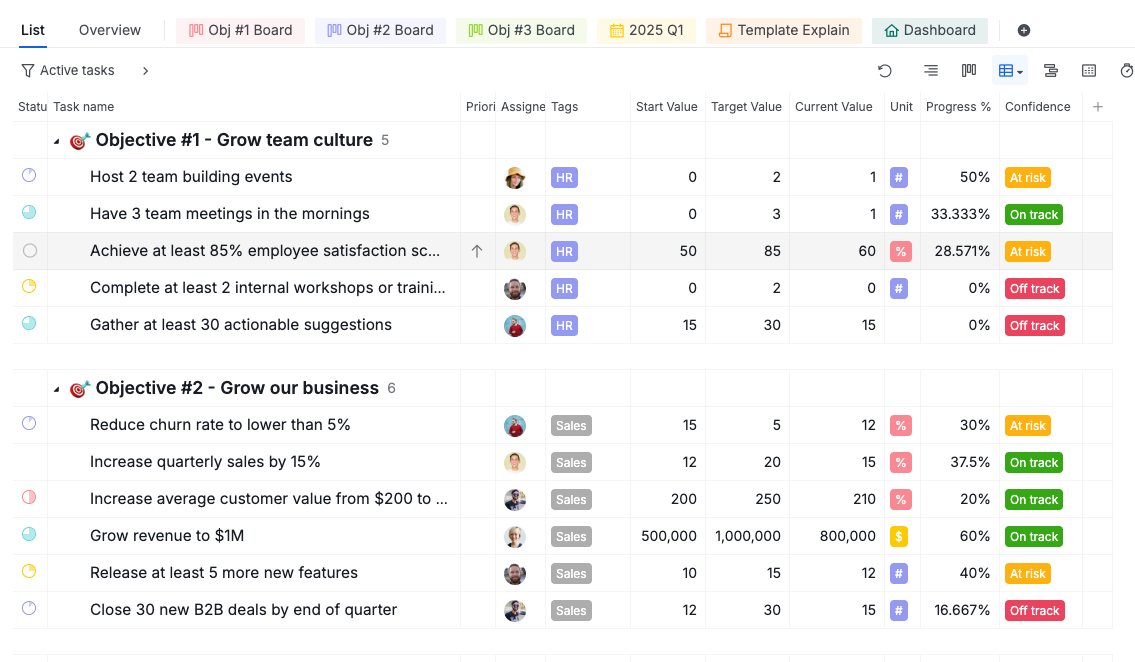

During each check-in, update the fields directly on the task.
- Update Current Value with the latest number
- Update Confidence to reflect the current health status
- Update the task status if the standing has changed
- Add a comment with context or notes for the update
- Add longer progress notes to the task description
Check-in Meetings
For regular OKR reviews:
- Create a dedicated sublist for check-in meetings.
- Add the current cycle’s Objectives to it.
- Switch to Board view during the meeting.
Tip: Rename your status columns to percentages (e.g., 0%, 25%, 50%, 75%, 100%) so each Key Result’s progress is visible at a glance. You can also add more statuses to match your team’s check-in stages.
During the meeting, review progress on each Key Result. For any KR marked At Risk or Off Track, discuss:
- The gap between the current number and the target
- The specific reasons it is falling behind
- What resources or decisions are needed to get it back on track

Timeline View
Timeline view is only available in the Professional, Premium, Enterprise plans. More information can be found on our pricing page.
- Switch your sublist to Timeline view.
- Assign start and due dates to each Objective.
- Review the quarter’s schedule visually.

Filters and Views
Use filters to narrow down OKR views.
You can filter by:
- Assignee (to see one person’s Key Results)
- Tag (to group by team, priority, or cycle)
- Status (to show at-risk or completed Objectives)
Dashboard View
Dashboard view is only available in the Professional, Premium, Enterprise plans. More information can be found on our pricing page.
Dashboard view turns your OKR data into a visual overview using widgets, without digging into individual tasks.
Add widgets to track OKR progress:
- Member Workload: each owner’s active, completed, and overdue Key Result counts, with a health badge that flags risk early.
- At-Risk Tasks: flags Key Results that are overdue, due soon, or haven’t been updated in a while, so leads can step in before a deadline is missed.
- Tasks Created vs. Completed: compares new Key Results against completed ones over the cycle, so you can see whether the team is keeping pace.
None of the widget types break progress down by Objective or by team on their own. To see one Objective’s completion at a time, filter a single widget by Section, since each Objective is a section in your OKR structure.

Learn more about Dashboard view and its widget types.
Frequently Asked Questions
What are OKRs?
OKRs (Objectives and Key Results) is a goal-setting framework used by teams to define ambitious goals and track progress through measurable outcomes. Each Objective describes what you want to achieve, while Key Results are specific, numeric targets that define what success looks like. OKRs are typically set per quarter and reviewed regularly throughout the cycle.
How do I set up OKRs in Quire?
Create one section per Objective in the main List tab and add a task for each Key Result under it. Use sublists to organize by team or quarter and assign owners to each Key Result.
How do I track key result progress in Quire?
Set up custom fields on your project: Start Value, Target Value, Current Value, Unit, Progress % (formula), and Confidence. During each check-in, update Current Value and Confidence on the task. The Progress % field calculates completion automatically.
How do I organize OKRs by team or department in Quire?
Create a sublist per team and add the relevant Objectives to it. Each team sees only their OKRs. The main list still shows everything.
How do I run OKR check-in meetings in Quire?
Create a dedicated check-in sublist, add the current cycle’s Objectives to it, and switch to Board view during the meeting to review Key Result status and discuss blockers.
How do I see all OKRs across teams in one view?
Use the main List tab to see all Objectives and Key Results together. Filter by assignee, tag, or status to focus on a specific team or progress level.
How do I organize OKRs by quarter in Quire?
Create a sublist for each quarter and add the planned Objectives to it. Past quarters stay in the project for reference.
Is there a ready-made OKR template in Quire?
Yes. Visit the OKRs project and duplicate it to your workspace to get started without building the structure from scratch.