
Sprint Retrospective Template Permalink
Use this template to run a sprint retrospective that ends in owned actions rather than a list of complaints. The project opens in Table view, where the vote count, impact and effort of every item sit side by side, so the discussion order picks itself.
You can visit the Sprint Retrospective project and duplicate it to your workspace, so you don’t need to build everything from scratch.
You can also explore more ready-to-use templates to speed up your workflow.
Understand Sprint Retrospectives
A sprint retrospective is a meeting at the end of a sprint where the team looks at how the sprint went and agrees what to change. It is about the process, not the product, which is what separates it from a sprint review.
The Five Stages
Every retrospective format, however it labels its columns, moves through the same five stages.
- Set the stage. Restate that this is about the process, and share the sprint numbers so everyone argues from the same facts.
- Gather data. Everyone adds what they saw, good and bad, without discussion.
- Generate insights. Ask why something happened, more than once. One “why” gives you a symptom, three gives you a cause.
- Decide on actions. Turn agreed changes into work with an owner and a date.
- Close. Read the actions back out loud. An action nobody can repeat at the end of the meeting will not survive the week.
Stage three is where the value comes from, and stage four is where it gets lost. Most of this page is about making stage four hard to skip.
A 90-Minute Agenda
Ninety minutes suits a two-week sprint. The split matters more than the total.
| Stage | Time | What happens |
|---|---|---|
| Set the stage | 5 min | Restate the prime directive, share the sprint numbers |
| Gather data | 20 min | Everyone adds items to What went well and What didn’t go well |
| Dot-vote | 5 min | Three votes each, recorded in the Votes field |
| Generate insights | 35 min | Discuss the top-voted items only |
| Decide actions | 20 min | Move agreed items into Action items with an owner and a date |
| Close | 5 min | Read the actions back. Anything without a name doesn’t count |
Retrospectives overrun for one reason: the team tries to get through every item raised instead of the handful that earned the most votes. Vote first, then work down the list until the clock runs out.
Why Retros Stop Mattering
Two things end a retrospective habit, and both happen quietly.
- The actions never ship. An action agreed verbally, written in a document nobody reopens, with no owner and no date, competes against sprint work that has all three. It loses every time
- The same problem comes back. A problem raised three sprints running is not one the team forgot about. It is one where the agreed fix didn’t address the cause
The rest of this page sets up the two habits that prevent both: every action gets a name and a date at the moment it is agreed, and every repeat gets tagged so the pattern is visible.
Set Up Your Retro Board
Retro Sections
The template uses seven sections that follow the meeting from prep to follow-up.
- Before the retro: booking the meeting, pulling the numbers, and reviewing last retro’s actions
- Carry-over from Sprint 23: the previous retro’s actions that are still open
- What went well and What didn’t go well: the two gathering columns
- Ideas and experiments: suggestions that are not yet decisions
- Action items: Sprint 24: the output of the meeting
- Retro cadence: the recurring work of running retros at all

Two milestones sit between the sections. Sprint 24 retro held marks the meeting itself, and All Sprint 24 actions closed marks the date the agreed actions are measured against. Move both to your own dates first, because everything else hangs off them.
The Fields
Table view is only available in the Professional, Premium, Enterprise plans. More information can be found on our pricing page.
Sections tell you where an item sits. Custom fields tell you what to do with it, and they are why this template is meant to be read in Table view.
- Category tells Table view what a row is, since sections don’t appear as a column there
- Sprint keeps several sprints in one project without the board turning to mud
- Votes holds the dot-vote count. Sort by it descending and you have your agenda
- Impact and Effort together decide which action goes first. High impact and small effort wins every time
- Discussed is the checkbox that stops a well-voted item being silently skipped

Tip: You can show or hide fields per view, so the facilitator can work with every column open while the team sees only Votes and Category during the meeting.
Statuses
In the Free Subscription plan, you can have up to 5 statuses in each project, and this template uses 6. Merge Discussing into To discuss after duplicating, or upgrade your subscription plan to keep all six. More information can be found on our pricing page.
Six statuses carry an item from raised to resolved: To discuss, Discussing, Action agreed, In progress, Done, and Parked.
Parked is the one worth using properly. An item that was raised, discussed, and deliberately not acted on is a different thing from one nobody got to, and treating them the same is how the same card reappears every sprint.
Open the project in Board view and shuffle the columns by Status to walk the six stages left to right.

Run the Retro
Gathering and Voting
Ask people to add their items the day before. A retrospective that starts with twenty minutes of silent typing spends a quarter of its budget on something that could have happened asynchronously.
- Everyone adds their items to What went well and What didn’t go well.
- Tag each one so the theme is visible later: Process, Tooling, Planning, Communication, Quality, or People.
- Dot-vote in the meeting, three votes each, and record the count in the Votes field.
- Tick Discussed as you work down the list.
Each item is a task, so the person who raised it can put the detail in the description instead of explaining it from memory. The item below carries the evidence, the vote count, and the impact rating in one place.

Note: Set the Votes count while the vote is still on screen. Reconstructing it afterwards is guesswork, and the number is the only thing standing between your agenda and whoever speaks loudest.
Deciding the Actions
Cap the meeting at three to five actions. A retrospective that agrees twelve delivers none of them, because none of that work was in the sprint plan.
- Move the agreed item into Action items with move tasks, or add it there as a new task if the wording needs to change.
- Assign it to someone who was in the room.
- Set a due date inside the coming sprint.
-
Break anything larger than a day into subtasks, so progress is visible before the deadline rather than at it.
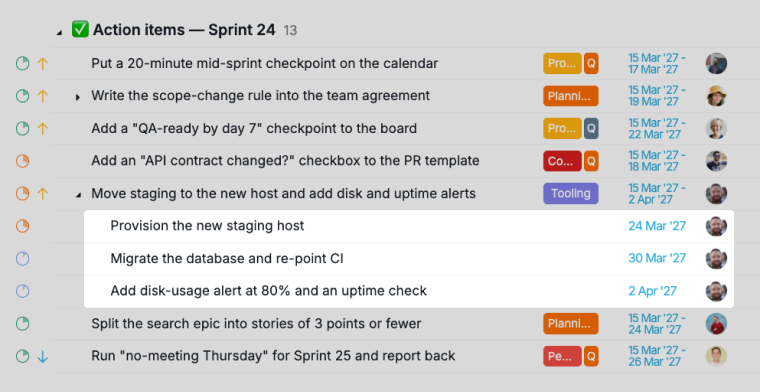

Close by reading the list back. An action with no name against it is a wish, and this template makes that hard to hide, because Table view shows an empty assignee column at a glance.
Track What Was Agreed
Retro Sublists
In the Free Subscription plan, you can create two sublists for each project, and this template ships with 3. Keep the two your team opens most after duplicating, or upgrade your subscription plan to use all three. More information can be found on our pricing page.
Three sublists do the reporting, so nobody has to write it.
- Open action items collects every unfinished action across all sprints. This is what you open the next retro with
- Top voted (5+) is the discussion agenda. Anything below five votes stays on the board as a record but doesn’t get talked about
- Recurring problems collects anything raised in more than one retro

All three are filter-based, so they update themselves as statuses and tags change. The recurring list is the most useful of the three and the one teams skip. Treat anything that lands there as a signal to change the approach, not to agree the same action again.
Retro Cadence
The Retro cadence section holds the work of keeping the habit alive: running the retro, checking last retro’s actions before the next one, archiving the finished sprint’s items, and changing the format every six sprints. Set those tasks to repeat on your sprint interval and the ritual stops depending on whoever remembers it.
Dashboard View
Dashboard view is only available in the Professional, Premium, Enterprise plans. More information can be found on our pricing page.
The template ships with a Retro Overview dashboard for the part no single meeting can show you: whether the actions are actually landing. Three widgets carry that.
- Member Workload: whether retro actions are spread across the team or piling on one person
- Deadline Calendar: whether the actions are due inside the sprint or drifting past it
- Project Health: how the open count moves over weeks, which is the honest measure of whether retros are working

The sample dates run to June 2027, so the Deadline Calendar reads empty until you move the two milestones onto your own sprint.
Change the Retro Format
Asking the same four questions every sprint stops producing new answers after a while. Each format below changes what people notice, which is the whole reason to switch.
| Situation | Format |
|---|---|
| New team, first few retros | What went well / didn’t / next |
| Observations but no actions ever ship | Start / Stop / Continue |
| Sprint full of unknowns or new tech | 4Ls: liked, learned, lacked, longed for |
| Something went badly and it’s unspoken | Mad / Sad / Glad |
| Quiet sprint, want to look ahead | Sailboat: wind, anchors, rocks, island |
The project’s Retro formats cheat sheet document covers what each one is good at and where it fails, so the facilitator can pick one without reading a book about it.
Note: Changing format does not fix a retrospective where nobody says anything. That is a safety problem, and no set of column headings solves it. If people are quiet, try running a few retros without managers in the room and see whether anything changes.
Start Your First Retro
Everything on this page can be built by hand. The template is the same thing already assembled: the seven sections, the six statuses, the six fields, the two milestones, and all three sublists, filled in with one team’s Sprint 24 so you can see a worked retro before replacing it.
Duplicate the Sprint Retrospective project into your workspace, then change five things:
- Move both milestones to your real retro date and your real action deadline.
- Rename the Sprint field options to your own sprint numbers, and rename the two sprint-specific sections to match.
- Delete the Sprint 24 samples once you have looked at a few. Keep the sections, the statuses and the fields.
- Merge Discussing into To discuss if you are on the Free plan, which allows five statuses.
- Read the How to use this template document before the first meeting. It keeps the agenda inside the project, for anyone who does not read this guide.

The retro is one ceremony in a wider cycle. See the Agile Scrum template for backlogs and sprints, and the Daily Standup Meeting template for the check-in that runs between them.
Frequently Asked Questions
What is a sprint retrospective?
A sprint retrospective is a meeting at the end of a sprint where the team looks at how the sprint went and agrees what to change for the next one. It is about the process rather than the product, which is what separates it from a sprint review.
How long should a sprint retrospective be?
Around 90 minutes for a two-week sprint. The split matters more than the total: five minutes to set the stage, twenty to gather items, five to vote, thirty-five to discuss the top-voted ones, twenty to agree actions, and five to close.
What are the five stages of a sprint retrospective?
Set the stage, gather data, generate insights, decide on actions, and close. Generating insights is where the value is, because asking why more than once is what separates a root cause from a symptom.
How do I run a sprint retrospective in Quire?
Give the meeting its own project with sections for what went well, what didn’t, ideas, and action items. Everyone adds items as tasks before the meeting, you record the dot-vote count in a Votes field, then sort Table view by Votes to get the discussion order.
How many action items should a sprint retrospective produce?
Three to five. A retrospective that agrees twelve actions delivers none of them, because none of that work was in the sprint plan and it all competes with committed work.
Why don’t sprint retrospective action items get done?
Usually because they were never real work. An action with no owner, no date, and no place in the team’s actual project loses to sprint commitments that have all three.
How do I stop the same problem coming back every retro?
Tag it Recurring issue the second time it is raised, and keep a sublist of everything carrying that tag. A problem that reappears means the agreed fix didn’t address the cause, so change the approach rather than repeating the action.
What are the most common sprint retrospective formats?
What went well / didn’t / next, Start / Stop / Continue, the 4Ls, Mad / Sad / Glad, and Sailboat. Swapping format every six sprints or so stops the same four questions from producing the same four answers.
Is there a ready-made sprint retrospective template in Quire?
Yes. Visit the Sprint Retrospective project and duplicate it to your workspace to get the seven sections, six statuses, six fields, two milestones, and all three sublists without building them yourself.