
Chat Permalink
Chat channels in Quire live inside a project, keeping team collaboration next to the work it’s about instead of scattering across a separate messaging app. Any message can turn into a task directly: select “Turn into a new task” from the message menu, and Quire adds a link back to the original message inside the new task’s description, keeping the context that prompted it.
Mentioning a teammate with @username adds them as a channel follower automatically, so they get notified without anyone having to invite them separately. Messages support quote-replies (highlight text, then Alt + Q (Windows) or Ctrl + Q (Mac)), pinning for key information, and slash commands for inserting headings, tables, checklists, or task references without leaving the chat window.

Create a Chat Channel
- Click the + icon at the top of your project and select Add chat.
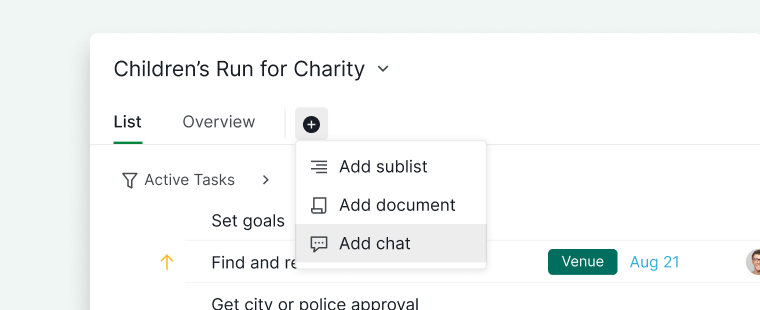
- Enter a name for the chat channel. Optionally, customize the icon and color.
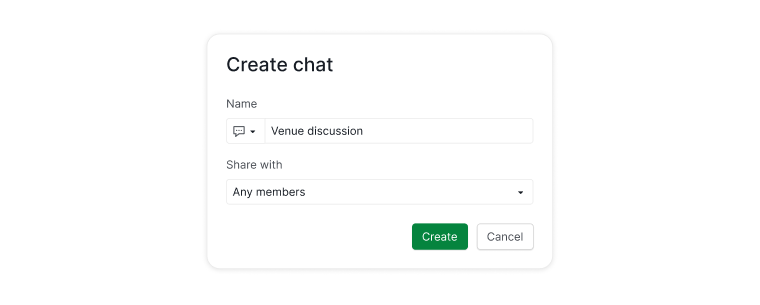
- Configure visibility settings to control who can access the channel:
- All project members
- Project admins only
- Specific members
- External team
- Private for yourself
- To start a conversation, type your message into the input field at the bottom.
- Mention members using
@usernameto automatically add them as followers of the chat channel.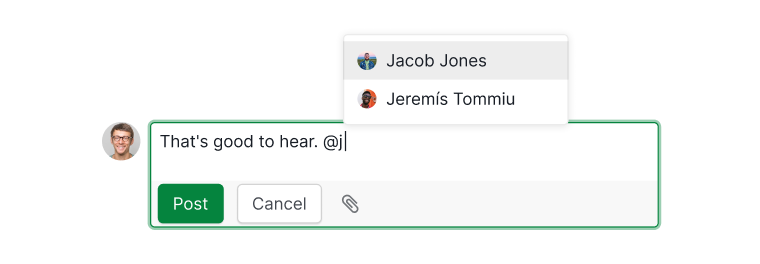


Edit Chat Channel Details and URL
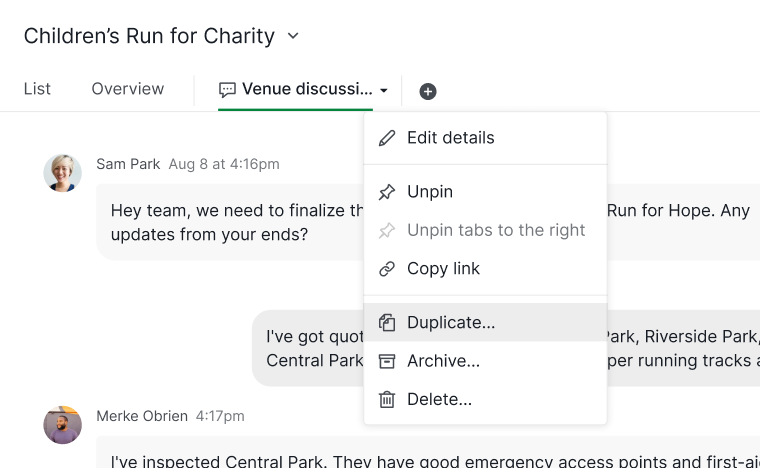
- Right-click the chat channel name and select Edit details.
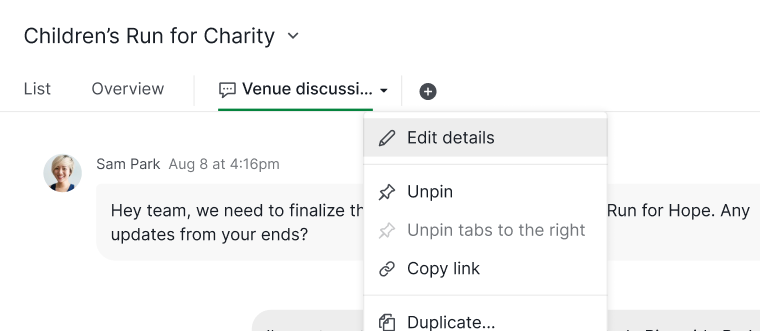
- Optionally, copy the channel URL and share it with team members.
- To reference a channel in a task or comment:
- Within the same project:
#>chat_id - From another project:
#{project_id>chat_id}

- Within the same project:


Organize Chat Channels
Pin or Unpin a Chat Channel
- Right-click on the chat channel tab and select Pin.
-
Newly created channels are pinned by default. Channels created by other members are not.


Duplicate a Chat Channel
- Right-click the channel tab and select Duplicate.
- Enter a new name for the duplicated channel.
-
Click Save to confirm.

Archive a Chat Channel
Right-click the chat channel tab and select Archive.

Note: Archived channels move to the Archived category for easy access.
Delete a Chat Channel
Right-click the channel tab and select Delete.

Note: Deleted channels can be restored for a limited time via the More Options menu. Review carefully before deletion. Please review carefully before proceeding with deletion.
Send and Format Messages in Chat
Message Formatting
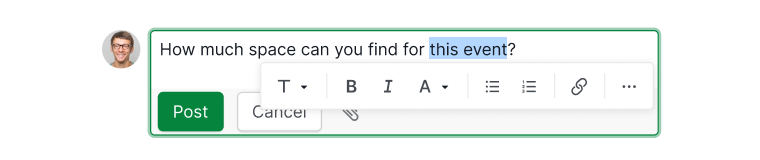
Highlight text in the comment area to access a menu of formatting options. You can:
- Change text color
- Add hyperlinks
-
Apply bold, italics, headings, and more

Slash Commands
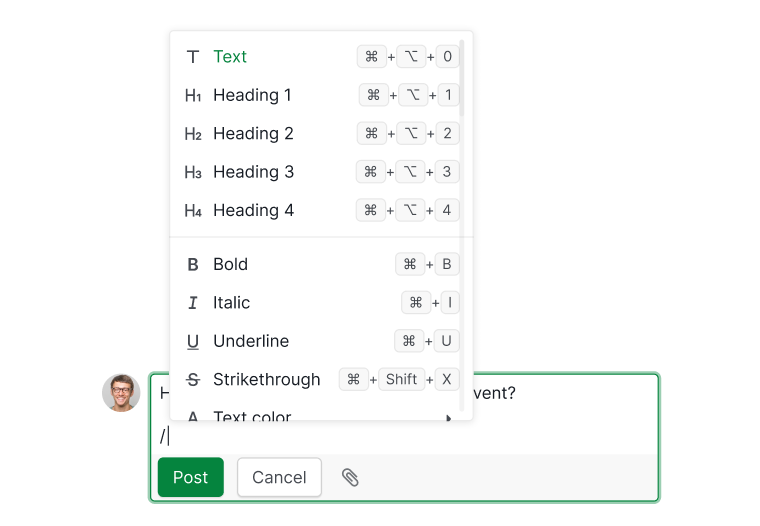
- Type / in the message area to open the slash command menu.
- Choose from options like headings, tables, checklists, mentions, or task references.
- As you type, the menu filters to match your input.
-
Navigate the menu using the up and down arrow keys.

Interact With Chat Messages
Reactions
- Hover over a message and click the emoji icon at the upper right corner.
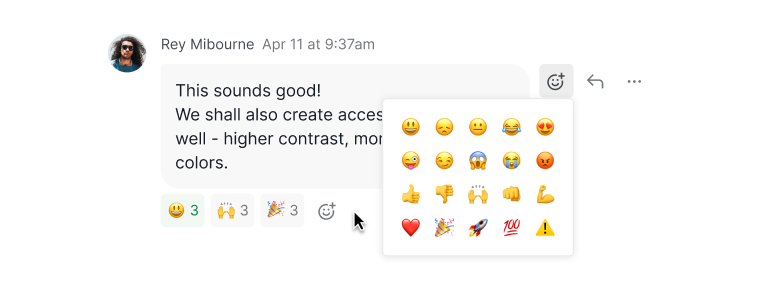
- Add as many emojis as you like, or click existing emojis to react with the same one.
- Hover over an emoji to see who reacted.

- You’ll receive notifications when someone reacts to your messages.


Edit a Message
- Click the More Options icon next to your message and select Edit.
-
Or press the up arrow key while your cursor is in the Send message area.
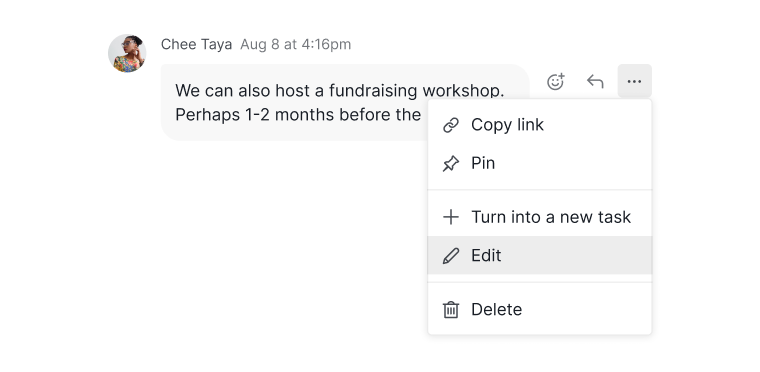

Note: You can only edit messages you’ve sent. Messages from other members cannot be modified.
Reply and Quote
- Click the Reply icon next to the message.
- To quote specific text:
- Highlight the text and press Alt + Q (Windows) or Ctrl + Q (Mac).
- The selected text will appear as a quote in your reply.


Pin or Unpin Messages
- Click the More Options icon next to the message and select Pin or Unpin.

- View all pinned messages in the right-hand chat detail panel.


Convert Chat Messages Into Tasks
- Click the More Options icon next to the message and select Turn into a new task.
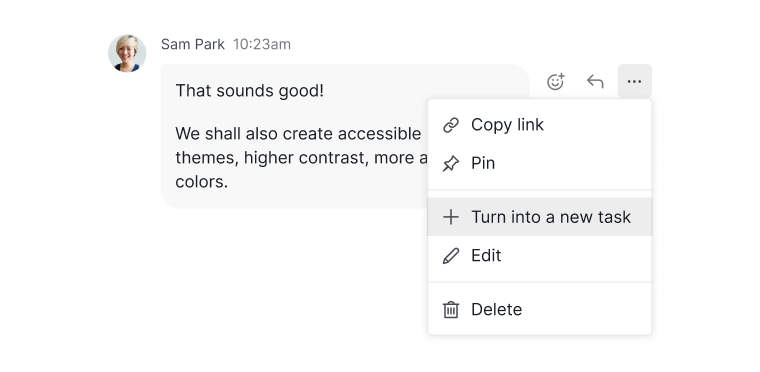
- Edit the task title, description, and specify a parent task if needed.
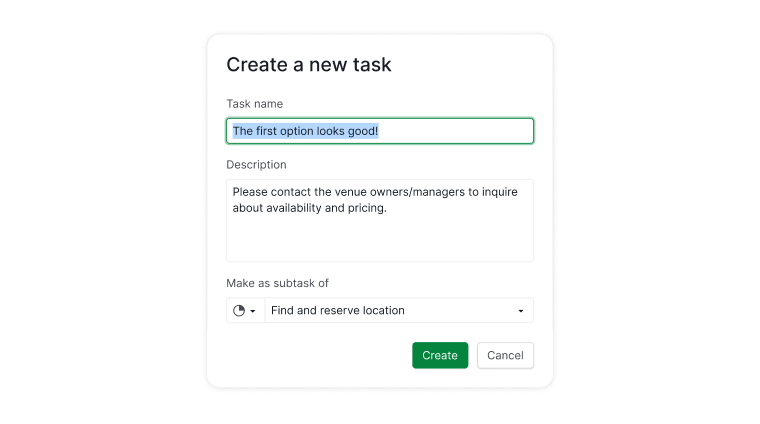
- The original message link is automatically added to the task description for reference.


Manage Message and Channel Cleanup
- Click the More Options icon next to the message.
-
Select Delete.
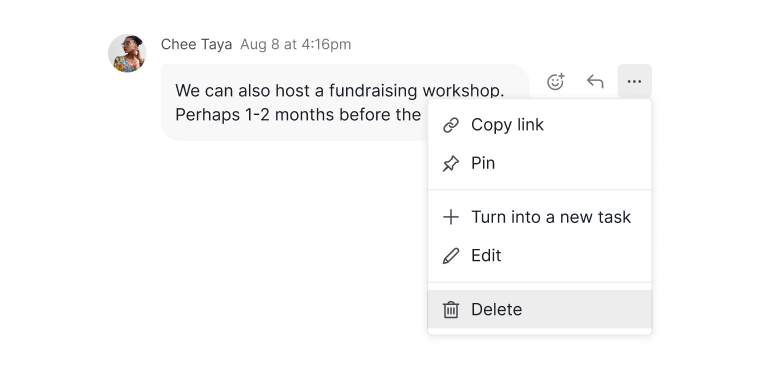

Note: Deleted messages can be restored within a limited time through the More Options menu. Review carefully before deleting.
Manage Chat Channel Followers and Notifications
- Click the eye icon in the upper right corner of the channel.
-
Select members from the dropdown to follow the chat channel and receive notifications .


Note:
- The creator of a chat channel is automatically added as a follower.
- Following the entire project subscribes you to all associated chat channels.
- Both Admins and Normal members can manage followers.
To control how much a channel notifies you, go to Project Settings > Notifications and set Messages to either All messages or Mention me only. Messages are separate from task comments, so muting one leaves the other on. See notification settings for the full list of options.
Learn more about Quire’s Chat on our blog.
Frequently Asked Questions
How do I create a chat channel in Quire?
Click the + icon at the top of your project, select Add chat, enter a name, optionally set an icon and color, then choose who can access it under Share with. Type in the input field at the bottom to start chatting.
How do I follow a chat channel in Quire to get notified of new messages?
Click the eye icon in the upper-right corner of the channel and select members to add as followers. The channel creator is automatically added as a follower. Following the entire project subscribes you to all associated chat channels.
How do I turn a chat message into a task in Quire?
Click the More Options icon next to the message and select Turn into a new task. Edit the task title and description, assign a parent task if needed. The original message link is automatically added to the task description for reference.
How do I reply to a message and quote specific text in Quire chat?
Click the Reply icon next to the message to reply. To quote specific text, highlight it and press Alt+Q (Windows) or Ctrl+Q (Mac).
How do I edit a message in Quire chat?
Click the More Options icon next to your message and select Edit, or press the up arrow key while the cursor is in the message input area to quickly edit your last message. You can only edit messages you’ve sent.
How do I pin a message in Quire chat?
Click the More Options icon next to the message and select Pin. All pinned messages are viewable in the right-hand chat detail panel.
How do I use slash commands in Quire chat?
Type / in the message area to open the slash command menu and insert headings, tables, checklists, member mentions, or task references. Use the ↑/↓ arrow keys to navigate the list.