
Charts Permalink
Project charts turn data into visual insights, making it easier to understand progress, trends, and workload distribution at a glance. In Quire, charts can be embedded in a document view or a task description, and can visualize data from an entire project, a specific sublist, or subtasks under a selected root task.
Charts are only available in the Professional, Premium, Enterprise plans. More information can be found on our pricing page.
Learn more about the six chart types available in Quire, from bar and line charts to pie and donut charts.

Creating and Managing Charts
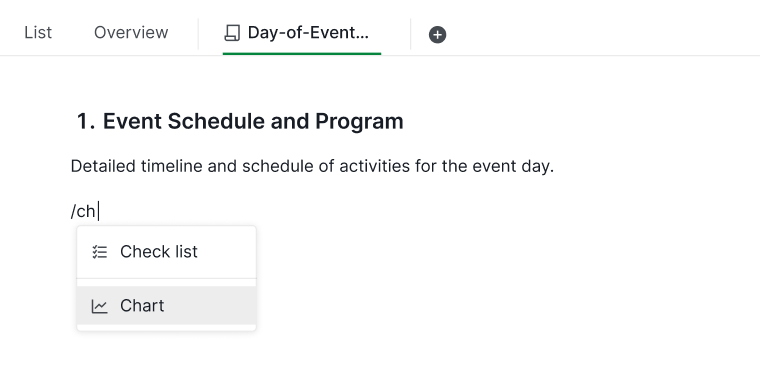
To add a chart to a document or task description:
- Type the slash command / to open the command menu.
- Select Chart from the list.
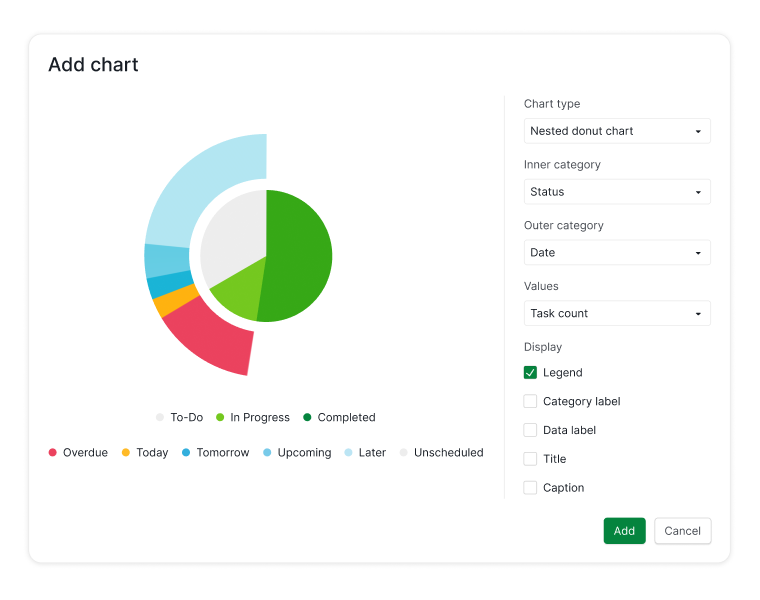
- Choose the data source (project, sublist, or subtasks).
- Select the chart type you want to use.
- Adjust the chart settings to customize how data is displayed.


Edit a Chart
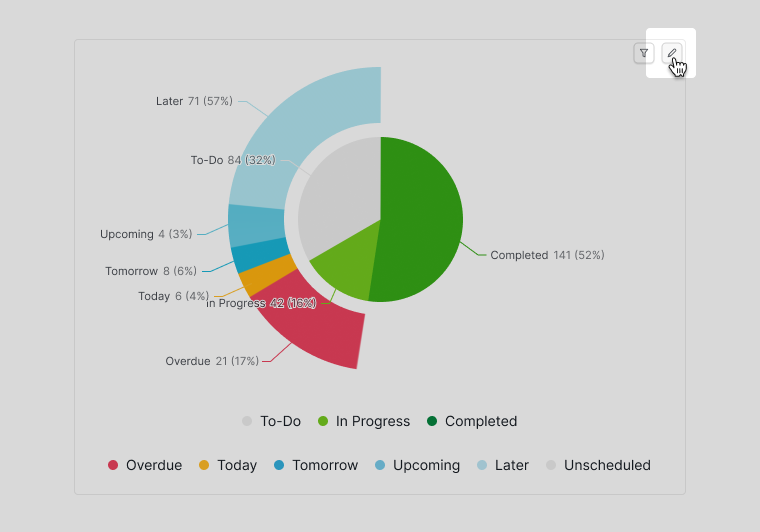
You can modify a chart at any time to update its settings or data source:
- Hover over the chart.
-
Click the pen icon in the upper-right corner.

Filtering and Saving Chart Results
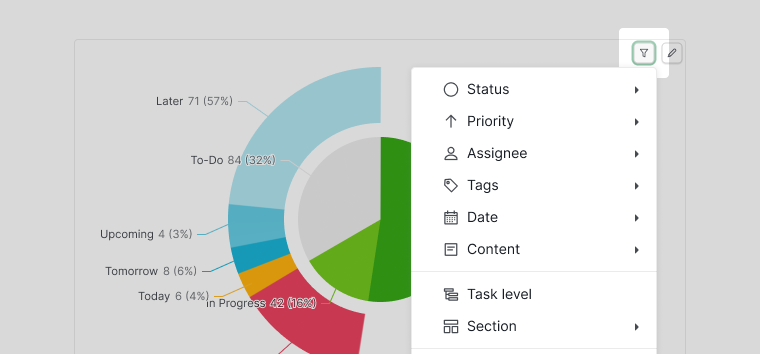
Charts support filters that help you focus on specific data, such as tasks created by a certain team member.
- Hover over the chart.
- Click the filter icon.
-
Apply your desired filter conditions.

Save or Reset Filters
After applying filters:
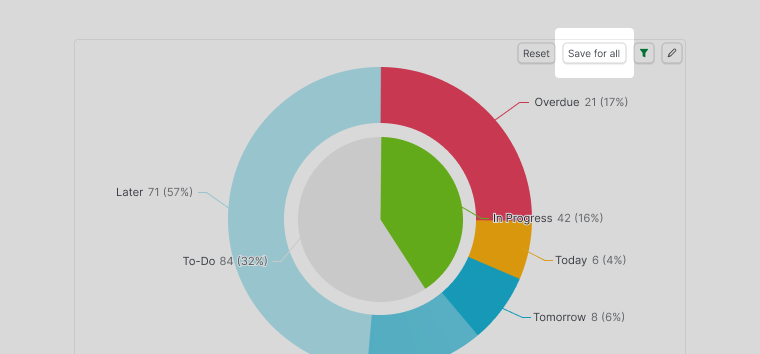
- Click Save for all to keep the filtered view as the default
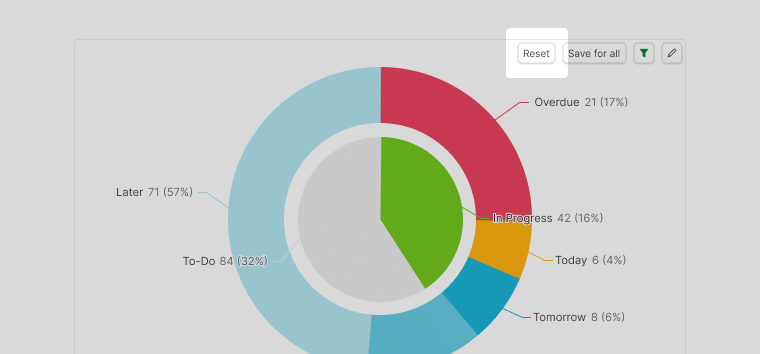
- Click Reset to remove filters and return to the original saved view


Learn more about Quire’s Charts on our blog.
Frequently Asked Questions
What are project charts and why do teams use them?
Project charts turn raw task data into visual summaries that show progress, workload distribution, and trends at a glance. Teams use charts during project reviews to understand where work stands without manually counting tasks. Visual data makes it easier to spot imbalances, such as one team member carrying too much load, and to communicate status to stakeholders without lengthy reports. Most project management tools support several chart types, including bar charts for completion rates, pie charts for status distribution, and line charts for task trends over time. In Quire, charts can be embedded directly in a document view or a task description, and can visualize data from an entire project, a specific sublist, or subtasks under a selected root task.
What are charts in Quire?
Charts turn project data into visual insights, making it easier to understand progress, trends, and workload distribution at a glance. They help teams monitor contributions and support data-driven decision-making.
What are Quire charts best used for?
Quire charts are best used for tracking project progress, analyzing workload distribution across team members, identifying task trends over time, and supporting data-driven decisions during project reviews.
Which Quire plans include charts?
Charts are available on the Professional, Premium, and Enterprise plans only.
Where can charts be embedded in Quire?
Charts can be inserted directly into a document view or a task description, keeping visual data closely connected to related tasks and discussions.
What data can Quire charts visualize?
Quire charts can visualize task data from an entire project, a specific sublist, or subtasks under a selected root task.
What is the slash command used for in Quire charts?
The slash command / opens the command menu inside a document or task description, where you can select Chart to begin adding a new chart.
What can be changed when editing a chart in Quire?
You can update the data source, change the chart type, and adjust the display settings to better represent your project data.
What filter options are available for Quire charts?
Charts support filters that let you focus on specific data, such as tasks created or assigned to a particular team member. Filtered views can be saved as the default for all members or reset to the original view at any time.
What happens when a chart filter is saved in Quire?
When you save a filtered chart view using Save for All, the filtered settings become the default view for all project members. You can reset it at any time to return to the original unfiltered view.