
Manage Properties Permalink
Only project admins can manage project properties in Quire, including task statuses, tags, and approval categories. These settings are available in the project’s Properties tab and help teams customize workflows, visibility, and approval processes.
Manage Task Statuses
Project admins can add or edit task statuses to reflect their workflow.
- Click the dropdown menu icon next to the project name.
-
Select Edit Status.
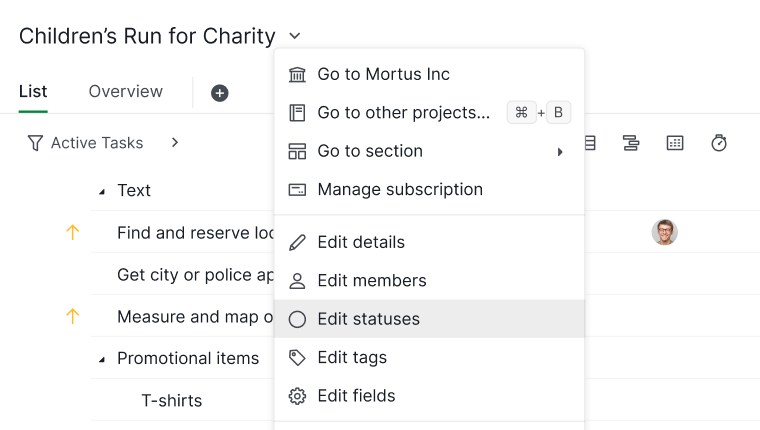

Alternatively, you can manage statuses from project settings:
- Click the dropdown menu icon next to the project name.
- Select Options.
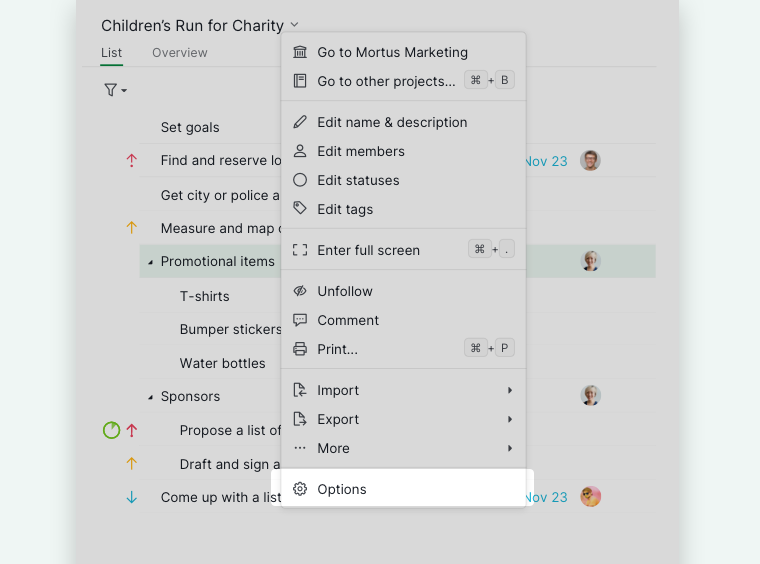
- Open the Properties tab on the left-hand side.

All task statuses are listed on the Properties tab, where you can add new statuses or edit existing ones.

Note:
- Progress percentages below 100% (excluding 100%) must be unique
- Multiple statuses can share 100% progress (e.g. Canceled, Won’t Do)
- Tasks marked with 100% statuses are hidden when filtering Active Tasks in Tree view
Manage Project Tags
Tags help categorize tasks and improve filtering and visibility.
- Click the dropdown menu icon next to the project name.
- Select Edit tags.
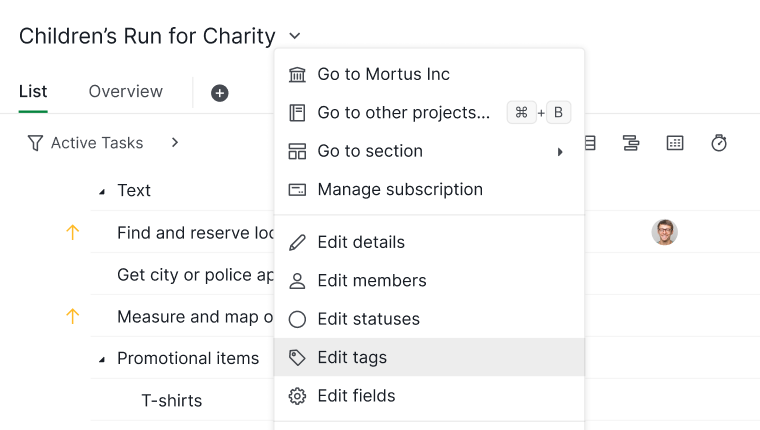

You can also access tags through project settings:
- Click Options from the project dropdown.
- Open the Properties tab on the left-hand side.
From the Tags section, you can add new tags or edit existing ones.

Learn how to assign tags to a task.
Manage Approval Categories
Approval categories allow teams to send tasks for review or approval before moving forward. They help streamline workflows and ensure the right people sign off at the right stage.
Approval Permissions
Project admins can control who is allowed to request approvals and who can approve tasks.
- Click the dropdown menu icon next to the project name.
- Select Options.
- Open the Properties tab.
- Hover over an approval category.
- Click the edit (pen) icon.
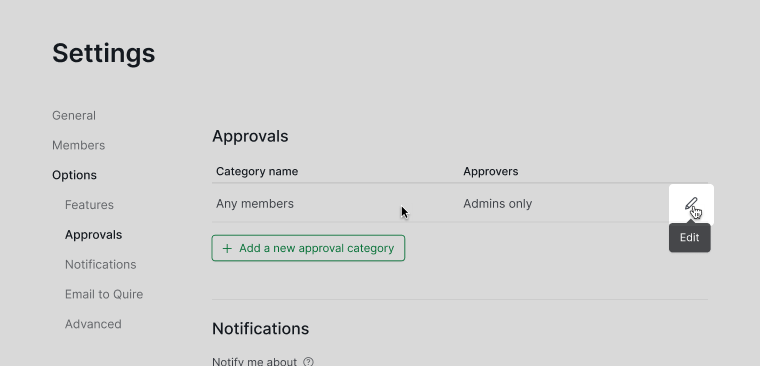

You can choose permission settings for both requesters and approvers:
- Any member
- Admins only
-
Selected members
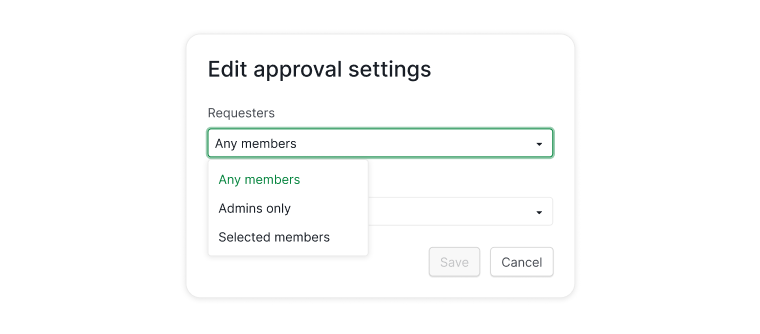

Note: Only project admins can add or edit approval categories or manage approval permissions.
Create New Categories
Creating different approval categories is only available in the Enterprise plan. More information can be found at our pricing page.
Approval categories can represent different stages or review needs, such as design approval, content review, or final sign-off.
- Click the dropdown menu icon next to the project name.
- Select Options.
- Open the Properties tab.
- Click Add a new approval category.
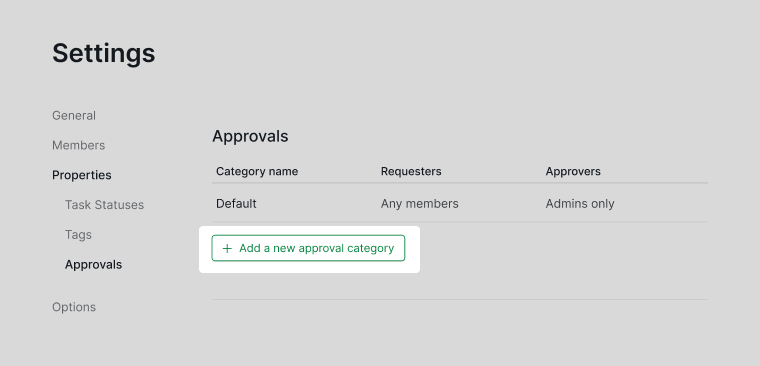
- Enter a name for the category.
- Define who can request approvals and who can approve them.
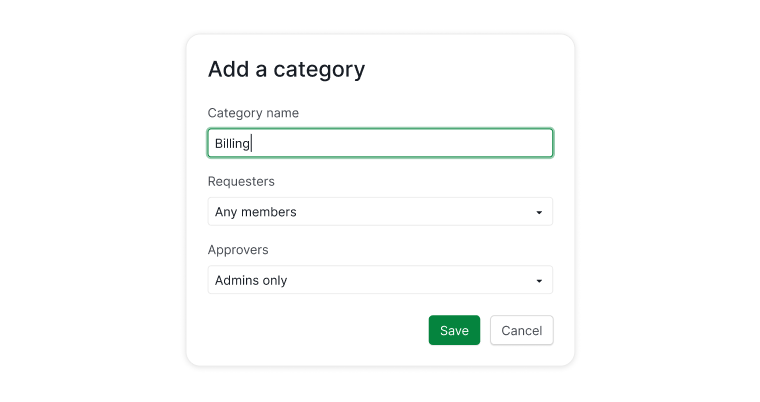


Note: Only project admins can create or edit approval categories.
Frequently Asked Questions
How do I add or edit task statuses in a Quire project?
Click the dropdown menu icon next to the project name and select Edit Status, or go to project Options > Properties tab. From there you can add new statuses or edit existing ones. Only project admins can manage task statuses.
Can multiple task statuses in Quire share the same completion percentage?
Only at 100%. Multiple statuses can share 100% progress (such as “Canceled”), but all statuses below 100% must have unique percentages.
How do I add or edit tags in a Quire project?
Click the dropdown menu icon next to the project name and select Edit tags, or go to project Options > Properties tab. From the Tags section you can add new tags or edit existing ones.
How do I control who can request or approve tasks in a Quire project?
Go to project Options > Properties tab, hover over an approval category, and click the edit icon. Set permission options separately for requesters and approvers: any member, admins only, or selected members.
How do I create new approval categories in Quire?
Go to project Options > Properties tab and click Add a new approval category. Enter a name and define who can request and approve tasks. Creating additional approval categories requires an Enterprise plan.