
GTD Template Permalink
Use this template to set up the Getting Things Done (GTD) system in Quire for capturing, organizing, and acting on your tasks.
You can visit the GTD project and duplicate it to your workspace, so you don’t need to build everything from scratch.
You can also explore more ready-to-use templates to speed up your workflow.
Understand GTD
GTD (Getting Things Done) is a productivity methodology created by David Allen. The idea is that your brain is for having ideas, not holding them. When you try to keep track of everything in your head, mental overhead builds up and makes it harder to focus. GTD gives you a system to put all of it somewhere so none of it has to stay in your head.
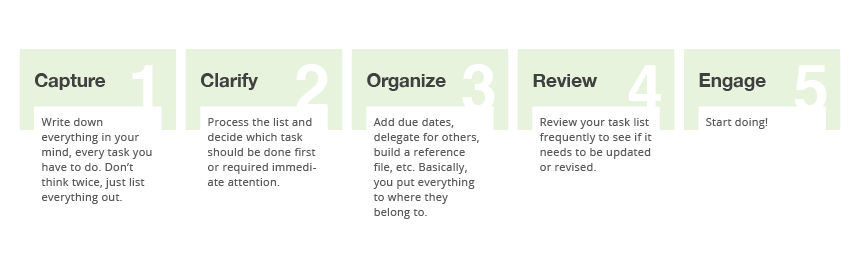
The method is built around five steps:
- Capture: collect everything that has your attention into one place
- Clarify: decide what each item is and what to do with it
- Organize: put it in the right place
- Review: keep your system current and up to date
-
Engage: choose what to work on and do it

Read more on our blog about how to set up the GTD method in Quire.
Set Up Your GTD System in Quire
Capture
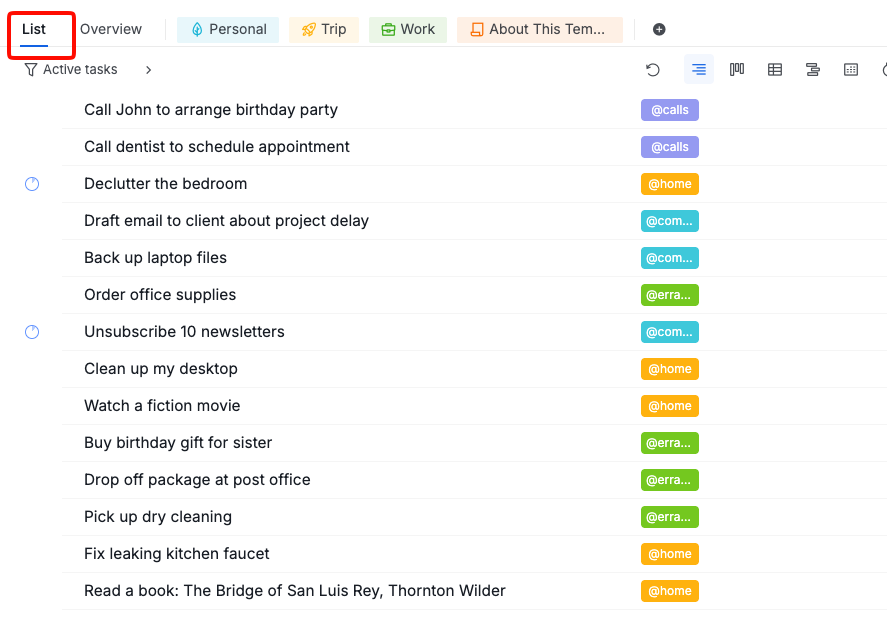
Use My Tasks as your inbox. The List tab in My Tasks is a personal space, not tied to any project. It works as a catch-all inbox.
- Add tasks as they come, without filtering or organizing
- Keep the entry short. You will process it later
-
The goal is to get everything out of your head and into one place

Clarify and Process
For each item in your inbox, work through these steps in order.
1. What is it?
Before deciding what to do, understand what the item actually is.
2. Is it actionable?
If not actionable, choose one:
- Delete it from My Tasks
- Keep it as reference and store the details in the task description
- Put it on Someday/Maybe: use Peekaboo to hide it and set a date for it to reappear
If it is actionable, continue to step 3.
3. What is the specific next action?
Define the next action as a concrete, physical step you can actually do. “Handle tax filing” is not specific enough. “Call the accountant to ask for the required documents list” is.
Rename the task in My Tasks to reflect this specific action before moving on.
4. Can it be done in 2 minutes or less?
If yes, do it now and complete the task in Quire. Setting up and tracking a task for something this small takes longer than just finishing it.
5. Should you do it or delegate it?
- Delegate it: move the task to the right project, assign it to the right person, and set a due date as a follow-up reminder. This is your Waiting For list.
- Do it yourself, specific date: set a due date on the task.
- Do it yourself, no specific date: this is a Next Action. Move it to the right project.
6. Is this one action or a project?
If completing it requires more than one action, it is a project. Create a new project in Quire and add the first next action as a task inside it.

Organize
After clarifying each item, place it into the right list.
Projects List
In GTD, a project is any outcome that takes more than one action to complete. It does not have to be large. “Renew the business license” is a GTD project. So is “onboard the new designer.”
Each GTD project becomes a Quire project. During your weekly review, scan the projects in your sidebar to confirm each one still has a next action moving it forward.
Next Actions
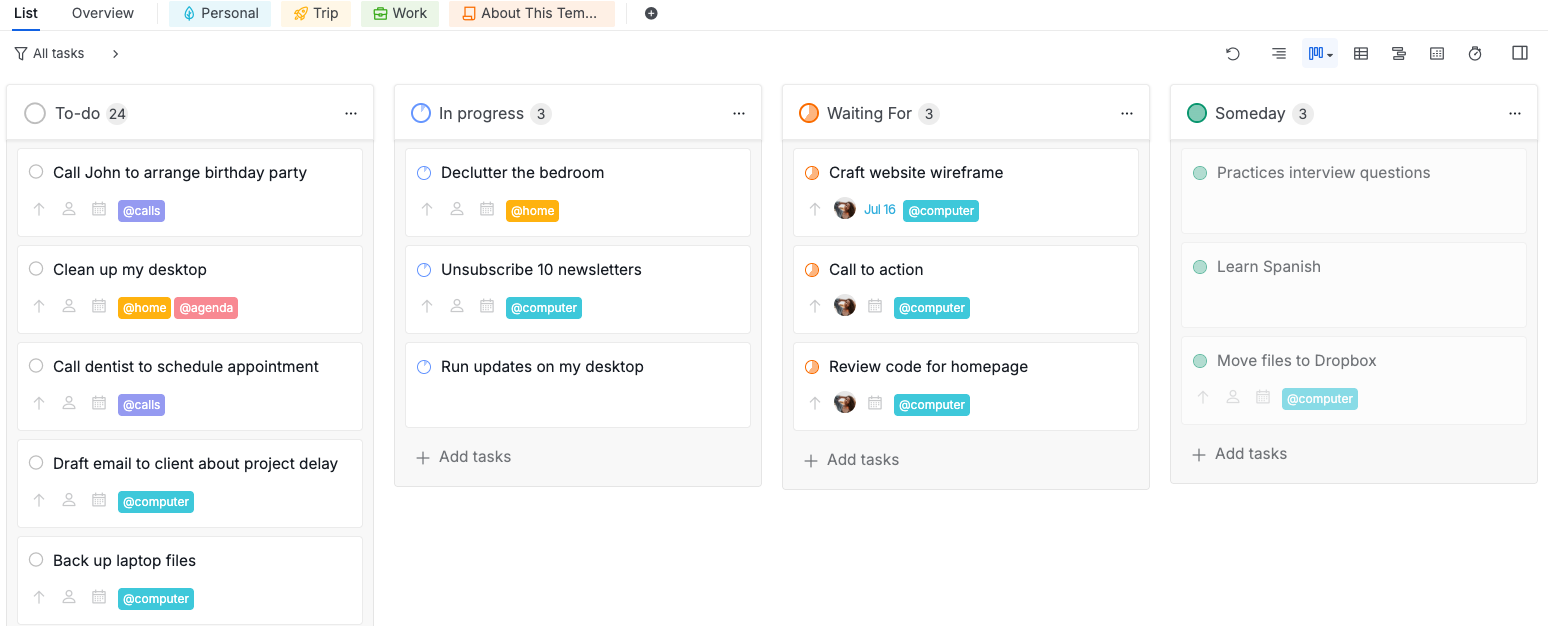
Tasks that are ready to be done, sorted by context. Add a context tag to each task to mark where or how it can be done.
Common contexts:
- @work: tasks that require being at work
- @home: tasks that can only be done at home
- @errands: tasks that require going out
- @calls: tasks that require a phone call
- @computer: tasks that require a computer, regardless of location
- @deep-focus: tasks that need a stretch of uninterrupted concentration
- @quick-wins: small tasks to knock out when you only have a few spare minutes
- @admin: routine upkeep, such as filing, replying, or paperwork
Use sublists with pre-filters to build a view for each context. A sublist filtered by @work automatically shows only what you can act on at the office.

Waiting For
Tasks you have delegated or are waiting on someone else to complete. Move the task to the right project, assign it to the relevant person, and set a due date as your follow-up reminder.

Calendar
Tasks with a fixed date: meetings, deadlines, and time-sensitive events. Set a due date on the task.
Timeline view and Calendar view are only available in the Professional, Premium, Enterprise plans. More information can be found on our pricing page.
Switch to Timeline view to see scheduled tasks laid out by date, or use Calendar view to browse them by day, week, or month.


Someday/Maybe
Things you might want to do later but are not ready to act on now.
Peekaboo is available on the Professional, Premium, and Enterprise plans. More information can be found on our pricing page.
Use Peekaboo to hide the task and set a date for it to reappear when you are ready to revisit it.

Read more on our blog about how Peekaboo supports the GTD methodology.
Reference
Information you might need later but requires no action. Keep the task in My Tasks and store the details in the task description. Add a “Reference” tag so these items are easy to find.

Review and Engage
Review
Regular reviews keep your GTD system current. Without them, your lists collect stale items and you stop trusting what is in them.
Daily review
At the start or end of each day:
- Check My Tasks for any unprocessed inbox items.
- Use filters to see today’s tasks and overdue items. Confirm there are no hard commitments you missed.
- Scan your Next Actions sublist for your current context and pick what to do today.
Weekly review
The weekly review is the step that keeps the system from falling apart. Set aside 30–60 minutes once a week.
- My Tasks: process your inbox down to zero.
- Organization → List tab → Board view: check that each project has at least one task in To Do or In Progress. If not, open the project and add a next action.
- Organization → List tab → Filters: filter by Date, set to until today, to catch overdue items. For tasks assigned to others, follow up or close them out (Waiting For). For tasks assigned to yourself, reschedule or delete if no longer relevant.
- Organization → List tab → Filters: filter by Date, set to Next Week. Confirm that upcoming commitments have tasks set up.
- My Tasks → Peekaboo: check your Someday/Maybe items. Decide if any are ready to activate.

Engage
When you are ready to work, GTD narrows down what to do using four criteria, in this order.
- Context: open the sublist for your current context (e.g., @work or @computer). This limits the list to only what is possible where you are right now.
- Time: use filters to sort by due date. Tasks due today or overdue come first. Skip anything that needs more time than you have.
- Energy: scan the remaining tasks. Some require focused thinking; others are quick and routine. Match the work to your current mental state.
- Priority: from the tasks that fit the first three criteria, pick the most important one and start. Update the task status as you make progress.

Frequently Asked Questions
What is GTD?
GTD (Getting Things Done) is a productivity methodology created by David Allen. The core idea is that your brain is for having ideas, not holding them. By capturing everything into a trusted system and following a clear process to decide what to do with each item, you free your mind to focus on the work in front of you.
How do I set up GTD in Quire?
Use My Tasks as your inbox to capture everything. Process each item by deciding whether it is actionable. Then organize it by moving it to the right project, setting a due date, assigning an owner, and tagging it with a context. Review your lists daily and weekly to keep the system current.
How do I capture tasks in Quire for GTD?
Use My Tasks as your inbox. Add every task, idea, or to-do to the List tab in My Tasks as soon as it comes up. Do not filter or organize at this stage. Process and move tasks to the right projects during the Clarify step.
What is the Someday/Maybe list in GTD and how do I use it in Quire?
Someday/Maybe is for things you want to do eventually but not now. Use Peekaboo to hide these tasks and set a date for them to reappear. This keeps your active lists clean without losing the idea.
What is a Waiting For list in GTD and how do I use it in Quire?
Waiting For tracks tasks you have delegated or are waiting on someone else to complete. Move the task to the right project, assign it to the relevant person, and set a due date as your follow-up reminder. The task shows up as overdue if you have not checked in by that date.
How do I use contexts in Quire for GTD?
Create tags for each context (such as @home, @work, @errands, @calls, @computer) and add them to tasks during the Organize step. When you are ready to work, filter by the relevant context tag to see only what you can act on right now.
How do I do a weekly review in Quire?
Start in My Tasks and process your inbox down to zero. Go to your organization, open the List tab, and switch to Board view to check that each project has at least one active next action. Filter by Date, set to until today, to catch overdue Waiting For items that need follow-up. Filter by Date, set to Next Week, to review upcoming commitments. Finish in My Tasks by checking your Peekaboo items to decide if any Someday/Maybe tasks are ready to activate.
Is there a ready-made GTD template in Quire?
Yes. Visit the GTD project and duplicate it to your workspace to get started without building the structure from scratch.