
Expand and Collapse Levels Permalink
Quire allows you to create task lists with multiple levels. To focus on specific sections of your project, you can expand or collapse task levels. This makes managing large projects more organized and helps you concentrate on the tasks you need.
Expand and Collapse
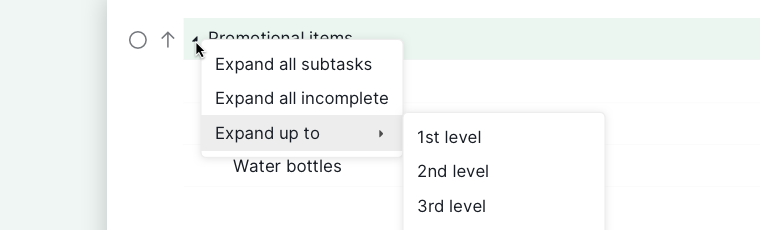
- Right-click the Collapse/Expand icon next to a task.
-
Select the desired option to expand or collapse the tasks at that level.

Keyboard Shortcuts
| Action | MacOS | Windows |
|---|---|---|
| Collapse a group tasks by level | ← | ← |
| Expand a group tasks by level | → | → |
| Collapse all tasks by level | Shift + ← | Shift + ← |
| Expand all tasks by level | Shift + → | Shift + → |
| Expand/Collapse the selected level | O | O |
Want to focus on one task’s subtasks instead of just expanding a level? See Zoom In and Out of Tasks.
Frequently Asked Questions
How do I expand or collapse tasks in Quire?
Right-click the Collapse/Expand icon next to a task and select the desired option.
How do I collapse all subtasks at once in Quire?
Press Shift+← to collapse all, or Shift+→ to expand all.
What’s the keyboard shortcut to expand or collapse a single task level in Quire?
Press O to toggle the selected level. Use ←/→ to collapse or expand one level at a time.
Please contact us if you need more assistance.