
Daily Standup Meeting Template Permalink
Use this template to run a 15-minute daily standup in Quire. The project opens in Board view, so you go through the work task by task instead of around the room person by person, and blockers get a place to land.
You can visit the Daily Standup Meeting project and duplicate it to your workspace, so you don’t need to build everything from scratch.
You can also explore more ready-to-use templates to speed up your workflow.
Understand Daily Standups
A daily standup is a short check-in where the team gets aligned and unstuck. It is not a status report to whoever is running the meeting.
The 15-Minute Timebox
Fifteen minutes is the ceiling. Ten to twelve is normal for a team of fewer than ten people.
| Part | Time | What happens |
|---|---|---|
| Open | 30 seconds | The board is up, you are going task by task, blockers get parked |
| Updates | 8 to 10 minutes | Go through the current work one task at a time, three lines per person |
| Parking lot | As they come up | Write down the blocker and who will clear it, then move on |
| Close | 60 seconds | Confirm who is following up with whom, then end the meeting |
Standups drift past 15 minutes for two reasons:
- Going around the room person by person turns each update into an individual report, aimed at whoever is running the meeting
- Solving blockers live makes everyone else wait while two people work through a problem that concerns only them
The two habits that prevent this are what the rest of this page sets up: go through the board task by task, and send blockers to the parking lot with an owner and a date.
The Three Lines
Each person gives three short lines, and no more.
- Done since yesterday: what shipped or moved, not how you spent the day. Telling the team “was in meetings, then worked on the report” gives them nothing to act on. “Report draft is done and with legal” does
- Focus today: one or two things, not everything you might touch. This is where the team catches two people about to build the same thing
- Blockers & asks: what is in the way, who can clear it, and when you need it by. Telling the team “a bit stuck” is not a blocker. “Need the Q3 figures from Katherine in finance by Thursday” is

Read more on our blog about how to run a daily standup that stays under 15 minutes.
Set Up Your Standup in Quire
Meeting Sections
The template uses four sections to keep the meeting, the work, and the follow-ups apart.
- The standup: the recurring meeting task and its three lines
- Async updates (optional): one task per person, for teams that cannot share a clock
- Current work: the tasks you go through during the meeting
- Parking lot: blockers and follow-ups that came out of a standup

Delete the Async updates section if everyone on your team works the same hours.
The Recurring Standup Task
The meeting itself is a task, so it shows up in the project every working day without anyone scheduling it.
- Add a task named for the meeting, such as Daily standup (15 min), in The standup section.
- Add three subtasks to it: Done since yesterday, Focus today, and Blockers & asks. Put the guidance for each line in the subtask description so the format stays visible during the meeting.
- Tag the task Standup so you can collect every instance later.
-
Set the task to repeat weekly on Monday through Friday.
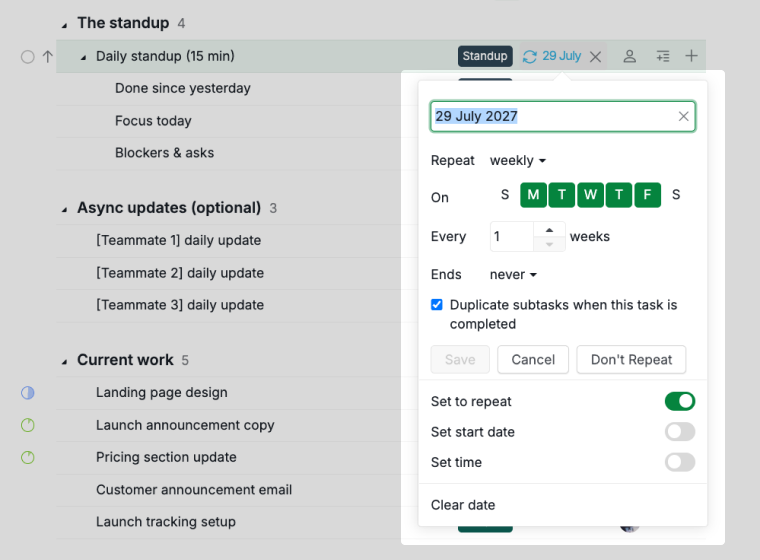

The repeat rule duplicates the subtasks along with the task, so each day starts with a clean set of three lines rather than yesterday’s notes.
Note: After duplicating the template into your own workspace, open the standup task and confirm the repeat rule came across.
Current Work and Parking Lot
One rule keeps these two sections from turning into copies of each other.
- Current work holds your team’s own work, which someone in the standup can finish
- Parking lot holds things you are waiting on from outside the team, plus follow-ups that came out of a meeting
Task dependencies are only available in the Professional, Premium, Enterprise plans. More information can be found on our pricing page.
If a task in Current work is stuck on something external, tag it At risk and put the external item in Parking lot as its own task. Two tasks, two different jobs, no overlap. Link them with a task dependency so the connection shows on both.

Parking lot items also carry a Blocked since custom field. A due date tells you when someone hoped to finish. Blocked since tells you how long it has actually been stuck, which is the number that tells you when to stop chasing and escalate.

Run the Standup
Walk the Board
Board view is what you land on when you open the project, so the standup can start without anyone switching tabs. Go through Current work one task at a time.
You can shuffle the board columns to group tasks by Status, Priority, Assignee, Tag, Date, or Section. Shuffling by Section turns the four sections into columns, which puts Current work and Parking lot next to each other.
In the Free Subscription plan, you can have up to 5 statuses in each project, and this template already uses 4. Upgrade your subscription plan to create more statuses. More information can be found on our pricing page.
Shuffled by Status, the template’s four statuses become the columns: To-do, In progress, In review, and Completed. If your team works through different stages, you can add your own status columns or rename these.
Walking the board instead of the room does two things:
- Keeps attention on the work rather than on individual performance
- Makes it obvious when two tasks are stuck on the same thing

Swimlanes by Assignee
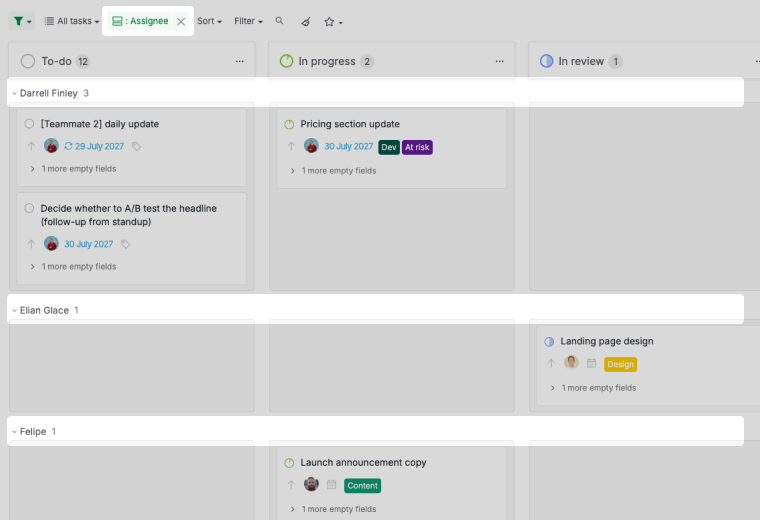
If your team still wants to see who owns what, add swimlanes to the board. Each person gets a row and the status columns stay in place, so you can walk the work task by task without losing track of who owns what.
- Open the project in Board view.
-
Set the swimlane grouping to Assignee.

Saved Filters
Set up the view you want once, then save it as a filter so the standup starts with one click instead of five. Filtering by the At risk tag shows which of your own tasks are waiting on someone else.

Note: Saved filters are personal, and other members will not see yours. For a view the whole team opens during the standup, use the same star dropdown to build a sublist from the filter.
Parking Blockers
Anything that needs more than 30 seconds of discussion goes to the parking lot. Do not solve it while the rest of the team waits.
Moving the task to Parking lot is covered above. Do these three while the meeting is still running:
- Assign it to whoever can clear it.
- Set a due date so it is clear when it is needed by.
- Tag it Blocker so it shows up in the Critical Blockers sublist before the next standup.

The people who need to solve it discuss it separately after the standup. Everyone else gets their time back.
Run an Async Standup
Live or Async
A live standup suits a team sharing one time zone. You get fast back-and-forth and unblocking in the moment. Async suits a team spread across time zones, and trades response speed for a written record of the week.
Async takes one extra agreement: decide up front what happens when a blocker is urgent and cannot wait for the next person to come online. Some teams run both, with written updates daily and one live call a week.
Updates on Task Cards
The Async updates section holds one task per person, and each task’s description carries the three-line format and the posting deadline. Each person posts their actual update as a comment on their own task by that time, so the updates accumulate instead of overwriting each other.
- Assign one update task to each teammate, rename it to their name, and delete the spares.
- Post the daily update as a comment using three lines: Moved, Next, and Blocked.
-
Type @ to mention whoever can clear a blocker, and # to reference the task the update is about.
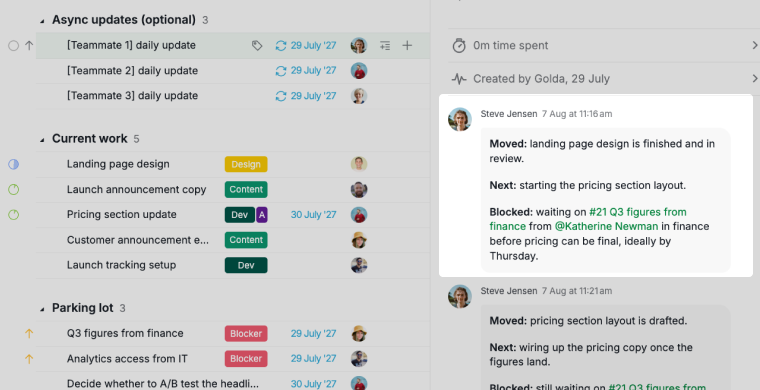

Here is what a good update looks like:
Moved: landing page design is finished and in review.
Next: starting the pricing section layout.
Blocked: waiting on Q3 figures from @Katherine Newman in finance before pricing can be final, ideally by Thursday.
The last line is the one that matters. It says what is needed, who can provide it, and when. Katherine picks it up at the start of the day and posts the figures on the task. Compare “a bit stuck on pricing.” Nobody can act on that.
Chat Channel and Reminders
Two features make async standups easier to keep up.
-
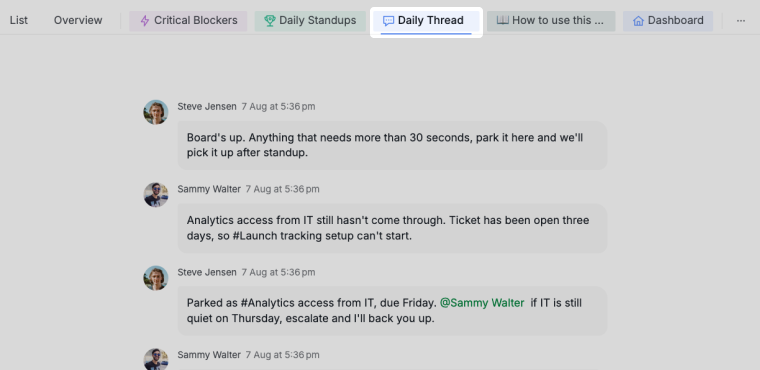
Create a chat channel for the daily thread, so conversation about an update has somewhere to go that is not the task itself
-
Give each update task a due time for your cutoff. Reminders are a personal account setting, so each person chooses how far ahead of that time they want to be prompted

Track and Review
Standup Sublists
In the Free Subscription plan, you can create two sublists for each project, and this template already uses both. Upgrade your subscription plan to create more sublists. More information can be found on our pricing page.
Two sublists do the reporting so nobody has to write it.
-
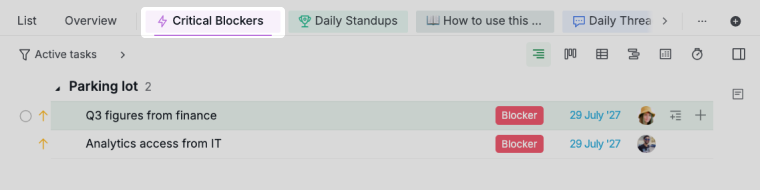
Critical Blockers collects everything tagged Blocker, wherever it sits in the project. Open it before the standup starts and you already know what is stuck before anyone speaks
-
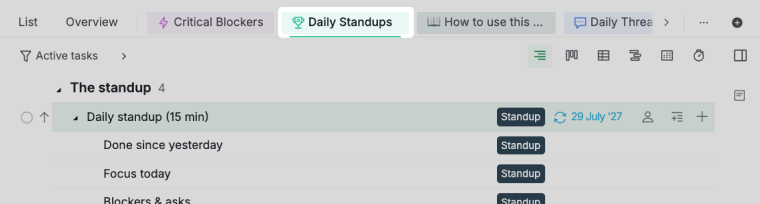
Daily Standups collects every instance of the recurring meeting task. Because the task repeats, this turns the week into a record without anyone writing minutes


Dashboard View
Dashboard view is only available in the Professional, Premium, Enterprise plans. More information can be found on our pricing page.
If your standups keep raising the same problems, a dashboard shows the pattern over weeks rather than days. Three widgets fit this project:
- Blocked Tasks: how much work is waiting on something, and for how long
- Member Workload: whether the work is spread across the team or sitting with one person
- Task Status Distribution: the same statuses you walk each morning, shown as a share of the whole, so a pile-up in one column is obvious

Learn more about Dashboard view and its widget types.
Start Your First Standup
Everything on this page can be built by hand. The template is the same thing already assembled: the standup task with its repeat rule and three subtasks, the four sections, the Blocker and At risk tags, the four statuses, and both sublists.
Duplicate the Daily Standup Meeting project into your workspace, then change four things:
- Open Daily standup (15 min) and confirm the repeat rule survived the copy: Monday to Friday.
- Replace the sample tasks in Current work with your team’s real work. They come from a small product launch, so rename them to whatever you are shipping.
- Keep Async updates only if your team spans time zones. Assign one update task per person and delete the spares.
- Point your team at the How to use this template document. Its Standup playbook section keeps the agenda and the async format inside the project, for anyone who does not read this guide.
If you run Scrum, the standup fits inside a wider sprint cycle. See the Agile Scrum template for backlogs, sprints, and sprint timelines.
Frequently Asked Questions
What is a daily standup meeting?
A daily standup is a short team check-in, usually 15 minutes or less, where everyone shares what moved, what they are working on next, and what is blocking them. The point is alignment and unblocking, not reporting to a manager.
How long should a daily standup meeting be?
Fifteen minutes is the maximum, and ten to twelve is normal for a team of fewer than ten people. If yours runs long, the cause is usually going person by person instead of task by task, or solving blockers live instead of parking them.
How do I set up a daily standup in Quire?
Create a task for the meeting, add three subtasks for the three lines of the update, and set it to repeat Monday through Friday. Put your team’s work in a Current work section and blockers in a Parking lot section, then build sublists to collect blockers and past standups.
What three questions should a daily standup answer?
Done since yesterday, focus today, and blockers and asks. The third one needs three specifics: what is in the way, who can clear it, and when you need it by.
How do I stop a daily standup from turning into a status meeting?
Go through the board task by task instead of around the room person by person, and park every blocker instead of solving it live. Those two habits keep the timebox on their own.
How do I run an async daily standup in Quire?
Give each person a task in an Async updates section and have them post a daily comment using three lines: what moved, what is next, and what is blocked. Mention the person who can clear the blocker with @ so they see it when they start their day.
How do I track blockers from a daily standup in Quire?
Put each blocker in the Parking lot section with an owner, a due date, and the Blocker tag, then link it to the work it is holding up with a dependency. A sublist filtered by that tag gives you every blocker in the project in one place.
Is there a ready-made daily standup template in Quire?
Yes. Visit the Daily Standup Meeting project and duplicate it to your workspace to get the recurring task, the four sections, the tags, and both sublists without building them yourself.