features · Sep 22, 2020
Quire for Gmail: Turn Your Emails Into Tasks

Last updated: July 20, 2026
Quire for Gmail Add-on creates Quire tasks directly from your Gmail inbox without switching tabs. Open an email, click the Quire icon in the sidebar, pick a destination project, set assignee and due date, save. Free Google Workspace add-on; the Quire side is included on every plan.
It's a beautiful day until you look at your mailbox, and it hits you. There are hundreds of emails that you haven't got time to go through yet. You know your productive day cannot start until you wade through your mailbox. Each of your emails is a task that you or your team has to complete. So how do you get over the sinking feeling every day and start getting things done?
The email-overload pattern is well-quantified. McKinsey's knowledge worker study found that knowledge workers spend roughly 28% of their workweek on email, and most of that traffic contains real commitments that never make it into a structured task system.
Microsoft's annual Work Trend Index keeps confirming the same finding in fresh data. The Quire for Gmail Add-on closes the gap by letting you turn the email containing the real commitment into a task without leaving the inbox.
If you think combining emails and to-do lists can be a bad idea, chances are you haven't done it quite right. Quire for Gmail integration gives you a system to turn emails into tasks without leaving your mailbox. You can add a task directly from your email to your Quire project, assign responsibility, set due dates, add tags so you won't miss an action item in your ever-growing emails.
How do you start using the Quire Gmail Add-on?
Go to Quire for Gmail Add-on page and click on Install.
Sign in with your Google Account.
Install Quire for Gmail Add-on on G Suite Marketplace then follow the prompts granting the add-on access.
Select an email and the Quire for Gmail Add-on will load in the right panel.
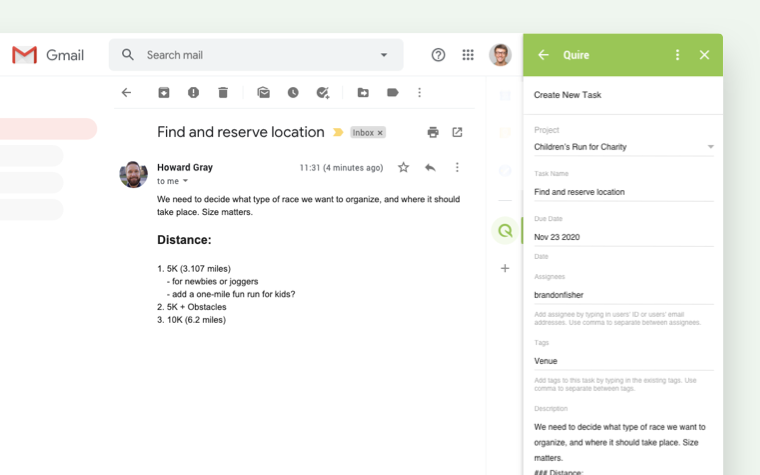
Note: The add-on will automatically detect your email subject line as the task name and the email body as the task description.
Check your Quire project to view the newly created task.
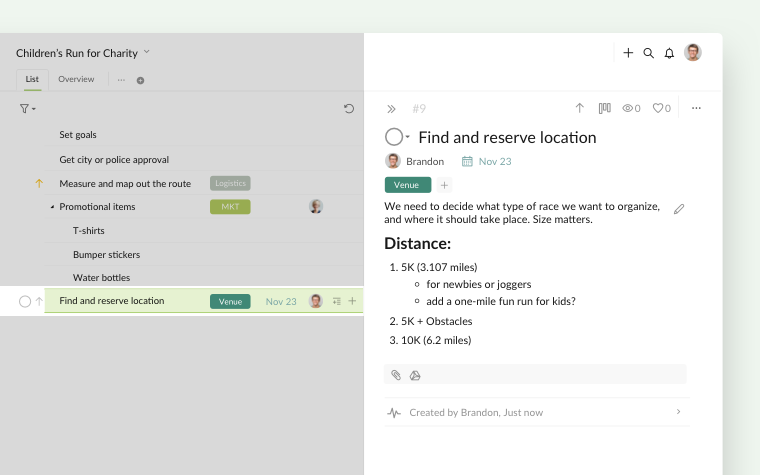
More details in Quire Guide on how to create Quire tasks from Gmail.
If you already installed Gmail Add-on for another Gmail account, please make sure to sign out the previously installed account and start installing for the new account.
We hope you never have to be stuck in the loop of hell with your mailbox anymore! If you want to be more creative with how to create a task in Quire from your mailbox, you can use Quire and Zapier integration 🚀
Now with Quire for Gmail Add-on, you will never miss an action item in your emails again.
When isn't the Gmail Add-on the right tool?
Three patterns where the Add-on is the wrong choice.
- You want unattended automation. The Add-on is interactive. You open an email and click to create the task. If you want emails to auto-convert based on rules (subject contains "URGENT" → create a task in Project X), use the Email to Quire forward-based feature (Professional+) or a Zapier automation.
- You handle a high volume of emails per day. Clicking the Add-on for every relevant email becomes a bottleneck at 100+ emails a day. Power users usually move to forward-based flow or Zapier for high volume and keep the Add-on for the occasional careful-capture case.
- Your inbox isn't on Google Workspace. The Add-on is Gmail-specific. For Outlook, iCloud Mail, or other clients, use the forward-based Email to Quire path instead.
If your inbox is Gmail and your email volume is moderate, the Add-on is the lightest-friction way to turn emails into tasks.
Related: A Step-by-Step Guide to Setting Up Quire Webhooks — for pushing Quire task events into other tools automatically.
Related: Quire Meets n8n: Open-Source Workflow Automation — another way to automate task creation beyond Zapier.
Ready to stop losing tasks in your Gmail inbox?
Install the Quire for Gmail Add-on, open your inbox, and pick five emails that are really tasks in disguise. Convert each one, and see the inbox shrink by the same five. Most users find a few-times-a-day rhythm with the Add-on within the first week. Free to install, free to use, included on every Quire plan.

Frequently Asked Questions
What is the Quire for Gmail Add-on?
It's a Google Workspace add-on that creates Quire tasks straight from Gmail, using the email subject as the task name and the body as the description.
How do you install the Quire for Gmail Add-on?
Install it from the Google Workspace Marketplace, sign in, and grant the requested permissions. Then click the Quire icon in any Gmail message's sidebar to create a task in a few clicks.
Does the Gmail Add-on work on multiple Gmail accounts?
It's installed per Google account. To switch accounts, sign out of the current one in the add-on first, then install it for the new account.
What is the difference between the Gmail Add-on and the Email to Quire feature?
The Add-on is interactive: you click it to create a task with full control. Email to Quire is forward-based and unattended, creating a task automatically whenever you forward an email.
Is the Quire for Gmail Add-on free?
Yes. It's free to install and works the same on a free Quire account as on a paid one.