workstyle · May 8, 2026
Quire Sublist: 6 Real-World Use Cases & Examples
Last updated: September 30, 2026
Six real Sublist setups. A Quire Sublist is a saved, permission-controlled view of tasks already in a project, not a copy or a filter. This post walks through six live examples from Quire's own Marketing Campaign Launch and Agile workspaces, including one use case worth skipping, plus the setup tricks that keep each Sublist useful long-term.
- What Is a Sublist, Actually? (90-Second Version)
- Use Case 1: How Does a Marketing Campaign Launch Run on Sublists?
- Use Case 2: How Does Software Sprint Planning Work in a Sublist?
- Use Case 3: How Does an Agency Give Clients Visibility with an External Team Sublist?
- Use Case 4: How Does a Manager Run the Weekly Review with a Filter-Based Sublist?
- Use Case 5: How Does New Hire Onboarding Fit in a Sublist?
- Use Case 6: How Does a Personal "Today" Sublist Keep You Focused?
- When Do Two Teams Need Two Projects Instead of Two Sublists?
- How Do You Create Your First Sublist?
- What Tips Make Sublist Actually Stick?
- Key Takeaways
- Which Sublist use case fits you?
- Frequently Asked Questions
You opened the project this morning and the master List has 287 tasks. About forty of them are yours. The other 247 belong to people you'd be happy not to see in your peripheral vision on a Monday. Somehow, all of them live in the same scrolling rectangle, and the scroll wheel feels like it's working against you.
This is the moment most Quire users discover Sublist and wonder why they didn't try it on day one. The official answer is "personalized or filtered view of the same project." The honest answer is that Sublist is what turns a shared 300-task project from something you tolerate into something you actually open without flinching.
The 2020 post that introduced Sublist focused on the philosophy. This one is the opposite. Six concrete workflows, the configuration we'd actually use for each, the tradeoffs worth knowing, and one use case we'd specifically skip. Every example below is a real working project in our Marketing Campaign Launch and Agile workspaces, so you can click through and see the structure rather than imagining it.
What Is a Sublist, Actually? (90-Second Version)
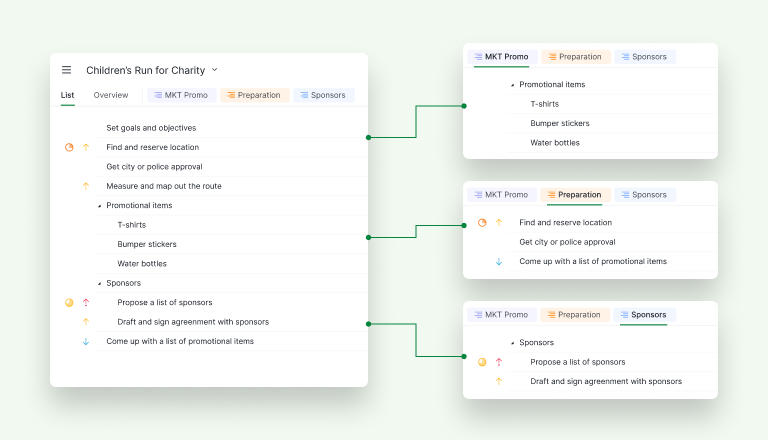
A Sublist is a saved, named, shareable view of a subset of tasks from the same project, with its own URL and its own permission settings. The tasks themselves live once, on the master List. A Sublist points at them. Editing a task in a Sublist edits the original, because there is no copy.
Three things make Quire's Sublist different from features in other tools that sound similar.
- It's a filtered view, not a tag or a separate workspace. Asana's Sections are flat dividers. ClickUp's Lists are separate datasets. Trello's filters don't persist with their own URL. A Quire Sublist is a saved view of the same source of truth.
- The permission model. Each Sublist can be private to you, visible only to admins, shared with selected members, opened up to your External Team, or fully open. That granularity is what makes the use cases below actually work.
- Automation. A Sublist can be manually curated (you drag tasks in) or filter-based (you set conditions, and any new task that matches gets added automatically). Filter-based is where the real time savings live, and it's the part of Sublist most teams underuse.
The full mechanics are in the Sublist guide. The rest of this post is what to actually do with it.
Use Case 1: How Does a Marketing Campaign Launch Run on Sublists?
A campaign launch project balloons fast. Look at our actual Marketing Campaign Launch workspace: by the time it's running, the master List spans seven sections (Website, Blog Posts, Social Media Contents, Social Media Platforms, Newsletters, Webinars, Translations) with custom fields tracking platform, budget, hourly rate, KPI points. The marketing director needs that whole picture. The blog writer doesn't.
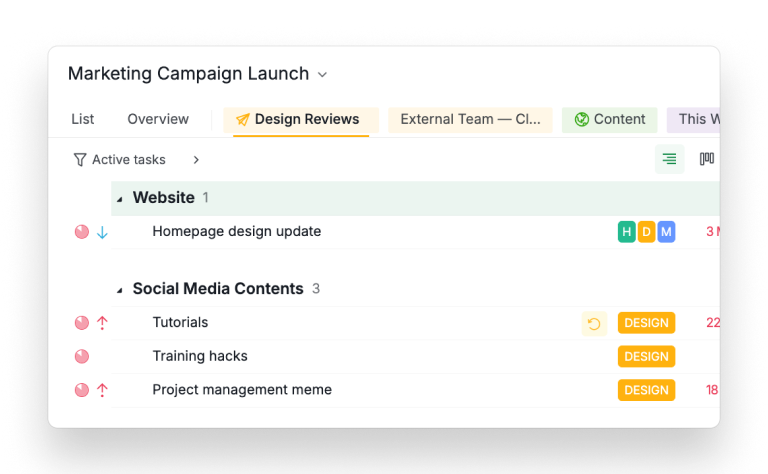
How we set it up: one Sublist per function or per review state. Manual at first, then converted to filter-based once the tag taxonomy stabilizes (usually around day 5).
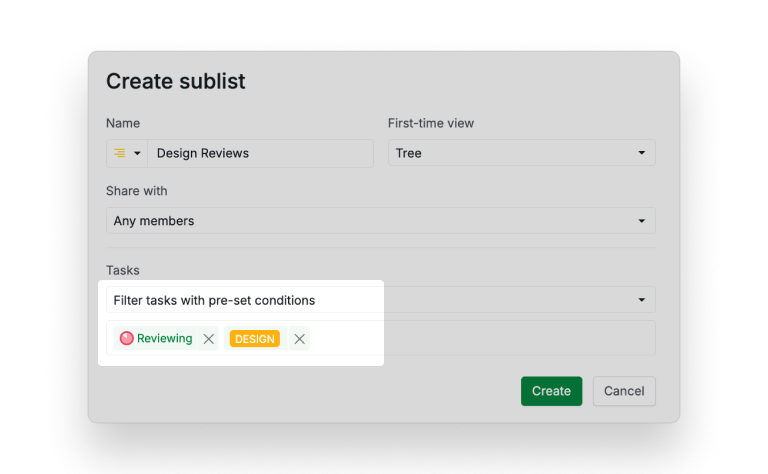
The Design Reviews sublist is the cleanest example to look at. Filter logic is status = Reviewing and tag = design. Designers see only the tasks waiting on their eyes; the sublist self-clears as work ships. No one is hunting through 33 tasks across seven sections to find the three that need a review pass.
A "Content" sublist works the same way: tag = content, assignee in [the writers], auto-includes anything new that matches. Same data, different lens.
What makes this work is that the marketing director still works from the master List for cross-functional planning, and each function lead works from their Sublist for execution. Same data. No reconciliation. No "which version of the tracker is current?" Slack message at 4pm Friday.
For the broader picture of how this fits into a launch operating model, see our post on cross-functional project management.
Use Case 2: How Does Software Sprint Planning Work in a Sublist?
The pattern most engineering teams settle into looks like this. The master List is the backlog. Every two weeks, sprint planning produces a Sublist containing the tasks committed for the cycle.
Our Agile workspace is the working example. The backlog is organized by surface area (Customer Feedback / User stories, Websites, Desktop app, Android app, iOS app), with Story Points as a custom field.
At sprint planning, the team multi-selects the chosen tasks and uses right-click → Set Sublist → Sprint 47.
That's how we built the Sprint 47 sublist you can open right now: it currently scopes two real bug tickets ("Emojis cannot show correctly", "Home button doesn't work") that came out of customer feedback, with room for the rest of the sprint commitment to land in it.
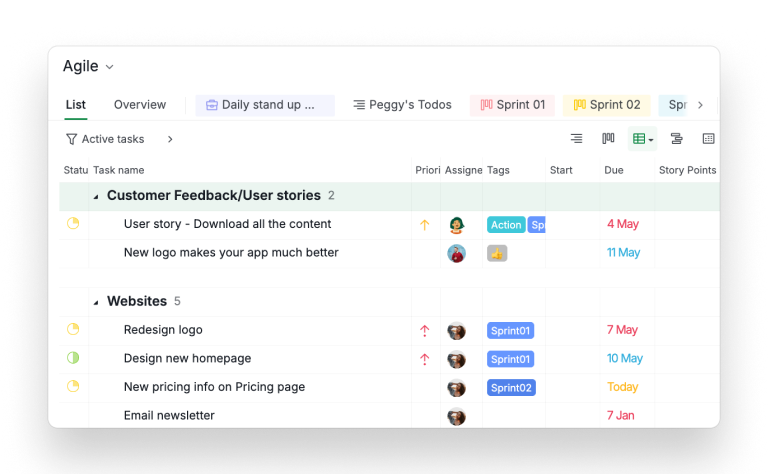
The filter-based version of this same pattern uses a tag like sprint-47 and a filter Sublist that auto-includes anything tagged that way. Slightly more setup, zero maintenance.
The Sublist URL gets dropped into the team's standup channel. For the next two weeks, the engineering team works from that Sublist. The Kanban view of the Sublist becomes the sprint board. The product manager looks at the master List for backlog grooming and roadmap conversations. The engineers look at the Sublist for what's in motion.
A nice side effect: at retro time, the Sublist is the artifact. It captures exactly what was in scope, what shipped, what got punted. No screenshotting a Jira board into Confluence. The Sublist URL is the record.
Use Case 3: How Does an Agency Give Clients Visibility with an External Team Sublist?
This is the highest-value use of Sublist for agencies, and the one most agencies don't realize is possible. The same pattern applies to in-house teams working with external creative partners (freelance designers, video editors, translation vendors). Anyone outside your org who needs a window into the work, but only their slice of it.
How we set it up: one project per client engagement (or per external partner stream). The master List holds all the work, including internal-only tasks: commercial conversations, internal QA, profitability flags. A Sublist named after the client gets created with permission set to External Team, populated only with the deliverables and decisions the client should see.
You can see the structure in the External Team — Client View sublist we set up inside the Marketing Campaign Launch workspace. In a real engagement, you'd populate it with the deliverables that involve the client: blog posts in review, design assets, webinar scripts, translation drops. Internal margin notes, private QA chatter, the scope-change log used for billing? They stay in the master List, invisible to the External Team URL.
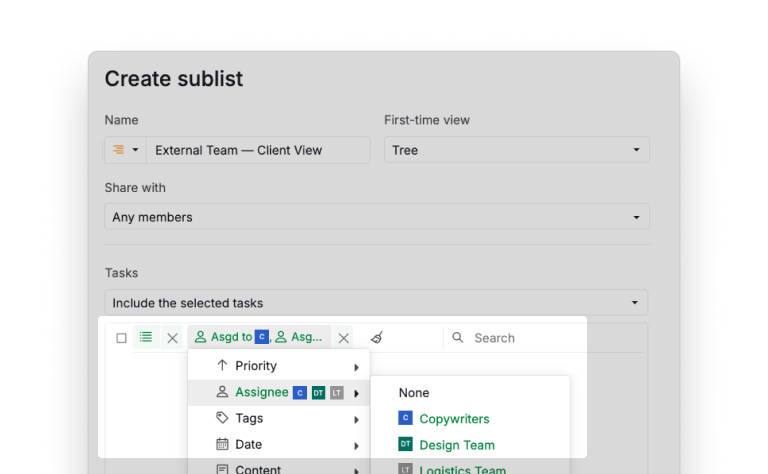
The client gets that URL. They open it with their External Team seat. They see deliverables, due dates, status, the comments that involve them. Nothing else.
For an agency running 8 to 15 client engagements simultaneously, this single pattern replaces the weekly PDF, the parallel Notion page, the screenshot-laden status email, and a meaningful chunk of the back-and-forth that happens when a client asks "what are you working on?" because they have no other way to see.
The deeper version of this workflow lives in our agency project management post. The short version: External Team Sublists are where you stop maintaining a parallel client-facing tracker, because the permission boundary is enforced by the tool instead of by your discipline.
Use Case 4: How Does a Manager Run the Weekly Review with a Filter-Based Sublist?
A team lead with eight directs and four active projects has a recurring problem: every Friday, they need to know what shipped, what slipped, and what's coming up. Pulling that out of four master Lists is a 90-minute job that nobody enjoys and most people skip.
How we set it up: one filter-based Sublist per project, all named "This Week." We've stubbed the pattern in Marketing Campaign Launch so you can see the URL shape. The filter conditions you'd configure:
due-date in this weekORcompleted in this weekassignee in [direct reports]
This is the use case where filter-based Sublists earn their keep. New tasks created mid-week that hit the criteria appear automatically. Completed tasks roll off after the week boundary. No maintenance work. The Sublist stays current because it's a query, not a curated list.
If you'd rather not maintain one Sublist per project, the Sublist 2.0 update lets you create a Sublist at the folder, Smart Folder, organization, or My Tasks level instead. Put a single "This Week" Sublist on the folder that contains all four projects, apply the filter once, and that one URL pulls matching tasks from every project under it. You bookmark one link instead of four, and Friday's review opens in a single tab.
Pair this with Quire's MCP integration if AI workflows are in your stack: ask Claude to read each "This Week" Sublist and draft the Friday team summary. The AI now has a precisely scoped data source instead of the entire backlog.
Use Case 5: How Does New Hire Onboarding Fit in a Sublist?
When someone new joins, you create a per-hire Sublist (e.g. "Onboarding — Elizabeth"), and pull in only the tasks that apply to her role. Permission is Selected members: Elizabeth, her manager, the buddy, the People team contact. The marketing director and the engineering lead never need to see it. Elizabeth's manager sees it daily.
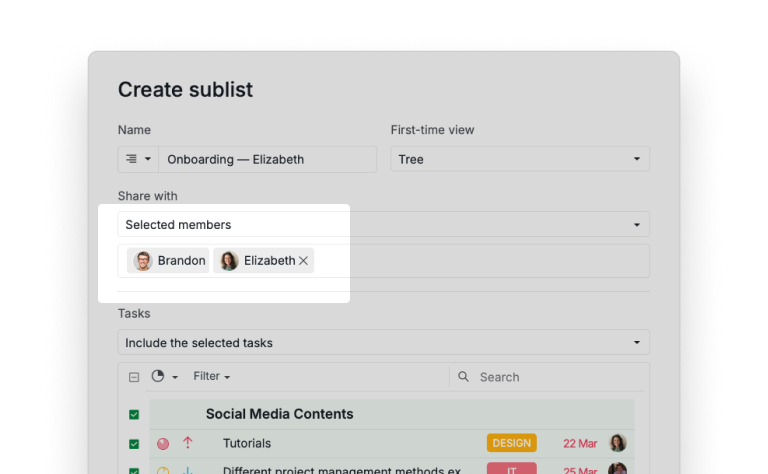
What this does that a doc doesn't: due dates, assignees, comments, and visible progress. Elizabeth knows what's next without asking. Her manager glances at the Sublist on Friday and sees what's stuck. The buddy gets a notification when their task comes up. When Elizabeth finishes onboarding, the Sublist gets archived, not deleted. It becomes the record of how her onboarding actually went, which is what you'd want to read before designing the next person's.
If the org has Quire MCP connected, generating the per-hire Sublist from an HR template or a kickoff meeting transcript is a one-prompt task. We covered that workflow in 5 AI project management workflows.
A Sublist covers Elizabeth's first weeks. For her first three months, Quire's 30-60-90 day plan guide stretches the same idea across four phases with a review gate and a success metric on each one, so her manager knows what good looks like by day 30 rather than guessing at it on day 89.
Use Case 6: How Does a Personal "Today" Sublist Keep You Focused?
The personal-productivity use case. This one isn't novel, but it's the one most users adopt first and use most.
How we set it up: a private filter-based Sublist named "Today" with conditions assignee = me, due-date = today OR overdue, status != done. We've stubbed a Today sublist inside Marketing Campaign Launch so you can see the pattern in place. In your own use, set permission to Private so it doesn't appear in the tab bar of any teammate's view.
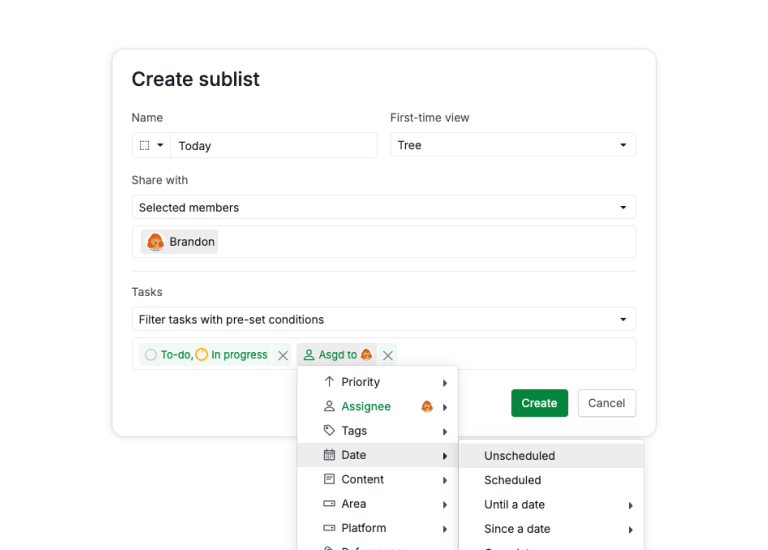
The Sublist lives at the top of the project's tab bar, pinned. The first action of the day is to open it. The last action of the day is to close it. Everything else, including the 247 tasks that aren't yours, is invisible during the work window.
A "Today" Sublist is a focus tool, and it works best inside a system: habits about what goes on the list and how priority gets decided. We wrote about that pattern in the post on the coordination tax.
When Do Two Teams Need Two Projects Instead of Two Sublists?
When the work has genuinely separate owners. Sublist is a focus tool inside a shared scope, so it shines when every slice benefits from the same master List.
The pattern to watch is two functions running work with different stakeholders, timelines, cadences, and definitions of done, kept in one project with a Sublist each. Six weeks later neither team has a coherent view, and the Sublists drift in opposite directions.
If two slices of work have genuinely separate ownership, give them two projects. The test: if the two Sublists would never benefit from being viewed together, you have two projects sharing a label, and a Smart Folder can still bring both into one view.
If you're trying to decide whether to split a project or use a Sublist, the rule of thumb: would you ever read the master List? If yes, Sublist. If no, split.
How Do You Create Your First Sublist?
Every option is covered in our guide to creating Sublists.
Here's the version most people need:
- Open a project. Click the + icon next to the List tab. Or just press
L. - Name the Sublist. Pick an icon if you want.
- Choose the permission level. Default is All members; agencies usually want External Team; personal use wants Private.
- Decide between manual (drag tasks in) or filter-based (conditions that pull in matching tasks).
- Pin it to the top of the tab bar.
The right-click context menu on any task gives you Set Sublist, which is faster than dragging once you've used it twice.
There's a second way in, and it's quicker when you already know the shape of what you want. Filter the list first, then open the star menu in the filter bar and choose Create sublist.
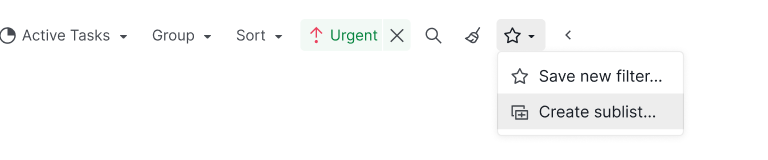
Whatever you filtered by becomes the Sublist's standing conditions, so you end up with a filter-based Sublist without configuring one from scratch. This is the route to take for the four "This Week" Sublists in Use Case 4, and for anything where the rule is easier to describe than the list.
What Tips Make Sublist Actually Stick?
A few patterns that separate teams who use Sublist from teams who try Sublist and abandon it after a week.
Name Sublists for the work, not the person. "Sara's Tasks" rots. "Q3 Brand Refresh" stays useful even when Sara takes vacation. Names that describe the slice of work survive personnel changes.
Use filter-based whenever you can. Manual Sublists need maintenance. Filter-based Sublists update themselves, and saving one from the star menu in the filter bar takes about as long as applying the filter did. The setup is slightly more thinking up front; it pays back every week after.
Pin the ones you actually use; archive the rest. A wall of pinned Sublists becomes its own form of clutter. Three to five pinned Sublists is the sweet spot for most teams. Archive (don't delete) the ones you stop using; tasks stay in the master List, and you can resurrect the Sublist if the workflow comes back.
Share the URL, not screenshots. The Sublist URL is the live source of truth. Pasting a screenshot into Slack creates a parallel artifact that drifts the moment anyone updates a task.
Don't fork master List ordering inside a Sublist. Reordering inside a Sublist reorders the master. If you need a different order without affecting the master, you probably wanted a separate Smart Folder, not a Sublist.
Key Takeaways
Sublist is the mechanism that makes a shared Quire project tolerable for everyone past 50 tasks. The filter itself isn't the point; what matters is that it's named, saved, permission-controlled, and pointed at the same source of truth. The six real-world workflows above (function-specific marketing views, sprint scoping, External Team client windows, manager weekly reviews, new-hire onboarding tracks, and personal focus lists) cover most of where Sublist earns its keep.
The wrong use is to substitute a Sublist for a project boundary that should exist. The right use is to give every person inside a shared project the smallest, most relevant view of it. Most teams who say "the master List is unmanageable" actually mean "I have not set up Sublists yet."
Which Sublist use case fits you?
Six teams, six ways to slice a project. Find the one closest to yours.
| Use case | What the Sublist does |
|---|---|
| Marketing campaign launch | Groups the launch tasks into one shared view |
| Software sprint planning | Carves the sprint's tasks out of the backlog |
| Agency client visibility | Shares just the client's tasks via an external-team Sublist |
| Manager's weekly review | A filter-based view of what needs attention |
| New-hire onboarding | A focused checklist for the first weeks |
| Personal 'Today' focus | Your own tasks across the project on one screen |
Frequently Asked Questions
How can one task appear in several Quire Sublists at once?
A Sublist is a personalized or filtered view of the same project in Quire. The tasks live once on the master List and appear in any number of Sublists you create. Editing a task in a Sublist updates the master, because they are the same task, not a copy.
How is a Quire Sublist different from a tag, a filter, or a separate project?
A tag is metadata on a task. A filter is a temporary search. A separate project is a separate dataset. A Sublist is a saved, named, permission-controlled view of the same data, with its own URL. You get the focus of a filter, the persistence of a project, and the granular sharing of an external link, without duplicating a single task.
How many Sublists can I create per project?
Two per project on the Free plan. Paid plans raise that limit. Most teams who hit the cap are on Free and discover Sublist after a few weeks of using Quire, which is usually when upgrading starts to make sense. The full breakdown lives on the pricing page.
Can I share a Sublist with someone outside my team?
Yes. When creating a Sublist you can pick All members, Admins, Selected members, External Team, or Private. The External Team option is what agencies and consultancies use to give clients a read-only window into the slice of work that's theirs, without exposing internal tasks.
What happens to my Sublist if I move or remove tasks?
Removing a task from a Sublist takes it out of that view only. The task stays on the master List. Deleting a Sublist itself leaves all its tasks in the master List. Reordering inside a Sublist updates the master order. This is the bit worth knowing before you let someone "clean up" their personal Sublist.
When should you skip Sublist and start a new project instead?
When the work genuinely belongs in a different project, not a different view. If two slices of work have separate stakeholders, separate timelines, and separate definitions of done, that is two projects, not two Sublists. Sublist is a focus tool, not a fence between teams.
Ready to give your team the smallest, most useful view of the project they're actually working on?
Sublist ships in every Quire plan, including the Free tier (two Sublists per project). The use cases above take five minutes each to set up. If they hold up for a week, the team will defend them; if they don't, you've lost five minutes.
Start free at quire.io/signup. No credit card, full feature access, 30 days. Open the Sublist guide in a second tab and try the "Today" Sublist first.