developers · Apr 29, 2026
Quire MCP Setup in 5 Minutes: Connect Claude, ChatGPT, or Any AI Client
Last updated: August 25, 2026
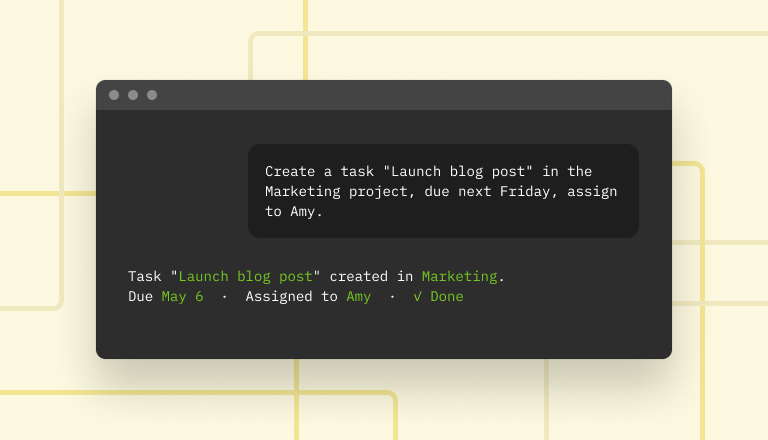
Quire is now in Claude's connector directory. Search Quire under Connectors, click Connect, sign in, done. The same first-party MCP server also connects to Claude Code, ChatGPT, Perplexity, Gemini CLI, and any other MCP-capable client via one OAuth handshake. Nothing to generate or paste, and access is scoped to whatever your Quire user can already do.
- What Can Your AI Assistant Do in Quire Once Connected?
- What Do You Need Before Connecting Quire MCP?
- How Do You Connect Quire MCP to Your AI Client?
- 10 Quire MCP Prompts to Try Right After Setup
- How Do You Fix Common Quire MCP Setup Issues?
- How Do You Revoke an AI Client's Access to Quire?
- Key Takeaways
- Which everyday jobs can you hand to your AI assistant?
- Frequently Asked Questions
Quire's MCP server lets you wire Claude Code, Cowork, or any MCP-capable AI client into your Quire workspace in about as long as it takes to reheat lunch.
One OAuth handshake, and your AI assistant can create tasks, update statuses, and manage projects across your Quire workspace, with no developer background required, no third-party glue, and no Zapier workflows to maintain.
If you have a Quire account and an MCP-capable AI client, you're already most of the way there.
Quire MCP is now listed in Claude's connector directory too, which means you don't even need the endpoint URL there. The whole setup is a search box and a Connect button.
Quire MCP works the same way in every MCP-capable AI client (Claude Code, Claude Cowork, ChatGPT, Perplexity, Gemini CLI, Cursor, Windsurf, or anything new since this post was written). The OAuth handshake, the supported actions, and the permission scope are identical; only each client's UI differs.
Want the same Quire access without an AI in the loop? Quire CLI is the standalone command-line tool for humans typing into a terminal. Same data, different surface. MCP is for AI agents; the CLI is for scripts, shell loops, and muscle memory. Pick whichever matches the task.
Still evaluating which PM tool to invest in? See our 2026 roundup of project management tools with MCP support. Quire vs Notion, Linear, Asana, ClickUp, and the rest, scored on coverage, hierarchy, and first-party stability. Or browse our side-by-side comparisons of the best project management software.
What Can Your AI Assistant Do in Quire Once Connected?
Before we get into steps, a quick preview of the destination. Once connected, you can hand Claude tasks like:
- "Create a sprint for next week with these user stories from the planning meeting"
- "What did the engineering team ship this week? Draft a status update"
- "Find all tasks blocked more than 3 days and tag them for review"
- "Add the onboarding checklist from our handbook as tasks in the new hire's project"
- "Move everything due this week to the top of my board"
Every one of those goes from a 10-minute clicking exercise to a prompt. That's the whole reason to do this.
Our team ran this setup live in a webinar, about forty minutes end to end including the audience questions.
In this session8:55 What MCP is, in plain terms10:09 Connect Claude to Quire, live27:16 How to get started28:17 Connecting from the Apps directory28:50 Live Q&A
What Do You Need Before Connecting Quire MCP?
Three things to check before you start:
- A Quire account. Sign up free if you don't have one. The free tier works for this setup.
- An MCP-capable AI client. Claude Code, Cowork, or any other MCP-compatible app.
- Permissions. You need to be a member of at least one Quire organization so there's something to connect to.
That's it. No API tokens to generate manually, no config files to edit unless you want to.
How Do You Connect Quire MCP to Your AI Client?
The pattern is the same everywhere. Register the Quire MCP server in your client, authorize once with OAuth, and verify with a prompt. Claude is the happy exception, because the directory listing does the registering for you.
Below, you'll find worked examples for the Claude app, Claude Code, Claude Cowork, ChatGPT, Perplexity, and Gemini CLI, plus a generic walkthrough that applies to Cursor, Windsurf, and every other MCP-capable AI client.
New to MCP or prefer a non-developer walkthrough? The Quire MCP guide covers the basics in plain language: what MCP is, what it does for you, and what to expect once it's connected.
For the full feature list, supported clients, and the current endpoint URL, see the Quire MCP listing in the Quire developers documentation.
Claude (Desktop and Web)
This is the shortest path in the whole post, and the only one where you never touch a URL. Quire lives in Claude's connector directory, so you search for it the same way you'd search for Gmail or Google Drive.
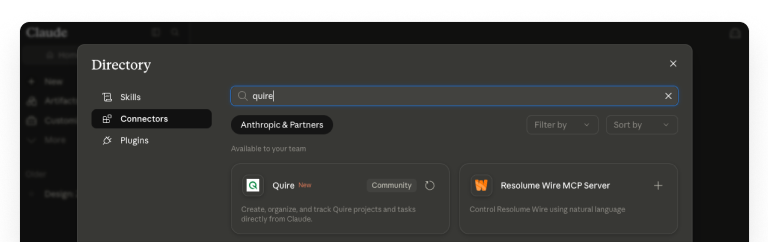
Here's the flow, start to finish:
- Open the directory. In Claude, click Customize in the left sidebar, open the Connectors tab, click the + button, and pick Browse connectors.
- Search for Quire. Type
quirein the search box. Look for the card that reads "Create, organize, and track Quire projects and tasks directly from Claude." - Open the listing and click Connect. You get the full tool inventory before you commit to anything: nested tasks, subtasks and sublists, documents, chats, comments, tags, custom statuses, custom fields, insight views, time logs, and approval workflows.
- Sign in to Quire and approve the scope. OAuth does the handshake, so Claude never sees your password.
- Verify. Ask for something small, like
"List my recent Quire projects".
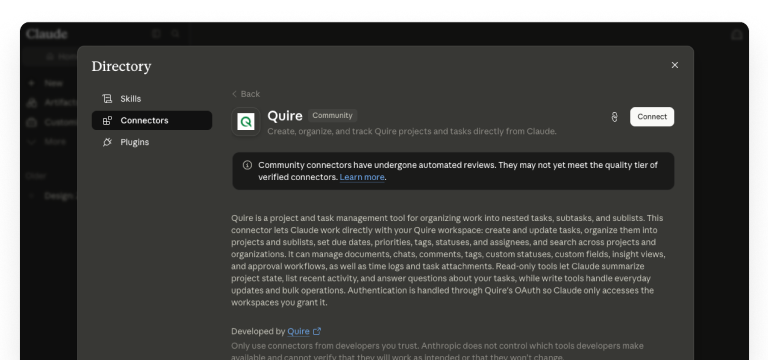
The listing credits Developed by Quire underneath, because this is our own connector pointing at the same first-party server (https://mcp.quire.app/mcp) every other client in this post uses. Read-only tools let Claude summarize project state and answer questions about your tasks. Write tools handle the everyday updates and the bulk operations.
Already signed in to Claude? The listing lives at claude.ai/directory/connectors/quire, so you can skip the menus and go straight to the Connect button.
Claude Code
Claude Code is the most direct way to wire Quire into a developer workflow you can have Claude create tasks, update statuses, and pull project state from inside the terminal session you're already coding in.
- Open the plugin manager. In Claude Code, run
/pluginto open the connector list. - Find or add Quire. If Quire shows in the registry, select it. Otherwise add the Quire MCP server URL manually. The current endpoint is on the Quire app for Claude page.
- Authenticate. Claude Code opens a browser tab for the OAuth flow. Sign in to your Quire account and approve the connection. Once the redirect completes, you can close the tab.
- Verify. Back in Claude Code, prompt with something simple
"List my recent Quire projects"and confirm Claude can read your workspace.
That's the whole flow. The connection persists across Claude Code sessions until you revoke it.
For the latest setup details, supported actions, and version compatibility, see the Quire app for Claude in the Quire app directory.
Claude Cowork
Claude Cowork is Anthropic's collaborative workspace for Claude it hides the MCP plumbing entirely, so the connector list looks like any other integration menu and the OAuth flow takes two clicks.
- Open Settings → Connectors → Add Connector.
- Pick Quire from the list.
- Sign in with your Quire credentials and approve the access scope.
- Verify with a prompt like
"What tasks are due this week in my Quire workspace?".
Claude Cowork shows the connector status in Settings → Connectors at any time, so you can confirm the connection is live without leaving the app.
ChatGPT
ChatGPT connects to Quire as a browser plugin. Once it's added, you can have ChatGPT pull project state, create tasks, and update statuses inside any conversation, just like any other built-in tool.
- Open Settings → Plugins. In ChatGPT, go to your account settings, open the Plugins panel, and select Browser plugins.
- Click the + icon in the upper right corner.
- Enter the details. Give it a name (for example,
Quire) and set the URL tohttps://mcp.quire.app/mcp. - Sign in to Quire when prompted and approve access.
- Verify. Start a new ChatGPT conversation and prompt with something like
"What's on my Quire to-do list this week?"to confirm it can read your workspace.
ChatGPT keeps the plugin active across sessions until you remove it from settings.
For the latest setup details, supported actions, and version compatibility, see the Quire app for ChatGPT in the Quire app directory.
Perplexity
Perplexity supports remote MCP servers as Custom Connectors on paid plans (Pro, Max, Enterprise) once connected, you can ask Perplexity research questions that pull live data from your Quire workspace alongside its web sources.
- Open
perplexity.aiand go to Settings → Connectors. - Click Add Connector → Advanced (or Add custom connector).
- Configure the connector. Enter a name (for example,
Quire), set the URL tohttps://mcp.quire.app/mcp, and choose Streamable HTTP as the transport with OAuth as the authentication method. - Save, then click Connect and sign in to Quire to approve access.
Once connected, Perplexity can query your Quire data inside any conversation.
Custom MCP connectors require a paid Perplexity plan (Pro, Max, or Enterprise) Quire itself works on every Perplexity plan; the limitation is on Perplexity's side. For setup details and version compatibility, see the Quire app for Perplexity in the Quire app directory.
Gemini CLI
Gemini CLI is Google's command-line interface for the Gemini family of models once connected, you can have Gemini create tasks, update statuses, and pull project state from any terminal session, similar to Claude Code.
- Edit your Gemini CLI settings file. Open
~/.gemini/settings.json(user scope) or.gemini/settings.json(project scope). Add the Quire MCP server under
mcpServers:{ "mcpServers": { "quire": { "httpUrl": "https://mcp.quire.app/mcp", "authProviderType": "dynamic_discovery" } } }Restart Gemini CLI, then trigger OAuth with
/mcp auth quire.dynamic_discoverymakes the CLI auto-detect the OAuth requirement, register a client, and open a browser to authorize. (OAuth requires that your local machine can receive a redirect onhttp://localhost:7777/oauth/callback.)Verify. Prompt with something like
"List my recent Quire projects"and confirm Gemini can read your workspace.
The connection persists across Gemini CLI sessions until you revoke it.
For the latest setup details, supported actions, and version compatibility, see the Quire app for Gemini CLI in the Quire app directory.
Any Other MCP Client
If you're on a different MCP-capable client a desktop AI app, an editor extension, or anything new since this post was written the pattern is the same:
- Find the client's MCP configuration file or settings panel.
- Add the Quire MCP server endpoint your client's documentation will show the expected config format.
- Authenticate via OAuth (the flow is standard the Quire server handles the browser redirect).
- Verify with a test prompt.
If your client supports the MCP registry, Quire should appear there directly. If it doesn't, you may need to add the server manually check Quire's developer documentation for the current endpoint URL.
Any client that supports Streamable HTTP MCP servers with OAuth can connect. Hand it https://mcp.quire.app/mcp as the endpoint and the handshake takes care of itself. For clients that only speak the older stdio transport, use a bridge such as mcp-remote:
{
  "mcpServers": {
    "quire": {
      "command": "npx",
      "args": ["-y", "mcp-remote", "https://mcp.quire.app/mcp"]
    }
  }
}
Drop that block into your client's MCP config file, restart the client, and the OAuth handshake will trigger on first use.

10 Quire MCP Prompts to Try Right After Setup
The most useful way to build intuition is to try a few real prompts. These are starting points, not exhaustive each one exercises a different capability.
The ten below are deliberately capability tests, one per Quire object. For the everyday versions you will actually reuse on a Monday, we keep a separate cheat sheet of 10 Quire MCP prompts that do real work, from the weekly status to overdue triage to a client update.
1. Pull a project overview
"Summarize the current state of my 'Website redesign' project. What's done, what's in progress, what's stuck?"
Tests: reading tasks, understanding task status, synthesizing natural-language summaries from structured data.
2. Triage your inbox
"What tasks are assigned to me and due this week in the 'Procurement Approval' project? Sort by priority."
Tests: filtering, sorting, user context.
3. Draft a standup update
"Draft my standup. What did I close in Quire since yesterday, what's open on me today, and what's stuck?"
Tests: historical activity, current assignments, blocker detection.
4. Create tasks from a meeting note
"Here are my sprint planning notes: [paste notes]. Turn these into tasks in the 'Q3 Sprint' project, assigned to Brent and Bailey."
Tests: task creation, assignee inference, project selection.
5. Bulk update statuses
"Mark all tasks in the 'Website redesign' project tagged 'ready-for-review' as complete."
Tests: tag filtering, batch operations, task updates.
6. Build a weekly report
"Draft a one-paragraph weekly status for stakeholders based on the last 7 days of activity in my active projects."
Tests: cross-project reading, summarization, tone matching.
7. Onboard a new team member
"Create a new project called 'Onboarding Alex' with these tasks: [list], assigned to Alex, due in the next two weeks."
Tests: project creation, task creation, assignment, due dates.
8. Find the hidden bottleneck
"Which tasks have been in 'In Progress' for more than 5 days? Tag them 'needs-attention' and add a comment asking for a status update."
Tests: filtering, tag management, comment creation.
9. Template a recurring project
"Copy the 'Monthly marketing launch' project structure into a new project called 'Marketing launch August'."
Tests: project duplication, structure preservation.
10. Surface risk
"Are there any projects with milestones due this month where more than 30% of tasks are incomplete?"
Tests: milestone reading, percentage calculations, risk signaling.
Want the templates behind some of these workflows? The Quire templates library has sprint planning, onboarding, and marketing launch templates you can adapt.
Ready to go past prompting by hand? We wired Quire MCP to a Claude Managed Agent that writes our weekly changelog every Monday, unattended, in under 30 seconds. That build log covers the agent definition, trimming the toolset from 95 tools down to 4, and the OAuth credential vault that keeps the token away from the model.
How Do You Fix Common Quire MCP Setup Issues?
"Claude says it doesn't have access to Quire"
Check the MCP connector status in your client's settings. If the connector shows as disconnected, re-authenticate. If it shows as connected but Claude still claims no access, try restarting your AI client MCP connections sometimes need a reload to register.
"It created tasks in the wrong project"
This is usually a naming ambiguity if you have three projects with "Marketing" in the name, the AI will pick one. Either use more specific project names in your prompt ("Marketing Q3 launch campaign") or explicitly disambiguate by quoting the full project name or pasting the project URL.
"The OAuth redirect didn't come back"
Some enterprise environments block OAuth redirects in the browser. If you get stuck mid-flow, check your firewall/proxy settings the redirect URL needs to be reachable.
"I want to limit what Claude can do"
Quire's MCP respects your user permissions if there are projects you don't have write access to, the AI won't either. For tighter control within a project, use a Quire role with restricted permissions for the user account you're connecting.
How Do You Revoke an AI Client's Access to Quire?
If you want to disconnect temporarily or permanently:
- In the Claude app Customize → Connectors → Quire → Disconnect.
- In Claude Code remove the connector via
/plugin. - In Cowork Settings → Connectors → Quire → Disconnect.
- In Quire Account Settings → My Apps → find the AI client → Revoke.
Revoking from Quire's side is the most authoritative the AI client will lose access immediately, regardless of its local state.
Key Takeaways
Connecting Claude to Quire takes five minutes, requires no code, and uses scoped OAuth that you can revoke at any time. In the Claude app it's now down to a search box and a Connect button.
Most of the setup time is authentication. The protocol itself does the heavy lifting of translating between your AI prompts and Quire's API.
Once connected, the value shows up fastest in the coordination work you were already doing status updates, sprint planning, task creation from meeting notes, and triage.
Start with one or two of those workflows and build from there. Not everything needs to be AI-assisted, but the handful that benefit most will give you back real hours.

Which everyday jobs can you hand to your AI assistant?
Once Quire MCP is connected, these are the clicks you stop doing by hand.
| Ask your AI assistant to | Instead of |
|---|---|
| Create a sprint from meeting notes | Adding each user story by hand |
| Draft a status update from the week's work | Digging through everything that shipped |
| Find and tag tasks blocked over three days | Scanning the whole board yourself |
| Turn a handbook checklist into tasks | Retyping the onboarding list |
| Reprioritize your board for the week | Dragging cards one at a time |
Frequently Asked Questions
How do I connect Quire to Claude, ChatGPT, or another AI client?
Quire's MCP server works with any MCP-capable AI client Claude Code, Claude Cowork, ChatGPT, Perplexity, Gemini CLI, and more. Open your client's MCP settings, add the Quire MCP server, authenticate via OAuth, and verify with a test prompt. About five minutes total.
Is Quire available in Claude's connector directory?
Yes. In Claude, go to Customize → Connectors → + → Browse connectors, search for Quire, and click Connect. No endpoint URL to paste, no config file to edit.
How does connecting Quire to Claude help a team be more productive at work?
It takes the clicking out of coordination. Sprint creation, status updates, and blocked-task triage each drop from a ten-minute exercise to one prompt, and Quire keeps the nested structure underneath so the AI has something precise to act on. If you want the broader version of this, see how to be more productive at work.
Does Quire's MCP server work with Claude Code?
Yes. Add it through Claude Code's /plugin menu or your MCP config file, authenticate once, and Claude Code can read and write Quire data alongside your normal coding workflow.
Does Quire MCP work with Cowork?
Yes. In Cowork, go to Settings → Connectors → Add Connector, pick Quire, and sign in. Cowork can then manage tasks, projects, and documents without leaving the chat.
Which other AI tools can connect to Quire MCP?
Any MCP-capable client Perplexity, Gemini CLI, Cursor, Windsurf, Zed, Codex, and others. The OAuth-based setup pattern is the same in every client. See Quire's developer documentation for the current list of tested integrations.
What can my AI assistant do with my Quire data?
Anything your Quire user account can do create and update tasks, manage tags and sublists, read and write comments, edit documents, pull insights, and move work between projects.
Is my Quire data safe when I connect an AI client via MCP?
Yes. Scoped OAuth, revocable anytime from Quire's account settings. The AI only sees what your user can see, and all actions are logged to your account.
Ready to run your project management from your AI assistant?
Start your free trial at quire.io/signup no credit card, full access, 30 days.