features · Jun 23, 2026
Smart Folders in Quire: One View Across Every Project

Last updated: October 6, 2026
A Smart Folder in Quire pulls projects from different organizations into one filtered view, with the full power of a normal project. It's your bird's-eye command center across everything you touch, work and personal, and it's on every plan, including free.
- What is a task in Quire?
- What is a project in Quire?
- What is an organization in Quire?
- What is a Smart Folder in Quire?
- Does a Smart Folder copy your projects?
- What can you actually do with a Smart Folder?
- Can you view a Smart Folder as a List, Board, or Timeline?
- How do tasks, projects, organizations, and Smart Folders fit together?
- Key takeaways
- Frequently Asked Questions
You run four projects. They sit in three different organizations, because that's just how the work shook out, one per client and one for your own team. Then someone asks the simple question, what's happening across all of them right now, and answering it means opening each one in turn while holding the rest in your head.
That gap, between your separate projects and the single view you actually want, is exactly what a Smart Folder fills.
Here's what a Smart Folder is, who falls for it fastest, and the work it quietly makes easier. We'll climb up to it from the bottom, because the three levels beneath it, tasks, projects, and organizations, are what make it click.
What is a task in Quire?
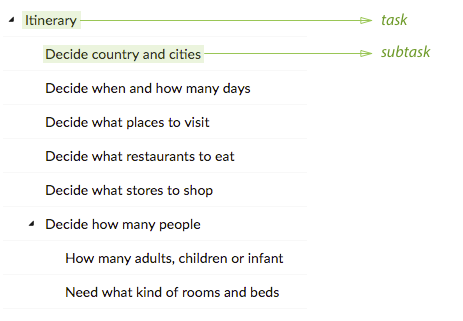
Tasks in the middle main panel of your Quire workspace.
A task is one actionable thing to be done. It breaks into subtasks, and those break into sub-subtasks, as deep as the work really goes.
But a task doesn't have to be a chore on a list. It can hold an idea, a rough note, or a section you jot down first and split into smaller pieces later. Everything else in Quire is built out of tasks, so think of this as the atom.
What is a project in Quire?
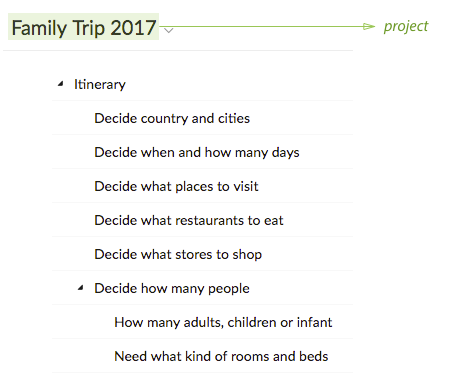
Project in the middle main panel of your Quire workspace.
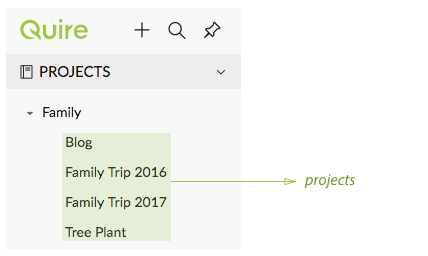
Projects in the left sidebar of your Quire workspace.
A project is a pile of tasks pointed at one goal. A campaign you're running, an app you're building with a designer, a trip to Europe you're planning with friends. If it has tasks, it's a project.
You switch between projects in the left sidebar, and each one holds its own task list and the whole hierarchy underneath it.
What is an organization in Quire?
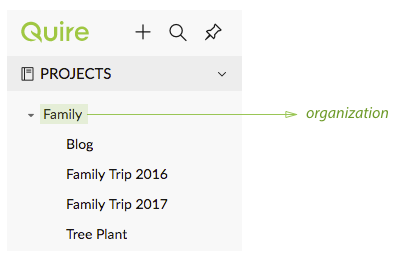
Organizations in the left sidebar of your Quire workspace.
An organization is a group of projects. Usually it's a company, a department, or a team, but it doesn't have to be work at all. It can be any bucket that makes sense to you, named Work, Home, or Volunteer.
Say you have an organization called Family. Inside it go the projects you and your family are actually trying to pull off, from the kitchen renovation to the summer road trip.
Here's the catch, and it's the reason the next section exists. Organizations are walls. A project in your Acme Corp organization and a project in your Side Projects organization don't share a screen. The moment your work spreads across more than one organization, you lose the single view. (This is the part where the Smart Folder walks in.)
Each organization also carries its own permissions and roles and its own subscription. Running several for different clients or teams? Master Organization can combine their billing into one subscription without touching how Smart Folders pull them together.
What is a Smart Folder in Quire?
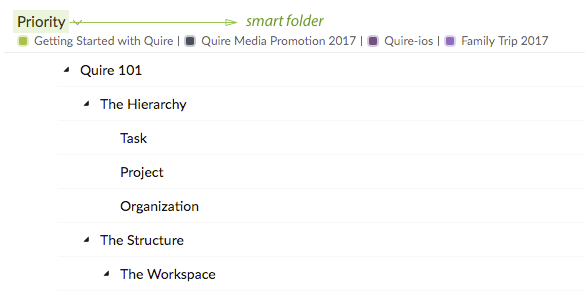
Smart Folder in the middle main panel of your Quire workspace.
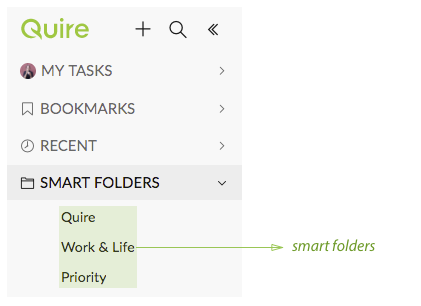
Smart Folders in the left sidebar of your Quire workspace.
A Smart Folder is a virtual folder of projects from different organizations. This is the one that surprises people the first time they see it.
It has the full power of a project view. So you get a bird's-eye look at everything happening in the projects you care about, then filter down to the three tasks that actually need you today. The projects can live in completely separate organizations and still sit together right here.
You can keep as many as you like. One called Active Clients, one called Marketing, one called Just My Stuff. Each one becomes a lens onto a different slice of your work, assembled from projects that would otherwise never meet.
Smart Folders are available on every Quire plan, including the free tier.

Does a Smart Folder copy your projects?
No, and this is the part worth getting straight early. A Smart Folder doesn't move or duplicate anything. It's a live view onto projects that still live in their own organizations.
Edit a task inside the Smart Folder and you're editing the real task. Edit that same task from its original project and it updates in the Smart Folder too. There's only ever one copy, shown in two places.
Add or remove a project from the Smart Folder and the project itself doesn't budge. You're just changing what this particular lens looks at. So you can build, rename, and tear down Smart Folders freely without ever risking the actual work inside them.
What can you actually do with a Smart Folder?
A Smart Folder isn't a separate workspace you keep up to date. It's a live lens, and nearly everything you can do inside one project, you can do across all the projects you've gathered. Three of those are worth knowing, because they're the ones people miss at first.
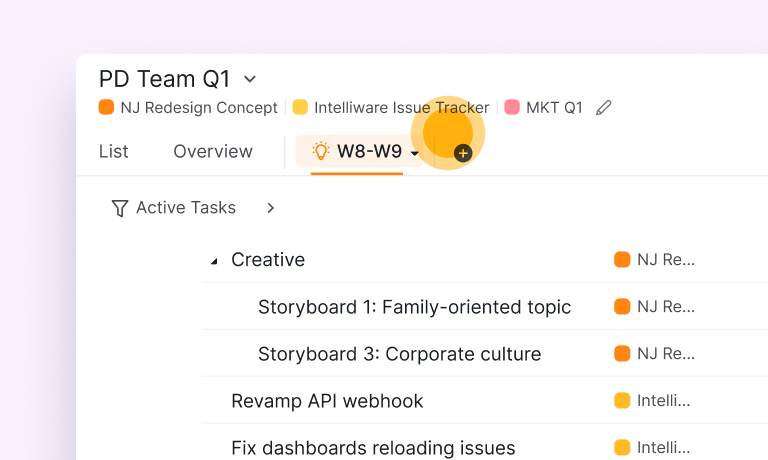
Filter every project at once. Instead of opening five projects to find what's due this week, you filter the whole Smart Folder one time, by assignee, due date, tag, or priority. "Everything assigned to me across all my clients" goes from five separate checks to a single list.
Catch what's slipping. Filter to overdue and you get every late task from every project together, including the one buried in a project you haven't opened in a week. That's usually where the unpleasant surprises live.
Act without leaving. Because it's a live view, you can finish a task, move a due date, or reassign someone right from the Smart Folder, and it updates in the real project. You don't bounce back to the source to make the change.
Put together, that's a real Monday-morning routine. Say you keep three client projects, each in its own organization, gathered in a Smart Folder called Active Clients. You filter to "due this week," group by assignee, and in one screen you can see who's overloaded and which deadline is about to slip, without opening a single project.
That Monday routine is one step of a bigger system: how to manage multiple projects walks through all six, from one shared workspace to batching your switches.
One practical note: three or four Smart Folders usually covers it. They're quick to make, so it's easy to end up with fifteen you never open.
Can you view a Smart Folder as a List, Board, or Timeline?
Yes, and this is where it stops being a folder and starts feeling like a workspace. A Smart Folder flips between the same views a project has, so you pick the layout that fits the question you're asking. Six are on offer: List, Table, Board, Timeline, Calendar, and Time Tracker.
List (Quire also calls it the Tree view) is the default. A clean, nested outline of every task across the projects you've gathered, subtasks tucked underneath. Best for scanning and reorganizing.
Board turns those same tasks into Kanban columns. Drag a card from In Progress to Done and it updates in its home project too. Useful when you're running status across clients and want one wall instead of five.
Timeline is the one people don't expect. It's a Gantt chart spanning projects from completely different organizations on a single set of bars. Seeing a marketing launch and an engineering freeze line up when they live in separate orgs is something you basically can't get any other way.
Calendar drops every due date across all those projects into one month, so nothing sneaks up on you from a project you forgot to open.
Table lays the same tasks out spreadsheet-style, a row each with sortable columns, for when you'd rather scan fields than cards. And Time Tracker rolls up the hours logged across every project in the folder, the fastest way to see where a week actually went.
Same data underneath, six ways to read it. Group by assignee or color-code by priority in any of them, and a packed Smart Folder gets readable fast.
Each view has its own walkthrough: Timeline for the Gantt version, Board for Kanban, and Calendar for the month view. Every one of them works on a Smart Folder, not just inside a single project.
Found a view you keep rebuilding? The Sublist 2.0 update lets you save a filtered view as a Sublist at the Smart Folder level (on Professional and higher plans), so "everything due this week across all clients" becomes one saved link instead of a filter you redo every Friday.
How do tasks, projects, organizations, and Smart Folders fit together?
Here's the whole ladder on one screen, smallest to largest.
| Level | What it is | Contains | Example |
|---|---|---|---|
| Task | One actionable item | Subtasks, notes | "Write the launch email" |
| Project | A goal made of tasks | Tasks | "Spring Campaign" |
| Organization | A group of projects | Projects | "Acme Corp" |
| Smart Folder | A cross-organization view | Projects from many orgs | "All Active Clients" |
The thing to hold onto is that these are far more flexible than their names suggest. An organization can be your household, a project can be a vacation, and a Smart Folder can be the one place your work and personal life finally share a screen.
Don't confuse Smart Folders with plain Folders, which group projects inside a single organization. If you want the difference in one line: Folders tidy one organization, Smart Folders see across many.

Key takeaways
- A Smart Folder pulls projects from different organizations into one filtered, full-power view.
- It's the fix for the exact moment your work outgrows a single organization.
- It's built for agency leads, consultants, cross-functional leads, and anyone splitting work and personal life across organizations.
- It opens in List, Table, Board, Timeline, Calendar, or Time Tracker view, and saves filtered Sublists on Professional plans.
- It's on every plan, including free, so you can build one in the next five minutes.
If you already have more than one organization in Quire, you already have a reason to make a Smart Folder. Pick the two or three projects you check most often, drop them into one, and name it something honest like Stuff I Actually Care About. The next time someone asks what's going on across everything, you'll have a one-tab answer.
The Smart Folders guide has the click-by-click if you want it.
Frequently Asked Questions
What is a Smart Folder in Quire?
A virtual folder that gathers projects from different organizations into one filtered, full-power view.
How is it different from a Folder?
Folders group projects inside one organization. Smart Folders gather projects across several. Folders tidy, Smart Folders see across.
Who should use one?
Anyone whose work spans more than one organization: agency leads, consultants, cross-functional leads, and people splitting work and life. Anyone whose work is spread across several projects rather than concentrated in one. Quire Smart Folders earn their keep when each team keeps its own project and somebody still needs one view across all of them.
Does it work with other views?
Yes. Switch a Smart Folder to List, Table, Board, Timeline, Calendar, or Time Tracker, and save Sublists at that level on Professional plans.
How do the four levels fit together?
Tasks sit in projects, projects sit in organizations, and Smart Folders span organizations to pull related projects into one view.