
Change Status Permalink
Task status workflows define the stages work moves through from start to finish. Customizing these stages to match how your team actually operates makes it easier to track progress and keep everyone aligned on what is happening. In Quire, each task starts with three default statuses: To-Do, In Progress, and Completed. You can add or rename statuses to fit your workflow.
Set Status to a Task
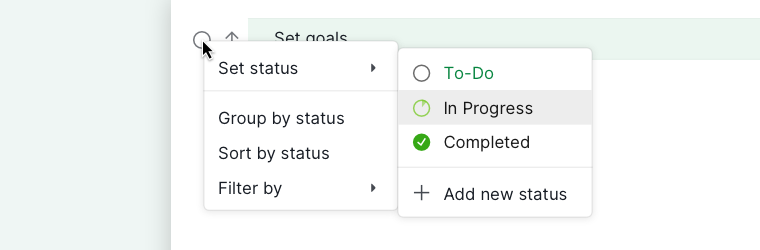
- In the main panel, right-click the status circle to choose a new status.
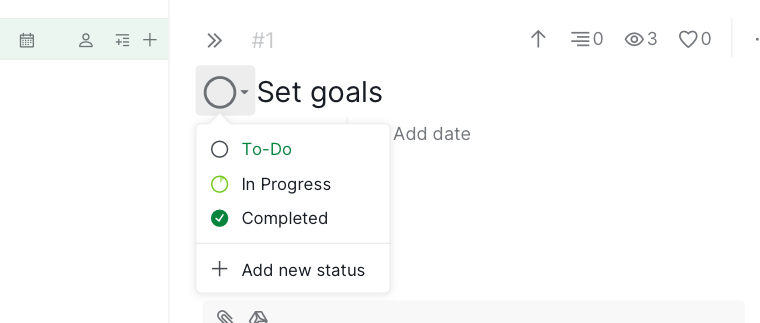
- You can also set a status in the detail panel by clicking the arrow next to the status icon.


Tip: Press ? to quickly open the status menu. (For Arabic-script keyboards, ⸮ also works.)
Always Show Status Options
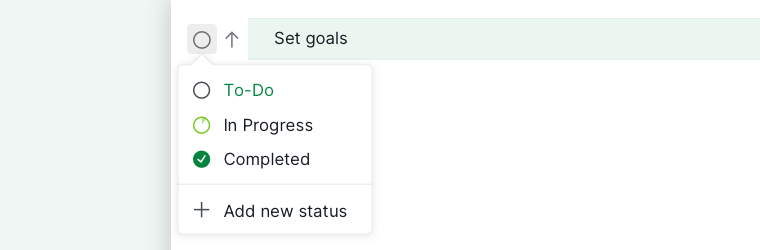
You can adjust your project settings so clicking the status icon always opens the status menu instead of completing the task.
- Click the dropdown menu beside the project name and select Options.
-
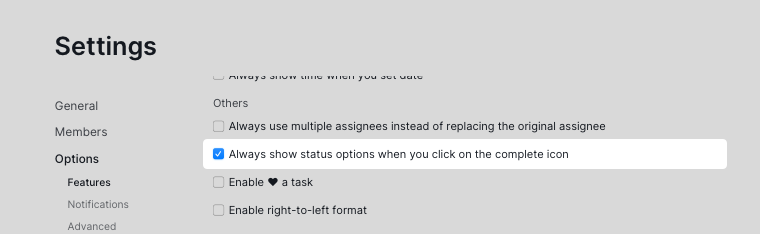
In the Project Settings page, under Others, enable Always show status options when you click on the status icon.

Complete a Task
Click the Complete circle to mark a task as done. When completing a parent task, all subtasks will complete as well. Hover over the status circle to see how many subtasks will be completed.

Keyboard Shortcuts
- Ctrl + / for Windows or ⌘ + / for Mac
- Or press Shift + C
Note: Completing a task may be blocked if it or any subtask has a pending approval or an open predecessor. Project admins can toggle these restrictions in project settings.
Create New Statuses
In the Free Subscription plan, you can have up to 5 statuses in each project. Upgrade your subscription plan to create more statuses. More information can be found on our pricing page.
- In the main panel, right-click the status icon next to a task.
-
Select Add new status.
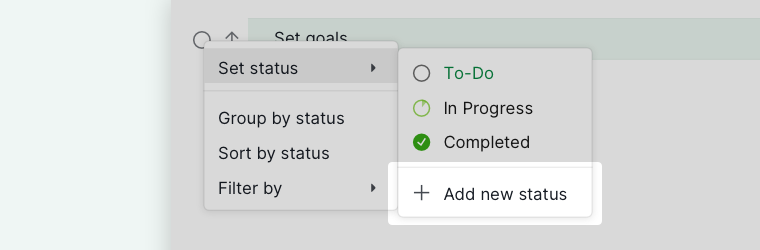

You can also create new statuses from the Project Settings page:
- Open the dropdown menu beside the project name.
- Select Edit statuses.
-
Click + Add new status
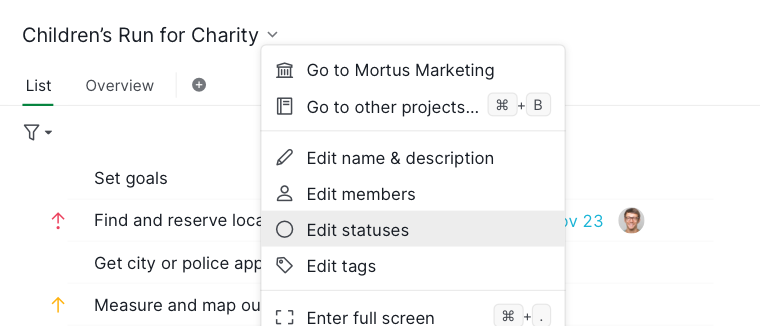

Note:
- Progress percentages below 100% must be unique.
- You can create multiple statuses at 100%, such as Canceled, Won’t do, etc.
- Tasks with a 100% status will be hidden when filtering by Active Tasks in Tree view.
Learn more about creating status columns in Board view.
Edit Existing Statuses
- In the main panel, right-click the status icon next to a task.
- Hover over a status.
-
Click the edit (pen) icon to edit status.
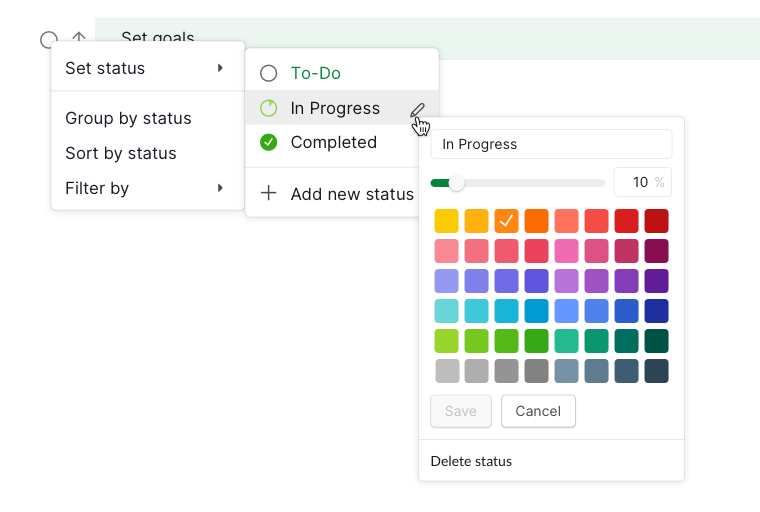

You can also edit the statuses from the Project Settings page:
- Open the dropdown menu beside your project name.
- Select Edit statuses to update them on the settings page.
- Click the edit (pen) icon to edit status.
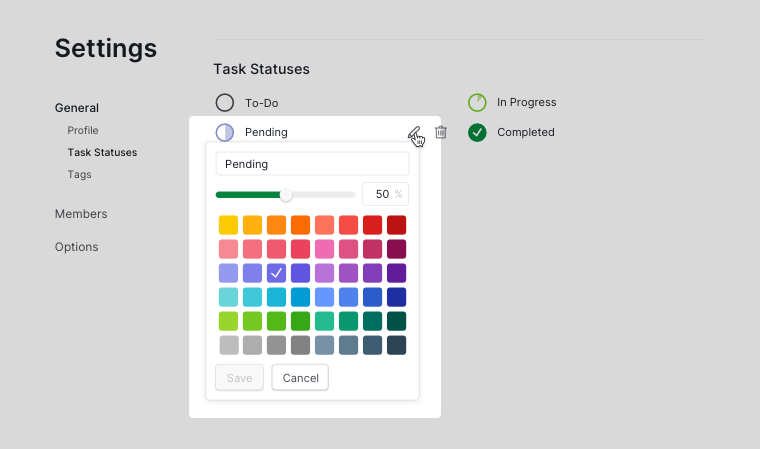

Track Status Distribution
Once your project has its own statuses, the Task Status Distribution widget on a Dashboard charts every task by status, so you can see where work is concentrated without counting tasks yourself.
Frequently Asked Questions
What is a task status workflow and why should teams customize it?
A task status workflow defines the stages work moves through, such as To Do, In Progress, and Done. Customizing them to match your team’s actual process makes it easier to track progress, spot bottlenecks, and agree on what done means. Quire starts with three defaults and lets you add, rename, or create multiple completion statuses like Canceled or Won’t Do.
How do I mark a task as completed in Quire?
Click the Complete circle next to the task. Completing a parent task completes all its subtasks. Hover over the status circle to see how many will be affected. Keyboard shortcuts: Ctrl+/ (Windows) or ⌘+/ (Mac), or Shift+C.
How do I make the status menu open by default instead of completing a task?
Open the dropdown beside the project name, select Options, then under Others enable Always show status options when you click on the status icon.
How many custom task statuses can I create in Quire?
The Free plan allows up to 5 statuses per project. Upgrade to create more.
How do I add a new task status in Quire?
Right-click the status icon next to a task and select Add new status. You can also add statuses from Edit statuses in the project dropdown menu.
Can I create multiple statuses for completed or canceled tasks in Quire?
Yes. Multiple statuses can be set to 100% progress (such as Completed, Canceled, Won’t Do). Progress values below 100% must be unique. Tasks with a 100% status are hidden when filtering by Active Tasks in Tree view.
How do I edit an existing task status in Quire?
Right-click the status icon next to a task, hover over the status, and click the pen icon. Or open Edit statuses from the project dropdown menu.
Why can’t I complete a task in Quire?
A project admin may have enabled completion-blocking settings. A task cannot be completed if it or any subtask has a pending approval, or if it or any subtask has an open predecessor that is not yet done. Resolve the condition or ask a project admin to adjust the project settings.