
Break Down a Project Permalink
To start managing a project in the Quire mobile app, first select a project from the Home tab. Then break your ideas into tasks and subtasks to create a clear, structured workflow.
Create and Organize Tasks
Create a New Task
- Open a project from the Home tab.
- Tap the green + button at the bottom right corner.
- Enter the task name.
- Tap to save.

You can add more details such as:
- Due dates
- Assignees
- Tags
- Priority
- Descriptions
Check out our Youtube channel for mobile tutorial videos!
Learn how to add tasks using Siri.
Switch Between Project Views
Quire offers multiple project views to help you manage tasks in different ways:
- Tree (default)
- Board
- Table
- Timeline
-
Calendar
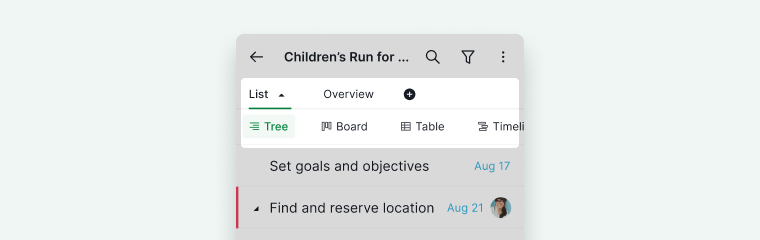

- Open a project.
- Tap the view switch button at the top.
- Select your preferred view.
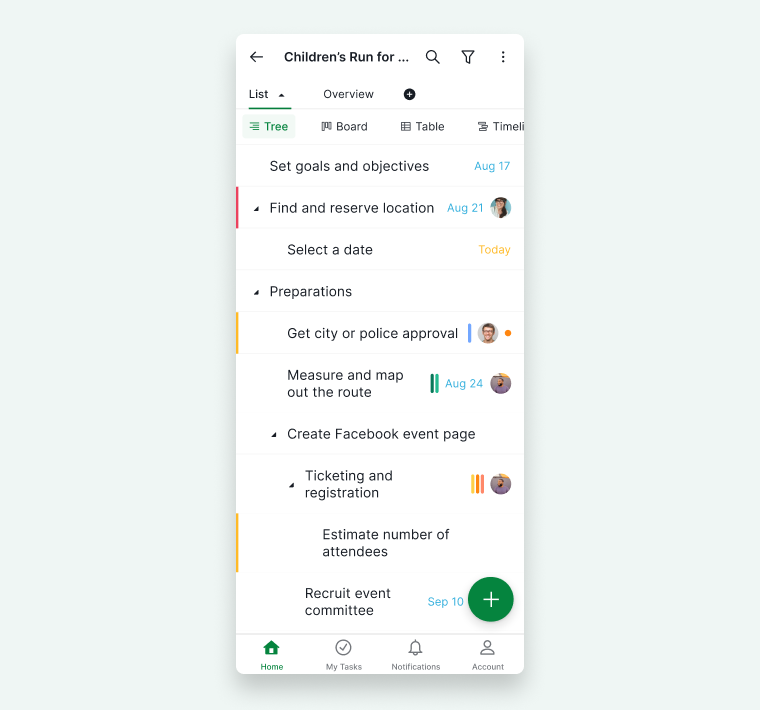
Tree View
Tree view is ideal for breaking down large projects into structured hierarchies.
You can:
- Create parent tasks
- Add subtasks
- Build multi-level task structures
-
Plan complex workflows clearly

Board View
Board view allows you to visually manage tasks in columns (Kanban-style workflow).
- Tap the Board button to switch to Board view.
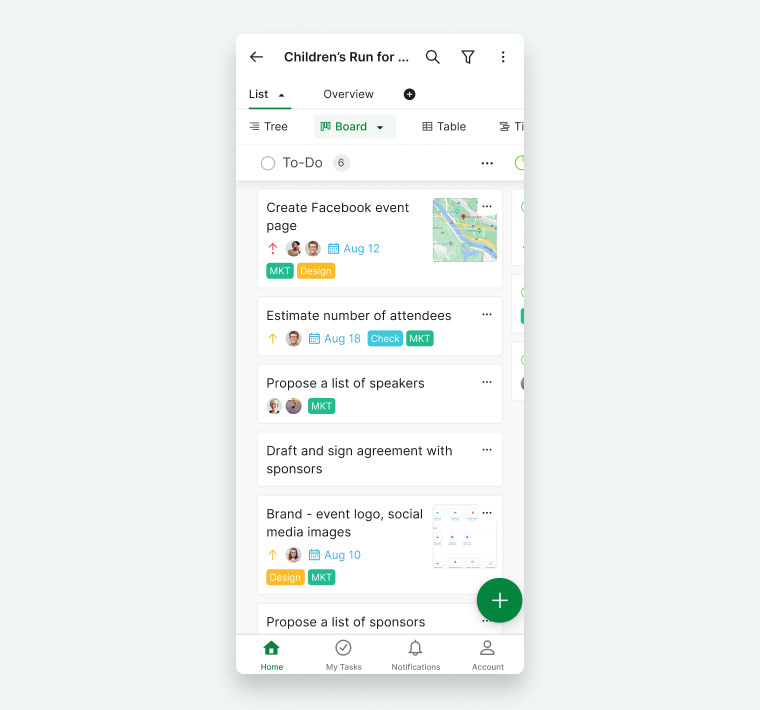
- Drag and drop tasks between columns.
- Tap the Board button again to access additional options:
- Shuffle board columns
- Hide empty columns
- Toggle custom fields
-
Group tasks with parent tasks
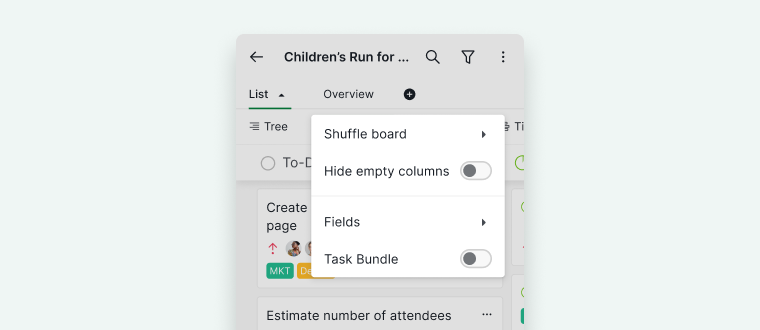


Table View
The Table view is only available in the Professional, Premium, Enterprise plans. In the Free subscription plan, you can create one custom field for each project and one formula in each custom field. Upgrade your subscription plan to add more custom fields and formulas. More information can be found on our pricing page.
Table view organizes tasks in a spreadsheet-style layout.
- Tap the Table button.
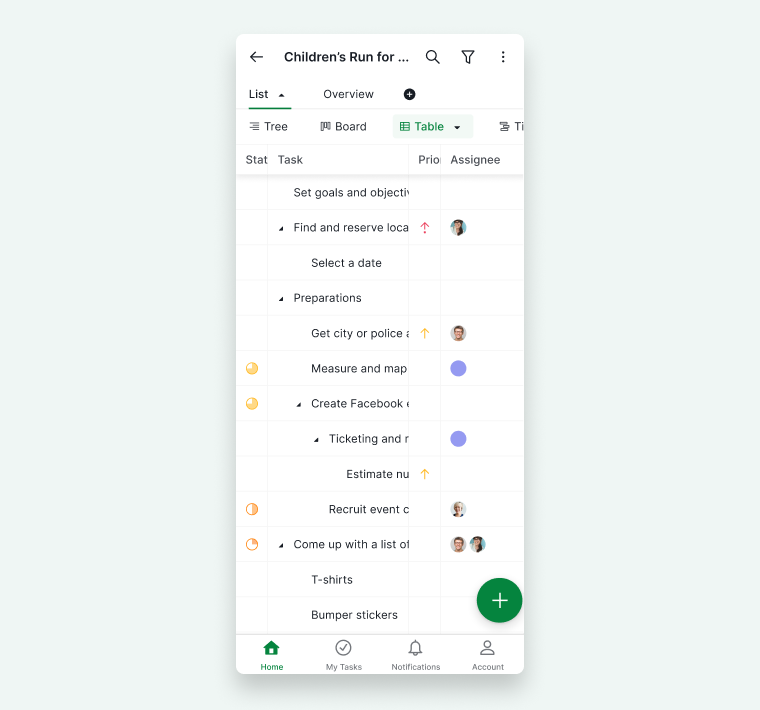
- View tasks in rows and columns.
- Tap the Table button again to:
- Toggle custom fields
- Adjust row height



Timeline View
The Timeline view is only available in the Professional, Premium, Enterprise plans. More information can be found on our pricing page.
Timeline view displays tasks as horizontal bars representing duration.
- Tap the Timeline button to switch.
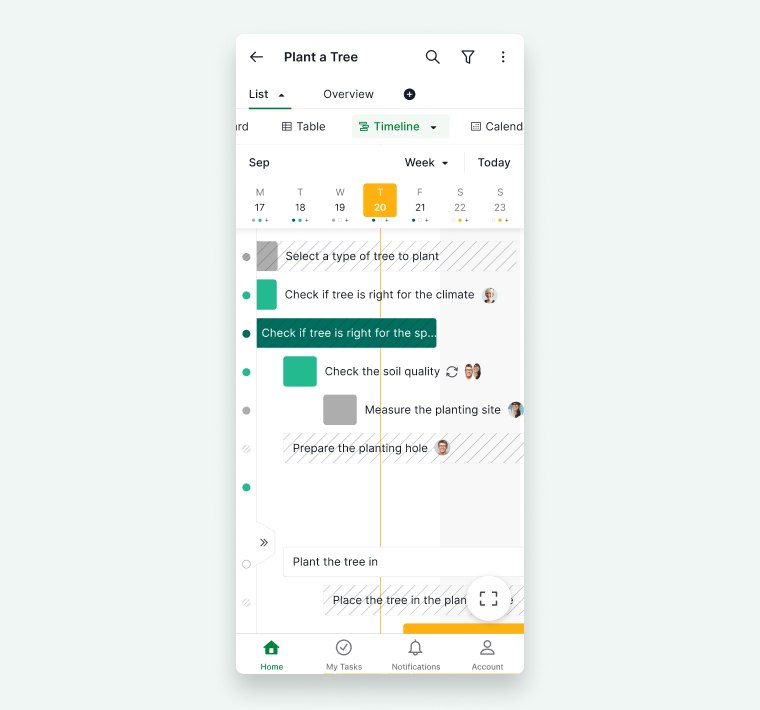
- Tap colored dots to jump to task timeframe.
- Tap the arrow icon to hide the task list.
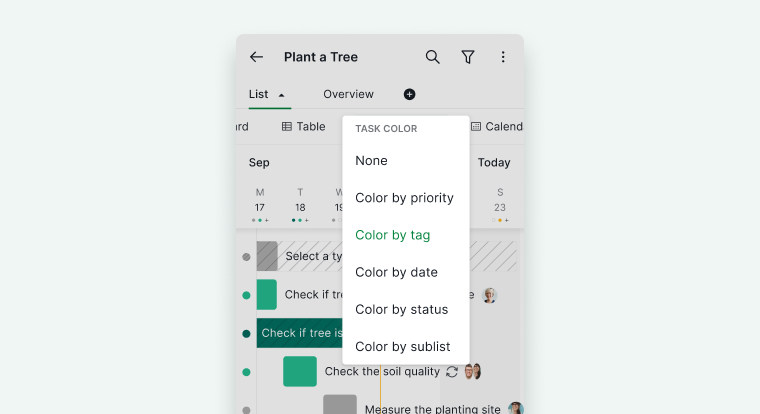
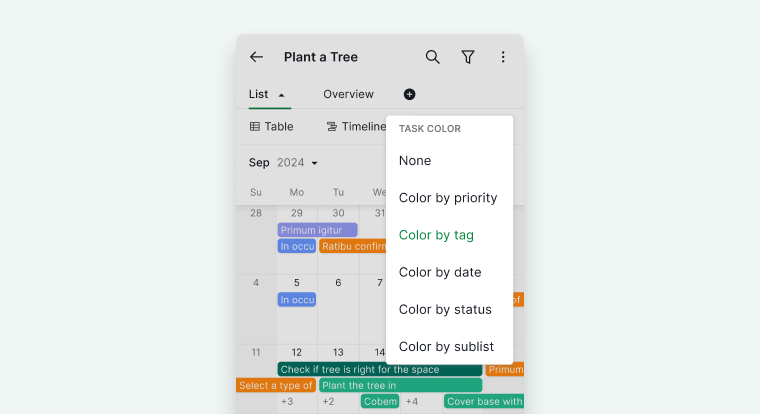
- Tap Timeline again to customize task bar colors by:
- Priority
- Tags
- Dates
- Status
-
Sublists


Calendar View
The Calendar view is only available in the Professional, Premium, Enterprise plans. More information can be found on our pricing page.
Calendar view shows tasks based on due dates and milestones.
- Tap the Calendar button to switch views.
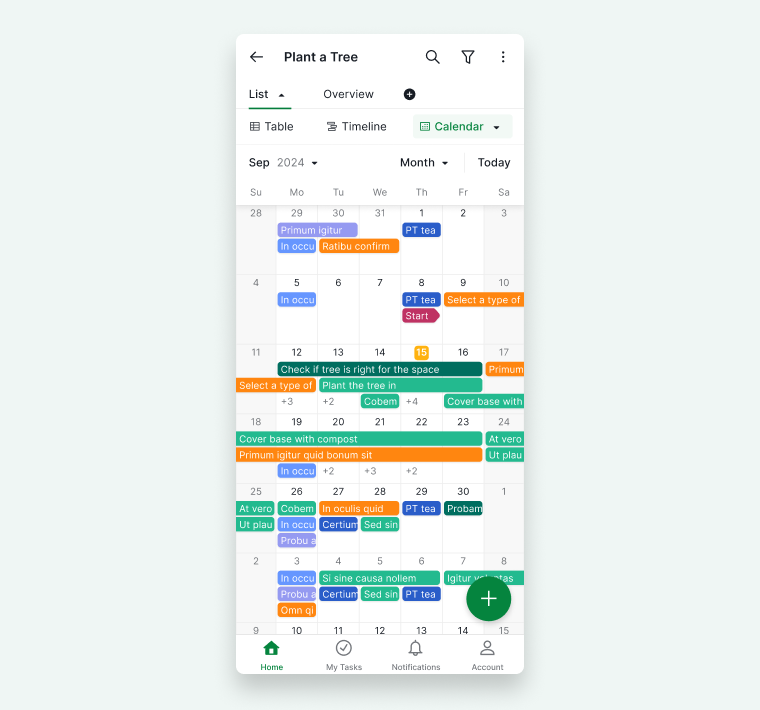
- Tap it again to customize task colors by priority, tags, dates, status, or sublists.


Create Sublists
A sublist creates a focused view within the same project.
- Tap the + icon in the tab bar.
- Enter a sublist name.
-
Choose to share it with project members or keep it personal.


Filter and Customize Task Lists
Default Filter
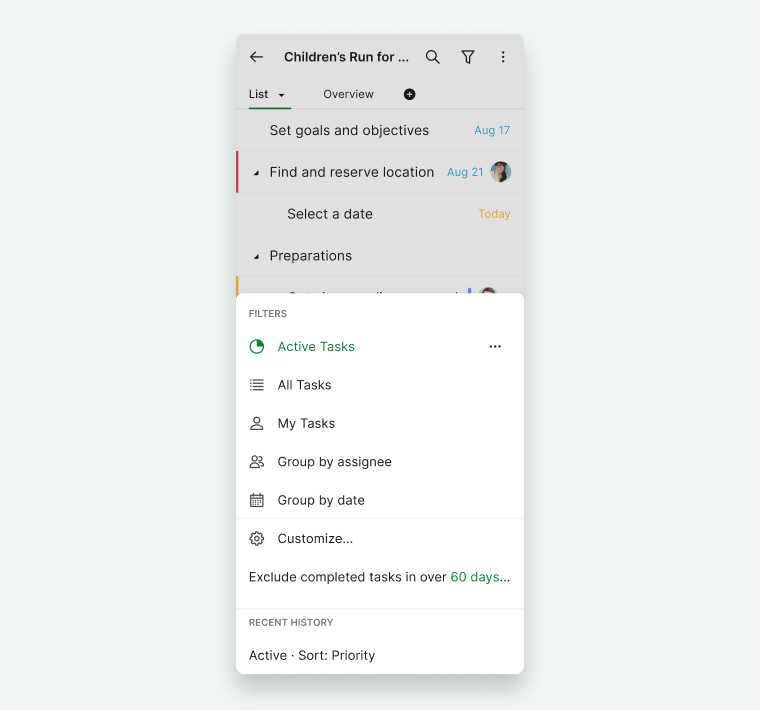
The default filter is Active Tasks.
- Tap the filter icon (top right).

- Choose preset filters like:
- Group by assignee
- Group by date

Custom Filter
- Tap the filter icon.
- Tap Customize.
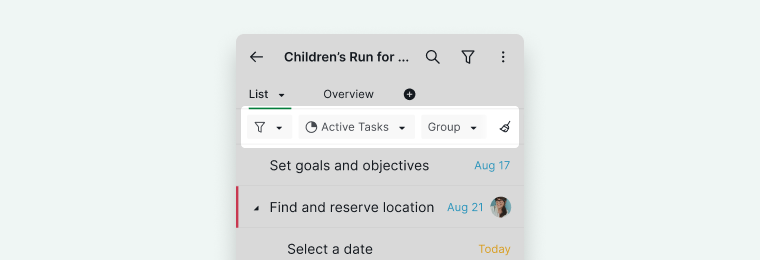
- Use the filter bar to:
- Group
- Sort
- Filter by priority, assignees, status, dates, etc.
- Tap Apply.
- Tap the star icon to save the filter.



Tip: You can group or filter tasks by up to two options.
Manage Project Members
To view or edit project members in your project:
- Open your project.
- Tap on the Overview tab at the top.
- Tap on the Members icon to see the full list.
Alternatively, you can manage members through project settings:
- Tap the More Options icon (top right corner).
- Select Edit project.
- Modify project members or manage external collaborators.
You can also manage external team members to collaborate with users outside your organization.

Tip: You can also share your project with clients who don’t have a Quire account. They can view progress via a shareable link and open it on mobile after installing the app.
Manage Global Tags
View All Tags
To access all tags within a project:
- Tap the More Options icon (top right corner).
- Select Edit project.
- Tap on Project Tags.
This allows you to view and manage all tags associated with the project.
Global Tags
Global tags help you reuse the same tags across multiple projects within your organization.
To make a tag visible across all projects:
- Go to Project Tags (via Edit project).
- Tap the More Options icon next to a tag.
- Select Edit tag.
- Toggle on Visible to all projects.
Once enabled, you won’t need to recreate the same tags in other projects.

Display Mode
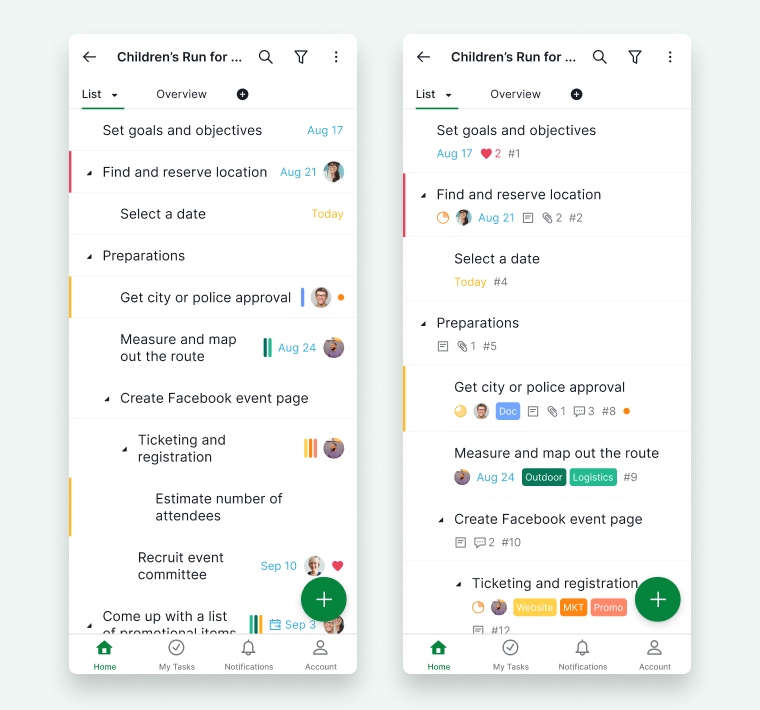
By default, projects are shown in Basic mode, which provides a simplified view. To access more detailed information, you can switch to Advanced mode.
- Go to Account Settings.
- Find the Display Mode option.
- Select Advanced.
Tip: You can quickly toggle between Basic and Advanced mode by shaking your phone.
Frequently Asked Questions
How do I create a task in the Quire mobile app?
Open a project from the Home tab, tap the green + button at the bottom right, enter the task name, and tap to save.
How do I switch project views in the Quire mobile app?
Open a project, tap the view switch button at the top, and select your preferred view. Table, Timeline, and Calendar views require a Professional, Premium, or Enterprise plan.
How do I create a sublist in the Quire mobile app?
Tap the + icon in the tab bar, enter a sublist name, and choose whether to share it with project members or keep it personal.
How do I filter and group tasks in the Quire mobile app?
Tap the filter icon, choose a preset filter, or tap Customize to group, sort, and filter by priority, assignees, status, and dates. Tap the star icon to save a custom filter.
How do I manage project members in the Quire mobile app?
Open your project, tap the Overview tab, then tap the Members icon. Alternatively, tap More Options > Edit project to modify members or manage external collaborators.
How do I make a tag visible across all projects in Quire?
Go to More Options > Edit project > Project Tags, tap the More Options icon next to the tag, select Edit tag, and toggle on Visible to all projects.
How do I switch between Basic and Advanced display mode in the Quire mobile app?
Go to Account Settings and select Advanced under Display Mode. You can also shake your phone to quickly toggle between modes.