
Quire Project Views Permalink
Quire offers six workspace views—Tree, Board, Table, Timeline, Calendar, and Time Tracking—so you can organize, visualize, and track your project in the way that works best for you.
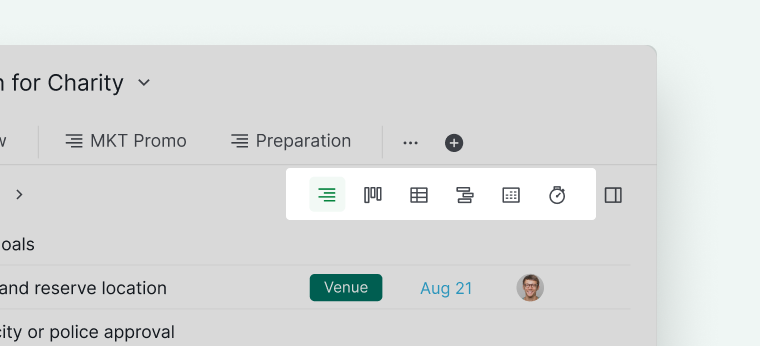
Switch between views anytime by clicking the icons in the upper-right corner of the main panel.
Tree
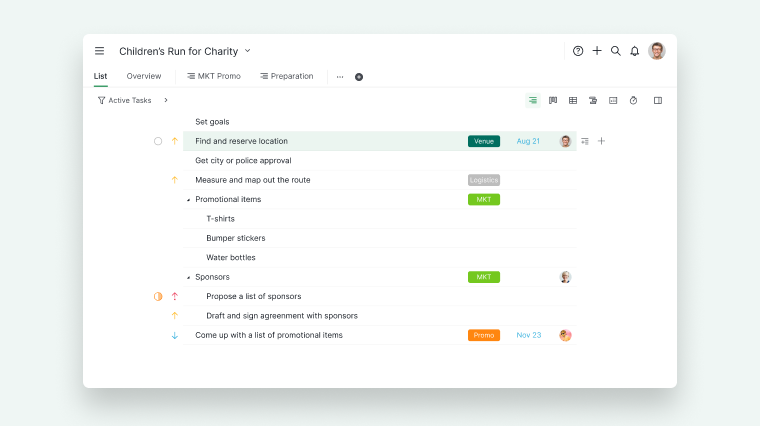
The Tree view is ideal for creating hierarchical task lists and organizing large projects into smaller, actionable tasks.
- Known as the Nested Tree list, it lets you divide projects into tasks and subtasks for better planning.
- Perfect for breaking big goals into bite-sized tasks.
- Supports adding tasks and subtasks.
Learn more about creating tasks and subtasks.
Board
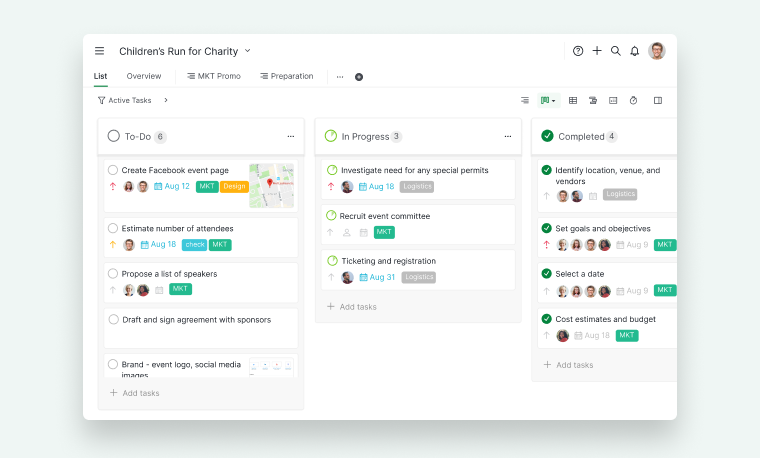
The Board view is for visual project management.
- Move tasks between columns like To-Do → In Progress → Completed.
- Helps teams track workflow and achieve milestones visually.
- Useful when the Tree view alone isn’t enough to manage complex projects.
Tip: Press Ctrl or ⌘ + . to toggle full-screen mode.
Learn more about the Board view.
Table
The Table view is only available in the Professional, Premium, Enterprise plans. In the Free subscription plan, you can create one custom field for each project and one formula in each custom field. Upgrade your subscription plan to add more custom fields and formulas. More information can be found on our pricing page.
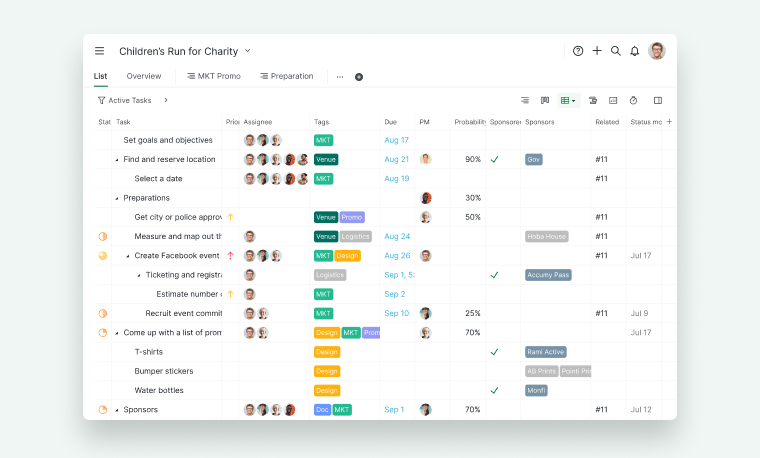
The Table view transforms your task list into a spreadsheet-style database.
- Add custom fields and formulas for task contextualization and calculations.
- Perfect for managing large projects and seeing more task information at a glance.
Learn more about the Table view.
Timeline
The Timeline view is only available in the Professional, Premium, Enterprise plans. More information can be found on our pricing page.
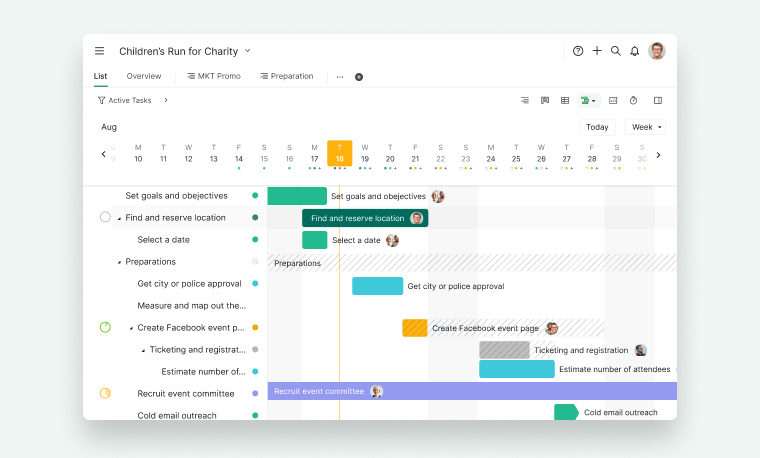
The Timeline view is a horizontal bar chart representing task duration.
- Left side shows the nested Tree list; right side shows the Timeline.
- Helps spot roadblocks and adjust schedules.
- Resize the task list or hide it to view more of the project schedule.
Tip:
- Click the arrow at the bottom to hide the task list for more visibility.
- Press Ctrl or ⌘ + . for full-screen mode.
Learn how to set and reschedule dates in Timeline view.
Calendar
The Calendar view is only available in the Professional, Premium, Enterprise plans. More information can be found on our pricing page.
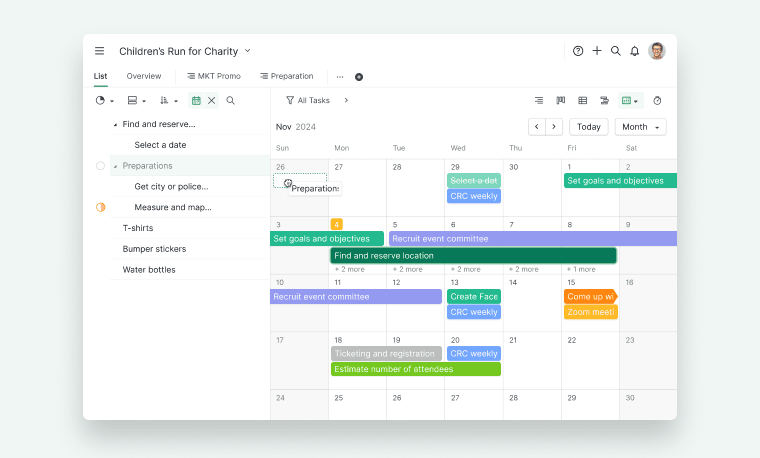
The Calendar view helps you visualize your project’s tasks, deadlines, and milestones on a monthly or weekly calendar.
- Visualize milestones and important dates.
- Plan launches, events, or marketing campaigns with ease.
Learn more about the Calendar view.
Time Tracking
Time Tracking is only available in the Professional, Premium, Enterprise plans. More information can be found on our pricing page.
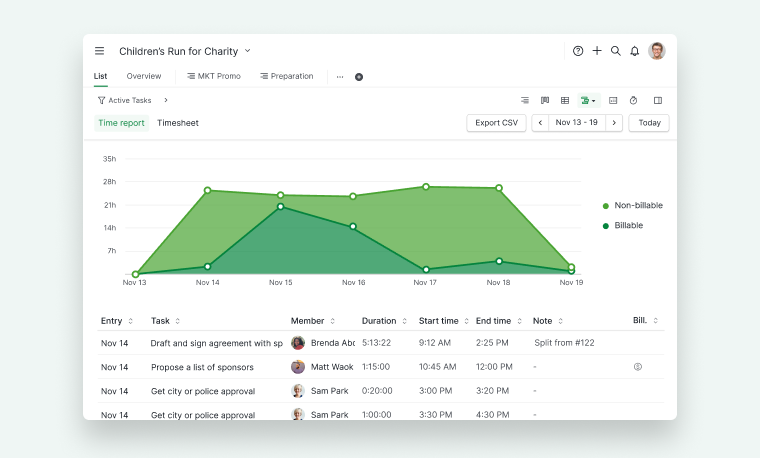
The Time Tracking view allows you to record how much time each task requires, helping teams measure workload and improve planning accuracy.
- Track time with Stopwatch or Pomodoro timers, or enter manually.
- Project managers can generate Time Reports and Timesheets.
- Identify workload distribution and optimize team efficiency.
Learn more about Time Tracking in Quire.