Chat Permissions in Quire Permalink
Quire allows you to control who can access each chat channel within a project. When creating a chat channel, you can choose to share it with all project members, project admins only, selected members, or an external team. This ensures conversations stay relevant, secure, and visible only to the right people.
Share Chat Channels With Project Members
How do I share a chat channel with all project members?
- Create a new chat channel in your project.
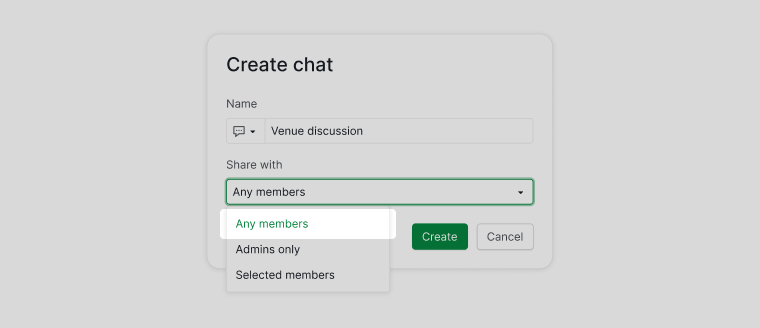
- Under the Share with option, select Any members.
- Save the chat channel.
The chat channel will be visible to all project members, excluding members from external teams.
Restrict Chat Channels to Project Admins
How do I share a chat channel with project admins only?
- Create a new chat channel.
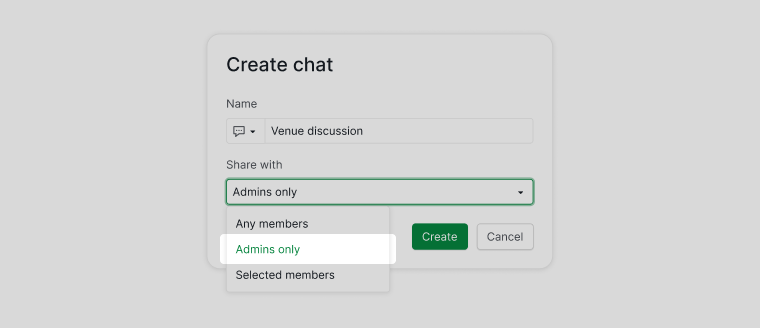
- Under Share with, select Admins only.
- Save the chat channel.
Only project admins will be able to view and participate in this chat channel. Normal project members and external teams will not have access.
Share Chat Channels With Selected Members
How do I share a chat channel with specific members?
- Create a new chat channel.
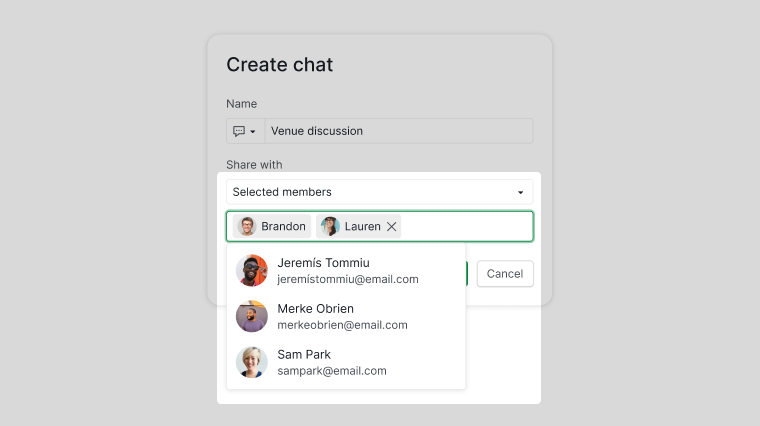
- Under Share with, choose Selected members.
- Select the members you want to grant access to.
- Save the chat channel.
Only the selected members will be able to see and use the chat channel. Other project members will not see it in their chat list.
Share Chat Channels With External Teams
How do I share a chat channel with an external team?
- Create a new chat channel.
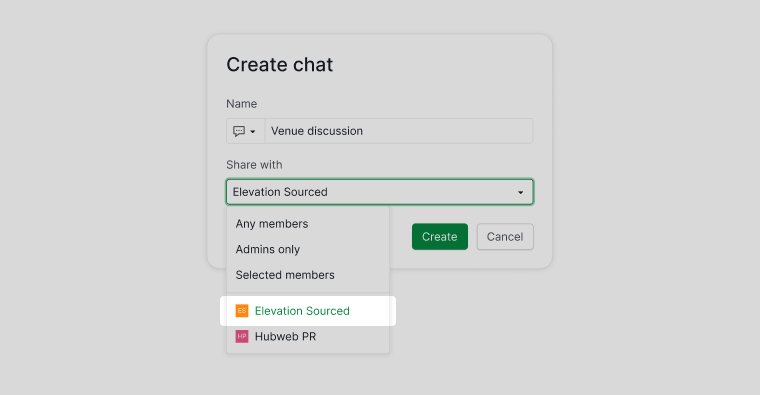
- Under Share with, select one of your available external teams.
- Save the chat channel.
Only members of the selected external team will be able to access the chat channel. All other chat channels in the project will remain hidden from them.