
Embed Formulas Permalink
Embedded formulas turn static descriptions and comments into live, auto-updating reports powered by your task data. You can embed them in organization overviews, project descriptions, task comments, documents, and more.
Embedding formulas is only available in the Professional, Premium, Enterprise plans. More information can be found on our pricing page.
Supported Areas
You can embed formulas in nearly all rich-text areas in Quire, including:
- Organization descriptions
- Project descriptions
- Task descriptions
- Folder and Smart Folder descriptions
- User profile descriptions
- Task comments
- Documents
Embedding formulas allows you to turn static text into live, auto-updating reports powered by task data.
Embed a Formula
- Click into a description, comment, or document editor.
- Type the slash command
/to open the command menu. - Select Formula from the list.
-
Paste or type your formula into the formula dialog.
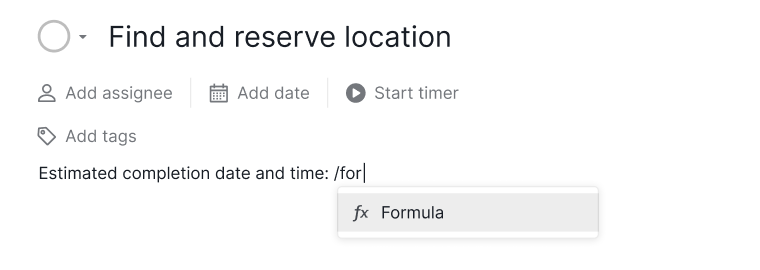

Tip: Typing keywords after / filters the command list. Use arrow keys to navigate quickly.
Embedded Formula Examples for Projects
Total Cost
Use an embedded formula in the project description to show a live total cost:
Current total project cost: [embed the formula here]
Paste the following formula into the formula dialog:
SUM(tasks.Cost)
This formula automatically sums the Cost field across all tasks in the project.
Note: A numeric or currency custom field named Cost must exist in the project
Learn all the functions you can use in the Quire formulas.
Project Health Indicator
You can display a visual health status using a conditional (?:) formula:
Project Health Indicator: [embed the formula here]
Formula example:
count(tasks where any.priority >= high and any.due < <today>) > 20 ? "🔴 Dangerous" : "🟢 Safe"
This formula:
- Counts overdue high priority tasks
- Displays a warning (🔴 Dangerous) if the count exceeds 20
- Updates automatically as task data changes
Average Effort by Tag
You can embed a formula in Table View or descriptions to track effort scores:
AVG((subtasks where 'S1' in any.Sprint).Effort)
This formula:
- Filters subtasks with the Sprint value “S1”
-
Calculates the average of their Effort field
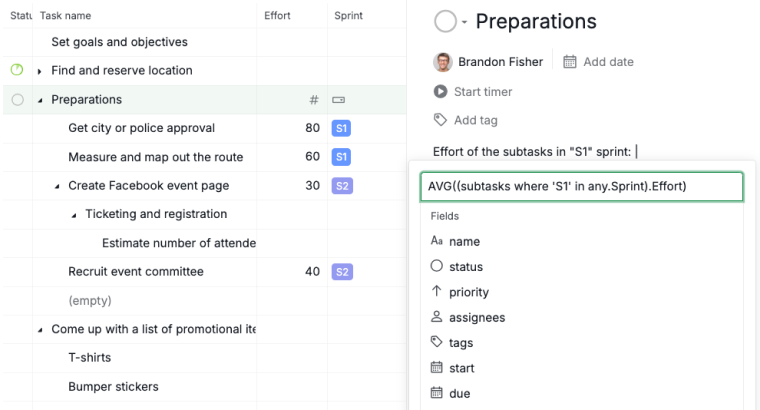

Before using this formula:
Effortmust be a number-type custom fieldSprintmust be a selection-type custom field
Learn all the functions you can use in the Quire formulas.
Embedded Formula Tips
Reference a Specific Task
When working in organization descriptions, folder descriptions, or documents, use the task identifier format:
#{project_id/23}
This returns the task with ID 23 from the specified project.
Note: The referenced task must belong to the same organization or folder. Otherwise, the formula will return a null value.
List Projects
To display all projects within an organization, folder, or user, embed:
projects
The formula automatically updates when projects are added or removed.
Reference a Member or Project
You can reference members and projects directly using identifiers:
- Member:
@username - Project:
#{project_id}
Example: display a member’s email address:
@john.email
Example: calculate total time spent across a project:
SUM(#{project_id}.tasks.timeSpent)
Note:
#{project_id}can only be used in Organization or Folder descriptions. It cannot be used at the task’s or project’s description.- The project id must be wrapped between the curly brackets (for example like this:
#{project_id}) for the project identifier to work correctly. - If the user’s username ID contains
.,-or_, you will need to put it between curly brackets for the identifier to work correctly.
Frequently Asked Questions
Where can I embed formulas in Quire?
Formulas can be embedded in organization descriptions, project descriptions, task descriptions, folder and Smart Folder descriptions, user profile descriptions, task comments, and documents.
How do I embed a formula in a Quire description, comment, or document?
Click into the editor, type / to open the command menu, select Formula, and enter your formula. Requires a Professional, Premium, or Enterprise plan.
How do I display the total cost of all tasks in a Quire project description?
Embed SUM(tasks.Cost) in the project description. A numeric or currency custom field named “Cost” must exist in the project first.
How do I create a project health indicator using an embedded formula in Quire?
Use a conditional formula like count(tasks where any.priority >= high and any.due < <today>) > 20 ? "🔴 Dangerous" : "🟢 Safe" in the project description. It updates live as task data changes.
How do I reference a specific task from another project in an embedded Quire formula?
Use #{project_id/task_id} — for example, #{charity_run/23} returns task #23 from that project. The task must belong to the same organization or folder.
Can I reference a specific member or project in an embedded Quire formula?
Yes. Use @username for a member and #{project_id} for a project. Note that #{project_id} only works in Organization or Folder descriptions, not in task or project descriptions.