Insight Permissions in Quire Permalink
Insight permissions let you control who can view an Insight tab in a project. You can share Insights with all project members, restrict them to admins, grant access to selected members or external teams, or keep an Insight completely private.
Share Insights with Project Members
How do I share an Insight with all project members?
When creating an Insight:
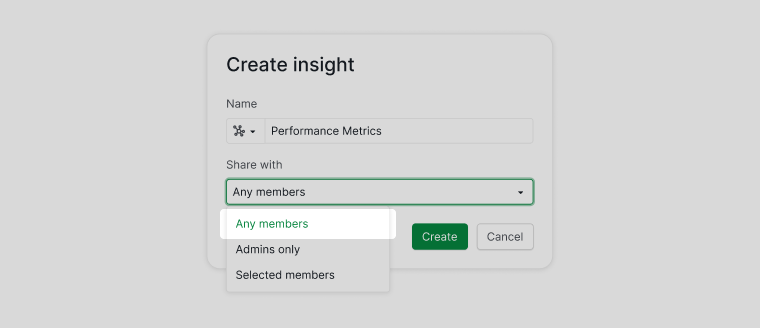
- Under Share with, select Any members.
- Complete the Insight setup.
The Insight will be visible to all project members, excluding external teams.
Share Insights with Project Admins
How do I share an Insight with project admins only?
When creating an Insight:
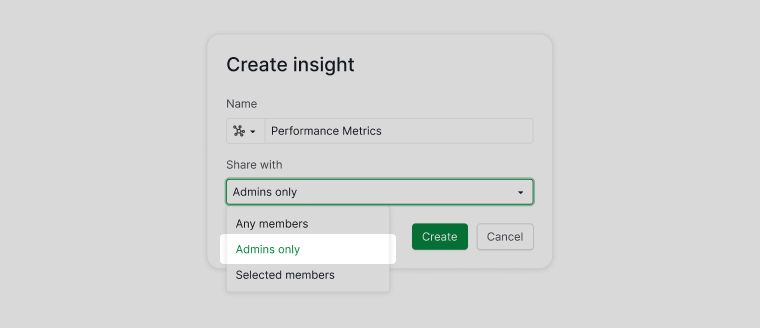
- Under Share with, select Admins only.
- Save the Insight.
Only project admins will be able to view this Insight.
Share Insights with Selected Members
How do I share an Insight with specific members?
When creating an Insight:
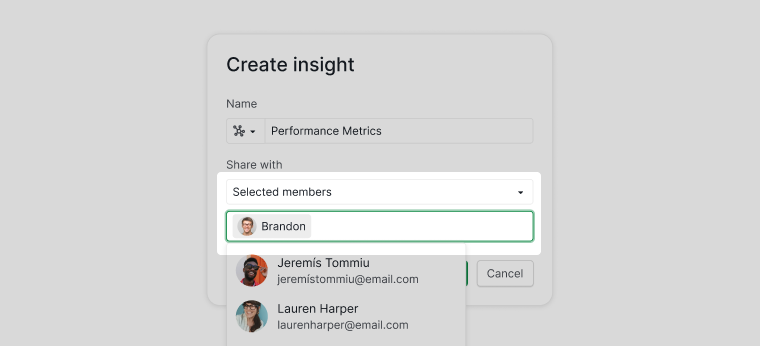
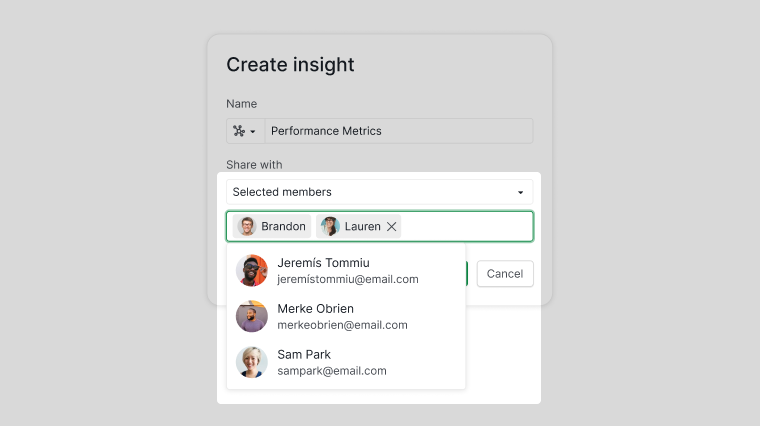
- Under Share with, select Selected members.
- Choose one or more members from the list.
- Save the Insight.
Only the selected members will have access to the Insight.
Share Insights with External Teams
How do I share an Insight with an external team?
When creating an Insight:
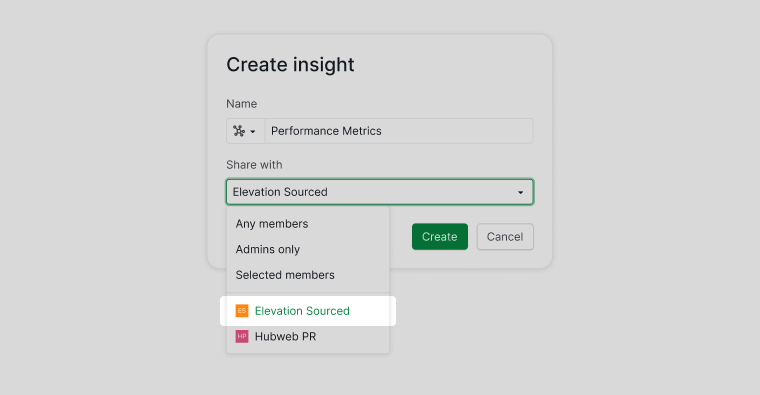
- Under Share with, select one of the available external teams.
- Save the Insight.
Only members of the selected external team can view the Insight. Other project members will not see it.
Create a Private Insight
How do I make an Insight private?
To create an Insight that only you can see:
- Under Share with, select Selected members.
- Do not select any members.
- Save the Insight.
The Insight will remain private to you, even if the Insight link is shared. Other project members will not be able to view or edit it.