
My Tasks Permalink
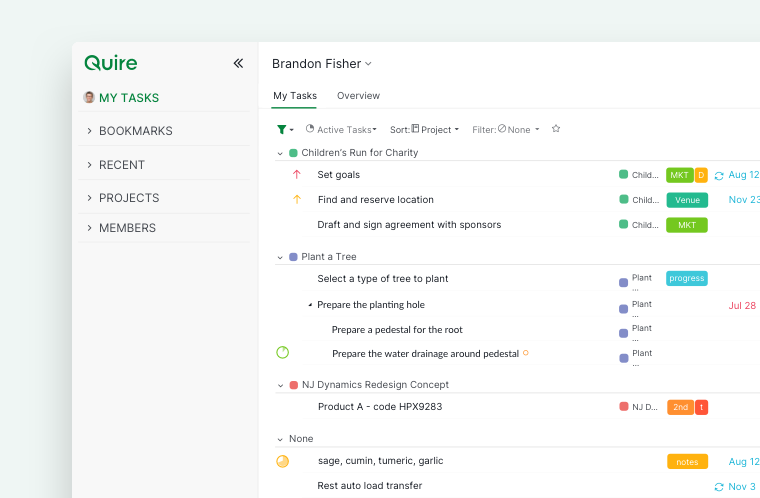
My Tasks is a default view in Quire that brings together every task assigned to you, your own tasks, and personal tasks across all projects and organizations into one centralized list, so you don’t need to switch between projects to stay on top of your work.
Tip: You can reorder sections in the sidebar (including My Tasks) by dragging and dropping them into your preferred order.
In addition to the default Tree view, My Tasks supports Board, Table, Timeline, Calendar, and Time Tracking views. Switch between them using the view selector to manage your tasks in the layout that suits your workflow.
My Tasks is part of your sidebar setup. See Setting Up Your Workspace for the other sidebar sections worth organizing early.
Tasks Included in My Tasks
Tasks shown in My Tasks can belong to a project or exist as personal tasks that are not tied to any project.
By default, My Tasks is sorted by date. You can change the sorting order using Quire’s sorting options, either:
- By date first, then by project, or
- By project first, then by date
My Tasks includes:
- Tasks created by you that are not assigned to others and have a start or due date
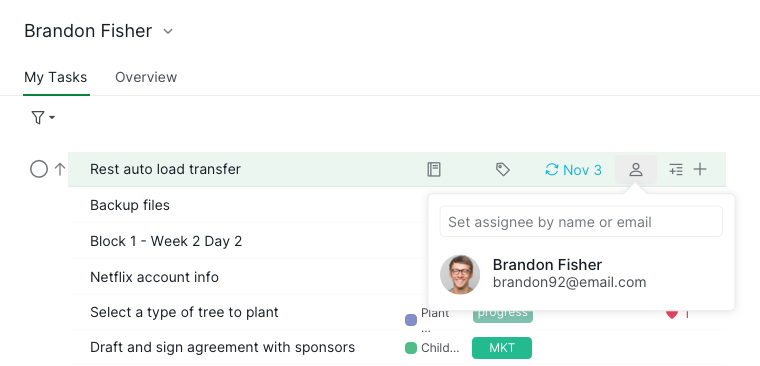
- Tasks assigned to you by others
-
Personal tasks

Personal Tasks in My Tasks
Personal tasks are tasks that belong only to your My Tasks and are not part of any project.
- They do not belong to a project
- All subtasks under a personal task are also private
- They cannot be assigned to other users
- External teams cannot be created for personal tasks
- Tags created for personal tasks are visible only in My Tasks
-
If a project is archived or deleted, its tasks are removed from My Tasks automatically

Work with My Tasks
You can switch between views in My Tasks using the view selector:
Actions
- Press = to open or close My Tasks
- Press M to quickly add a task to My Tasks
- Completed tasks older than 30 days are automatically hidden
-
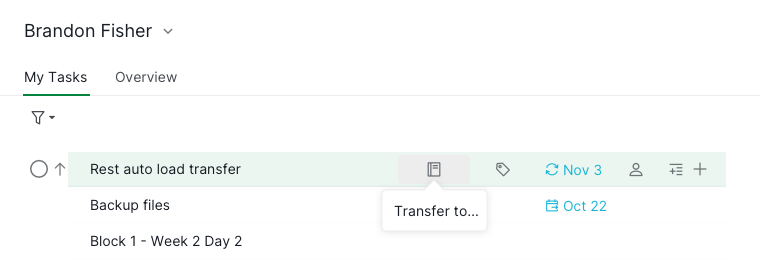
Move a personal task into a project by clicking the project icon on the task, or by cutting and pasting it into a project

Permissions and Visibility
- You can view another member’s My Tasks only for tasks that belong to projects you have access to
- Personal tasks are always private and visible only to the owner
- You cannot reorder another member’s My Tasks list
Add Content to My Tasks
Creating a Sublist
Creating sublists in My Tasks is only available in Professional, Premium, Enterprise plan. More information can be found at our pricing page.
Sublists help you organize tasks that span multiple projects within My Tasks.
- Click the + icon at the top bar under your name.
- Select Add sublist.
- Enter a name and choose an icon.
- Set access permissions (members, admins, selected members, external team, or private).
Tip: Press L to create a sublist instantly without using your mouse.

Creating a Dashboard
Creating dashboards in My Tasks is only available in Professional, Premium, Enterprise plan. More information can be found at our pricing page.
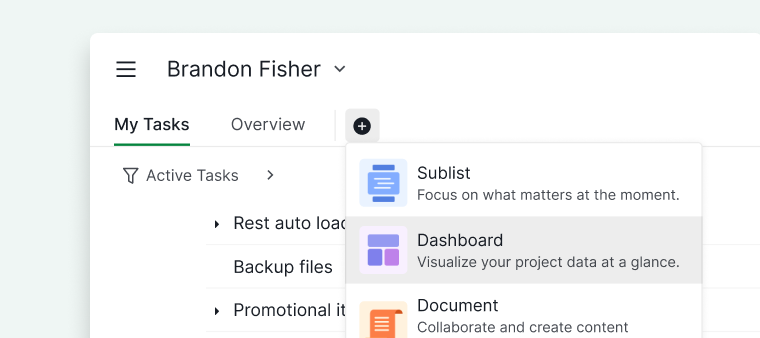
Dashboards let you add a widget-based visual overview directly to My Tasks.
- Click the + icon at the top bar under your name.
- Select Add dashboard.
- Enter a dashboard name and choose an icon.
-
Set access permissions.

Creating a Document
Documents let you add notes or personal planning directly to My Tasks.
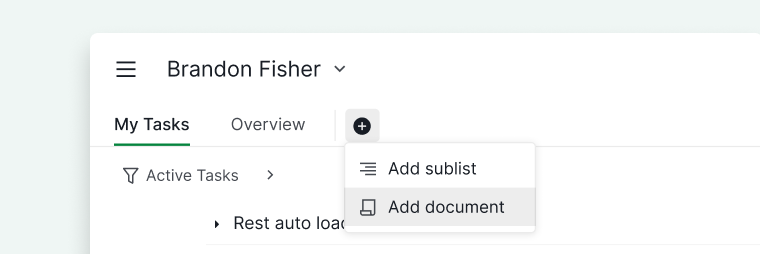
- Click the + icon at the top bar under your name.
- Select Add document.
- Name the document and choose an icon.
-
Set access permissions.

Creating an Insight
Creating insights in My Tasks is only available in Professional, Premium, Enterprise plan. More information can be found at our pricing page.
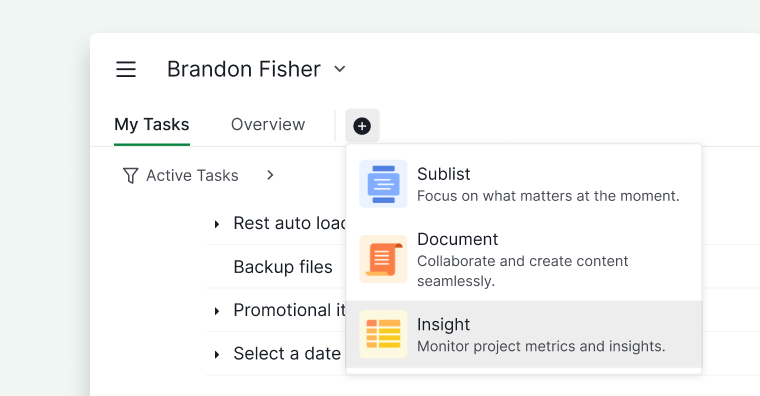
Insights let you add personal tracking and data analysis directly to My Tasks.
- Click the + icon at the top bar under your name.
- Select Add insight.
- Enter an insight name and choose an icon.
-
Set access permissions.

Read more on our blog about what you can do with My Tasks.
Frequently Asked Questions
What tasks appear in My Tasks in Quire?
My Tasks includes tasks created by you without an assignee (with a start or due date), tasks assigned to you by others, and personal tasks not tied to any project.
What are personal tasks in Quire?
Personal tasks exist only in My Tasks and are not part of any project. They’re private to you — subtasks, tags, and access are all limited to your My Tasks.
Who can see my My Tasks list in Quire?
Other members can only see tasks that belong to projects they have access to. Personal tasks are always private, and other members cannot reorder your list.
How do I quickly add a task to My Tasks in Quire?
Press M to instantly add a task. Press = to open or close the My Tasks panel.
How do I move a personal task from My Tasks into a project?
Click the project icon on the task, or cut and paste it into a project. Once moved, it becomes part of that project.
What views are available in My Tasks in Quire?
My Tasks supports Tree, Board, Table, Timeline, Calendar, and Time Tracking views. Switch between them using the view selector in the upper corner of the panel.
How do I create a sublist in My Tasks in Quire?
Click the + icon at the top bar under your name, select Add sublist, enter a name and icon, and set access permissions. Press L to create one instantly. Requires a Professional, Premium, or Enterprise plan.
How do I create a dashboard in My Tasks in Quire?
Click the + icon at the top bar under your name, select Add dashboard, name it, choose an icon, and set access permissions. Requires a Professional, Premium, or Enterprise plan.
How do I create a document in My Tasks in Quire?
Click the + icon at the top bar under your name, select Add document, name it, choose an icon, and set access permissions. Available on all plans.
How do I create an insight in My Tasks in Quire?
Click the + icon at the top bar under your name, select Add insight, name it, choose an icon, and set access permissions. Requires a Professional, Premium, or Enterprise plan.
Are old completed tasks kept in My Tasks forever?
No. Completed tasks older than 30 days are automatically hidden. Tasks from archived or deleted projects are also removed automatically.
How do I see all tasks assigned to me in Quire?
Open My Tasks in the sidebar. It aggregates tasks assigned to you, tasks you created for yourself, and personal tasks across every project and organization, so you don’t need to check each project separately.