
Share a Project Permalink
Sharing a project in Quire allows you to give clients or external users view-only access without requiring them to sign up.
You can share:
- An entire project, or
- A specific sublist within a project
Shared links can be customized with a preferred view, an expiry date, and an optional description—making them ideal for client reviews, progress updates, or external reporting.
Share an Entire Project
Sharing a project with non-signed-up users is only available in the Professional, Premium, Enterprise plans. More information can be found on our pricing page.
- Click the dropdown menu icon next to your project name.
- Select More → Share.
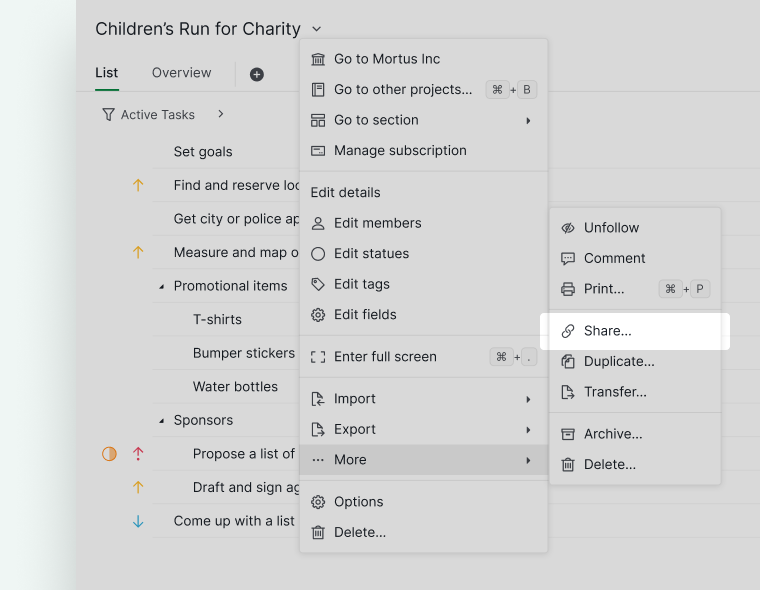
- In the dialog:
- Choose the default project view (Tree, Board, Table, Timeline, etc.).
- Set an expiry date for the link.
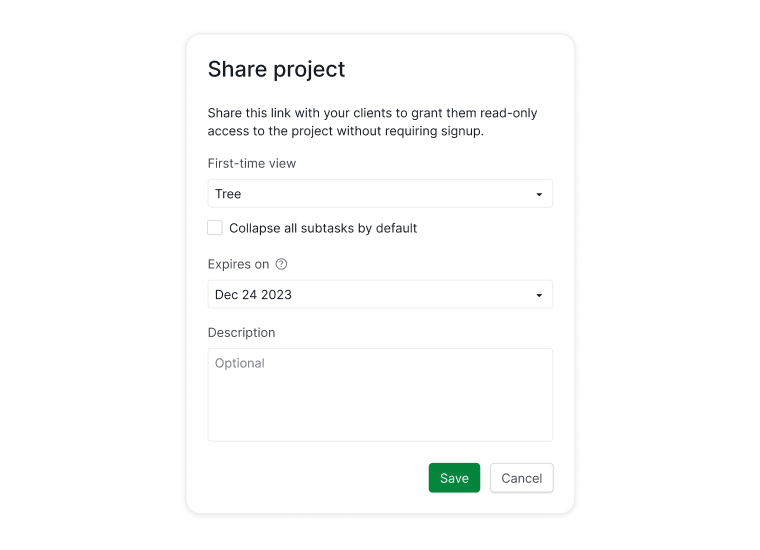
- (Optional) Add a description explaining the link’s purpose.
- Copy the generated link and send it to your recipients.
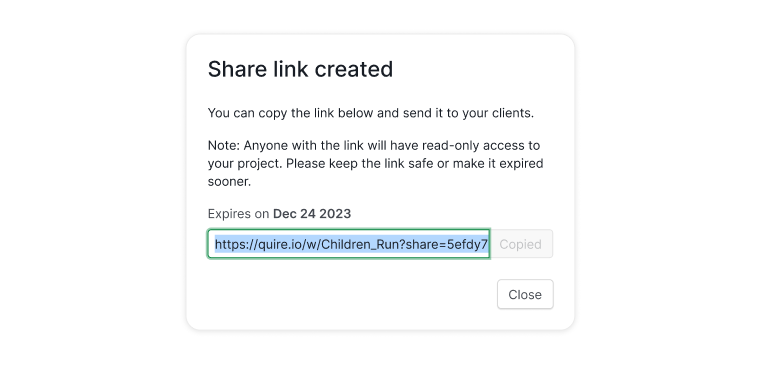


Note: Anyone with the link can view your project.
Share a Specific Sublist
Sharing a sublist with non-signed-up users is only available in the Premium and Enterprise plans. More information can be found on our pricing page.
- Click the dropdown menu icon next to your project name.
- Select More → Share.
- In the Share dropdown:
- Choose a specific sublist to share.
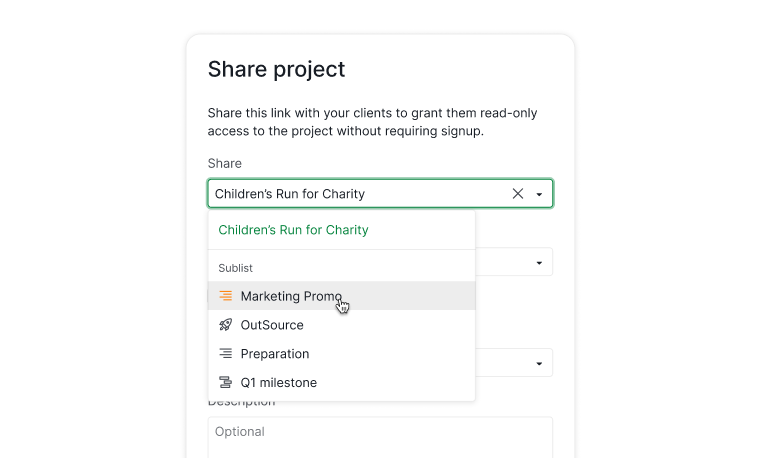
- Select the default view for recipients.
- Set an expiry date.
- (Optional) Add a description.
- Choose a specific sublist to share.
- Copy and send the generated link.

Note: Anyone with the link can view the shared sublist.
Manage Shared Links
View and Edit Shared Links
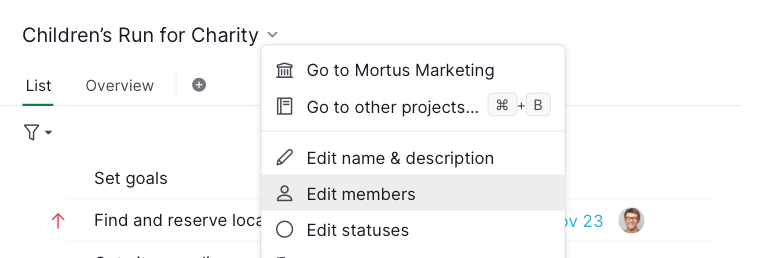
- Click the dropdown menu icon next to your project name.
- Select Edit members.
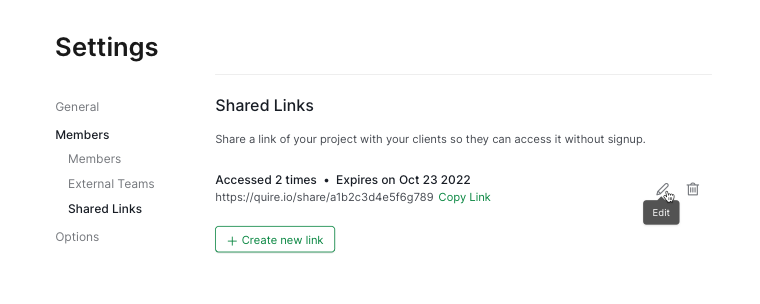
- Scroll down to the Shared Links section.
- Edit an existing link to:
- Change the expiry date
- Update the description
- Disable access when no longer needed


Read more on our blog about sharing projects with clients without them signing up.
Open Shared Links on Mobile
After receiving a shared link, recipients can open it on mobile to view project progress and tasks.
- Paste the shared link into a mobile browser (Chrome, Safari, etc.).
- You’ll be prompted to download the Quire mobile app.
- After installation, paste the link again.
- Tap Open to view the project in the app.
Note:
- Shared-link users have view-only access in the mobile app.
- They cannot comment or edit tasks.
- To collaborate, they must sign up or log in to Quire.
Frequently Asked Questions
How do I create a shareable link for a Quire project?
Click the dropdown menu icon next to the project name, select More > Share, choose a default view, set an expiry date, and copy the link. Anyone with the link can view the project without signing up. Requires a Professional, Premium, or Enterprise plan.
Can I share a specific sublist instead of the whole project in Quire?
Yes, on Premium and Enterprise plans. Go to project dropdown > More > Share, select a specific sublist from the Share dropdown, set a view and expiry date, and copy the link.
How do I disable or update the expiry date of a Quire shared link?
Click the dropdown menu icon next to the project name, select Edit members, and scroll to the Shared Links section. From there you can change the expiry date, update the description, or disable the link.
Can people with a shared Quire project link edit tasks or leave comments?
No. Shared-link users have view-only access. To collaborate, they must sign up or log in to Quire.
How do shared Quire project links work on mobile devices?
Paste the link into a mobile browser, download the Quire app when prompted, then paste the link again and tap Open. Shared-link users have view-only access and cannot comment or edit tasks.