
Navigate around the Timeline Permalink
This guide shows you multiple ways to navigate quickly and efficiently in Quire’s Timeline view.
Jump to Dates
Today
Click the Today button in the upper-right corner of the Timeline view.
Specific Date
- Dates with dots below in the calendar header indicate tasks assigned to that date.
- Click on the date to jump directly to the corresponding tasks.
Reschedule Multiple Tasks
- Hold Shift to select multiple tasks.
- Drag their timespan bars to adjust dates simultaneously.
Task List Panel
- Click the arrow at the lower-left corner to toggle the task list.
- Resize the task list by hovering over the separating line between the list and the Timeline view.
Pan and Scroll
- Scroll the calendar header left or right to navigate dates.
- Grab the blank space in the Timeline view to pan up, down, left, or right.
Keyboard shortcuts:
- Scroll horizontally: Ctrl + Shift + → or ←
- Switch between Day, Week, Month or Year views: Ctrl + Shift + ↑ or ↓
Zoom and Date Scales
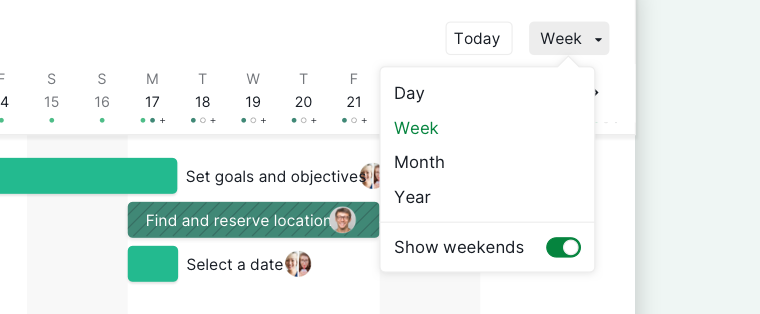
- Switch between Day, Week, Month, Year view to zoom in/out.
-
Choose to show or hide weekends.

Sort and Group
Use Filter to sort or group tasks by status, assignees, or priority.

Advanced Mode
Toggle on Advanced mode to see status, priority, assignees, tags, and subtask counts.

Frequently Asked Questions
How do I jump to today in Quire Timeline View?
Click the Today button in the upper-right corner.
How do I jump to tasks on a specific date in Quire Timeline View?
Dates with dots below them in the calendar header indicate tasks assigned to that date. Click the date to scroll directly to those tasks.
How do I pan and scroll around Quire Timeline View?
Scroll the calendar header left or right, or grab any blank space in the timeline panel and drag to pan. Use Ctrl+Shift+→/← to scroll horizontally with keyboard shortcuts.
How do I zoom in or out in Quire Timeline View?
Switch between Day, Week, Month, and Year scales using the date scale buttons, or use Ctrl+Shift+↑/↓. You can also show or hide weekends.
How do I show or hide the task list panel in Quire Timeline View?
Click the arrow at the lower-left corner to toggle the task list. Drag the dividing line between the panels to resize them.
How do I reschedule multiple tasks at once in Quire Timeline View?
Hold Shift to select multiple tasks, then drag their timespan bars to adjust all selected tasks’ dates simultaneously.
How do I see task details like status and assignees in Quire Timeline View?
Toggle on Advanced mode to display status, priority, assignees, tags, and subtask counts directly on the timeline bars.